Scheduling Software for Construction Crews

Scheduling Software for Construction Crews
Copy-pasting schedules into group texts can cost small trades teams two hours per day in rework. Scheduling software for construction crews is software that centralizes day-based job assignments, prevents double-booking, and pushes start-time SMS so foremen and crew receive clear, no-login instructions. On our website we compare crew scheduling tools to help small-to-midsize coatings, HVAC, and specialty-trade operators decide which scheduling software best fits their workflow. CrewSheet shows how a drag-and-drop day board, PTO-aware pool, and pre-formed SMS templates replace fragile spreadsheets and ad-hoc texts while keeping field workers off a login roll. See the feature breakdown at CrewSheet features and our no-login crew scheduling solution to understand the trade-offs.
What core principles should guide scheduling software for construction crews?
The core principles are a day-based board, single-use assignments, visible PTO, no-login one-way communications, and message-template safety. These rules prevent double-booking, reduce message errors, and keep the operator in control without requiring every field worker to install an app. CrewSheet implements these principles so schedulers can build a board and notify crew quickly while avoiding common spreadsheet-and-text pitfalls.
Day board vs. calendar grid 🗂️
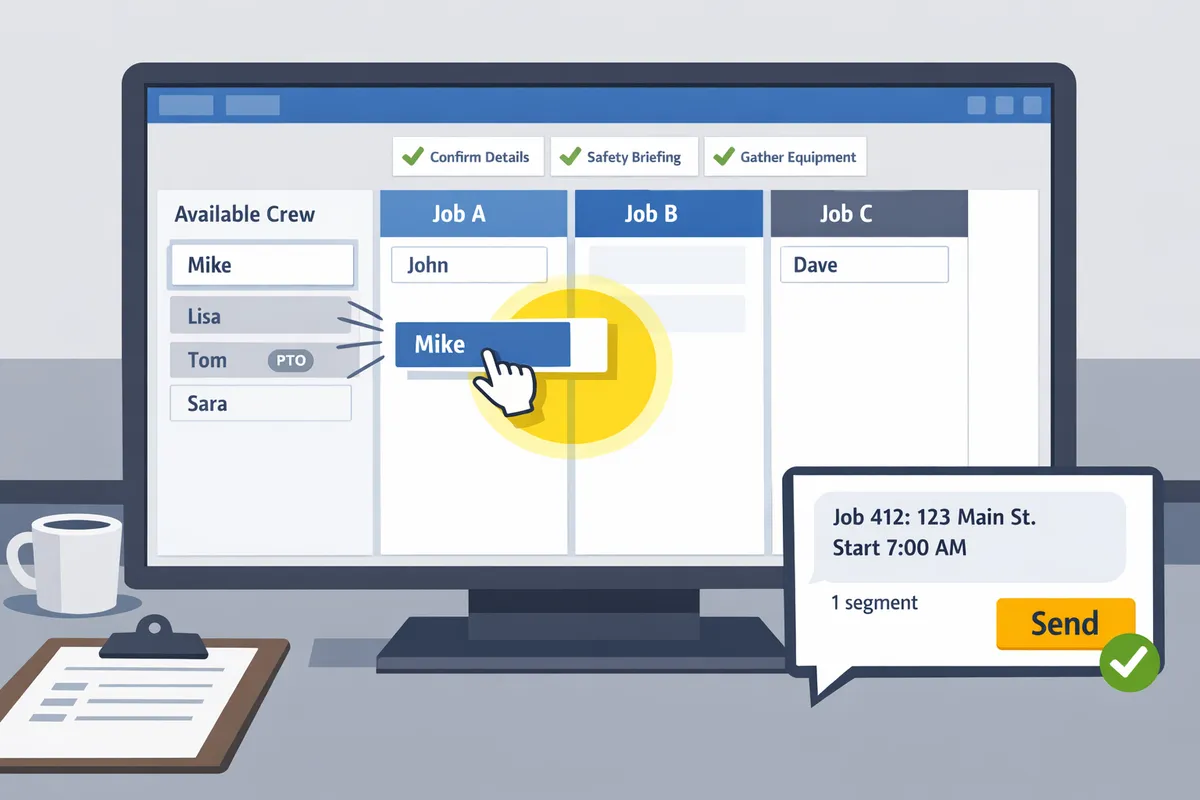
A Day board is a schedule view that shows jobs side-by-side for a single date and treats start time as the primary attribute rather than filling hourly slots. A Day board is a UI pattern that mirrors how small trades crews plan full-day jobs, making drag-and-drop assignment faster than an hourly grid. For example, a coatings crew that has three job sites on Monday needs to assign a foreman and two helpers per site and only cares about start times, not 15-minute slots; a Day board shows those three jobs as columns and lets the operator move people between columns in seconds. CrewSheet uses a Day board as the default view so operators can copy a previous day, drag from the available pool, and immediately see conflicts. For more context on why the day-board approach fits trades, see our guide on Crew Scheduling Software for Construction Trades and the feature overview on Built for the field.
Single-use rule and overstaffing ⚖️
The single-use rule is a policy that prevents assigning a crew member to more than one job on the same day to eliminate double-booking. Enforcing single-use avoids the common error where a worker gets two texts and chooses one, which causes missed starts and emergency overtime. At the same time, showing an ideal crew size but allowing overstaffing preserves flexibility when a job needs extra hands; rigid hard-limits cause operators to skirt the system. In practice, CrewSheet blocks same-day double-assignments automatically while displaying the ideal crew count as guidance. A simple scheduler workflow looks like this: 1) build the board for the date, 2) drag resources from the pool until the job shows the ideal crew, and 3) add extra crew where real-world needs demand it. This balance saves time and keeps foremen trusting the tool rather than bypassing it.
PTO-aware scheduling and visibility 🟦
PTO-aware scheduling is a feature that shows unavailable crew in the available pool so schedulers do not accidentally book people on their days off. Showing PTO as grayed and labeled in the pool prevents the common spreadsheet failure where PTO lives elsewhere and a worker gets scheduled anyway. For example, when a foreman marks two days of PTO, CrewSheet displays that foreman unavailable for those dates on the day board so the operator cannot drag them onto a job. Best practice: maintain a single source of truth for PTO (manual entry or a synced calendar) and check the pool before hitting send. If you plan ERP or HR synchronization, our Plays nice with your stack page explains integration options and the current CSV bridge pattern.
No-login, one-way communications 📱
A no-login crew scheduling app is a system that sends outbound SMS or email so field workers never create accounts or install an app. Removing the login requirement removes friction for crews who do not want another account and reduces morning admin time spent convincing people to sign in. CrewSheet follows a one-way, push-based model: the scheduler sends job details by SMS/email and the field crew receive instructions without needing to respond in-app. Delivery status is tracked for operational reliability, but the product intentionally does not promise inbox-style confirmations.
💡 Tip: Always use double opt-in for SMS signups.
For operators who want the no-login workflow explained in depth, read our post on No-Login Crew Scheduling Solution for Construction Field.
Templates and message safety ✉️
Message templates are stored, job-type-specific text blocks that include live character/segment counters to prevent copy-paste mistakes and truncated SMS deliveries. Using templates reduces errors like wrong addresses, outdated start times, or inconsistent job numbers; a schedule send should contain only the job number, address, start time, and any brief prep notes. CrewSheet stores templates per job type and shows a live SMS counter so the operator sees if a message will split into multiple carrier segments. A simple template checklist: 1) include job number and exact address, 2) include one clear start time format (e.g., 07:00), 3) preview with the counter and adjust language to fit a single segment when possible, 4) review templates quarterly for stale location or vendor language.
⚠️ Warning: Avoid including sensitive personal or health information in SMS messages.
Which proven strategies reduce scheduling errors and save time?
Standardize a repeatable day-board routine, import clean job and crew data, use A2P-compliant SMS templates, and enforce single-use assignments to cut manual steps and mistakes. Operators who follow these patterns spend less time drafting messages and avoid common errors like scheduling someone on PTO or sending broken texts.
A 4-step daily workflow to hit send in under a minute 🚀
A strict four-step routine cuts mistakes and speeds the morning send. Follow these steps each day: 1) import or confirm the day’s jobs and crew, 2) build the day board with drag-and-drop assignments, 3) pick a pre-approved message template, and 4) send schedule SMS to assigned crew. This sequence reduces context switching because each action has a single purpose: data, assignment, message, send.
Example workflow using CrewSheet:
- Import or refresh the job list from CSV or your ERP export. 2. Drag names from the pool onto job cards; PTO appears grayed out so you avoid accidental scheduling. 3. Open the Send panel and choose the "Morning Schedule" template. 4. Hit send and record the audit entry.
Operators who skip steps typically spend extra time checking multiple systems and correcting mis-sends. See our crew scheduling for construction trades guide for broader setup patterns: https://crewsheet.io/blog/crew-scheduling-software-for-construction-trades
CSV import and data hygiene 🗃️
CSV import with consistent column names and phone validation prevents manual re-entry errors. Require a header row with stable column names (job_number, address, start_time, ideal_crew_size, phone) so imports map automatically. CrewSheet’s CSV import detects common headers and lets you confirm mappings before committing, which avoids mis-assigned jobs and malformed contact data.
Practical checklist for clean imports:
- Normalize phone numbers to E.164 (example: +12223334444) before import.
- Include a single unique job identifier (job_number).
- Use a default_start_time column or set a default during import so every job has a start time.
💡 Tip: Keep a standard import template file in your accounting folder. Reusing the same export format prevents day-to-day mapping errors and saves 5–15 minutes per import.
For integration guidance and future ERP connections, see Plays nice with your stack
SMS templates, A2P/10DLC compliance, and opt-in basics 📩
Use fixed SMS templates, A2P/10DLC-compliant sending, and documented opt-in to avoid carrier rejections and broken messages. CrewSheet stores reusable templates with a live SMS character and segment counter so operators see if a message will split into multiple carrier segments. Templates remove the temptation to edit copy mid-send, which is the main source of malformed messages.
Practical rules for templates and compliance:
- Require documented opt-in during onboarding and keep an internal distribution list that mirrors crew contact info.
- Use placeholders for job_number, address, start_time, and foreman_name so templates remain consistent.
- Route SMS through an A2P/10DLC-compliant sender to reduce carrier filtering and campaign rejections; CrewSheet handles carrier registration for you.
⚠️ Warning: Sending to numbers without recorded opt-in increases the chance of carrier blocks and fines. Maintain opt-in records alongside your distribution list.
Read our piece on no-login SMS scheduling for field crews to see why single-way texting works for construction: https://crewsheet.io/blog/no-login-crew-scheduling-solution-for-construction-field
Preventing double-booking and conflicts 🔒
Enforce single-use assignments and show visual conflict warnings so operators catch clashes before sending. CrewSheet implements the single-use rule in the UI: dragging an already-assigned crew member shows the conflicting job and prevents the assignment unless you explicitly override. That immediate feedback stops duplicate bookings and the downstream scramble of reassignments.
Operational details to enforce in your process:
- Keep PTO visible on the day board; grayed-out entries should be non-draggable.
- Surface per-day start-time overrides on the job card so temporary changes do not get lost.
- Allow controlled overrides (with an on-screen confirmation) when you intentionally double-assign for short notices, but log the override for audits.
Showing conflicts in the board reduces late-day corrections and keeps foremen from arriving at the wrong site.
Measuring impact: time saved and error reduction 📊
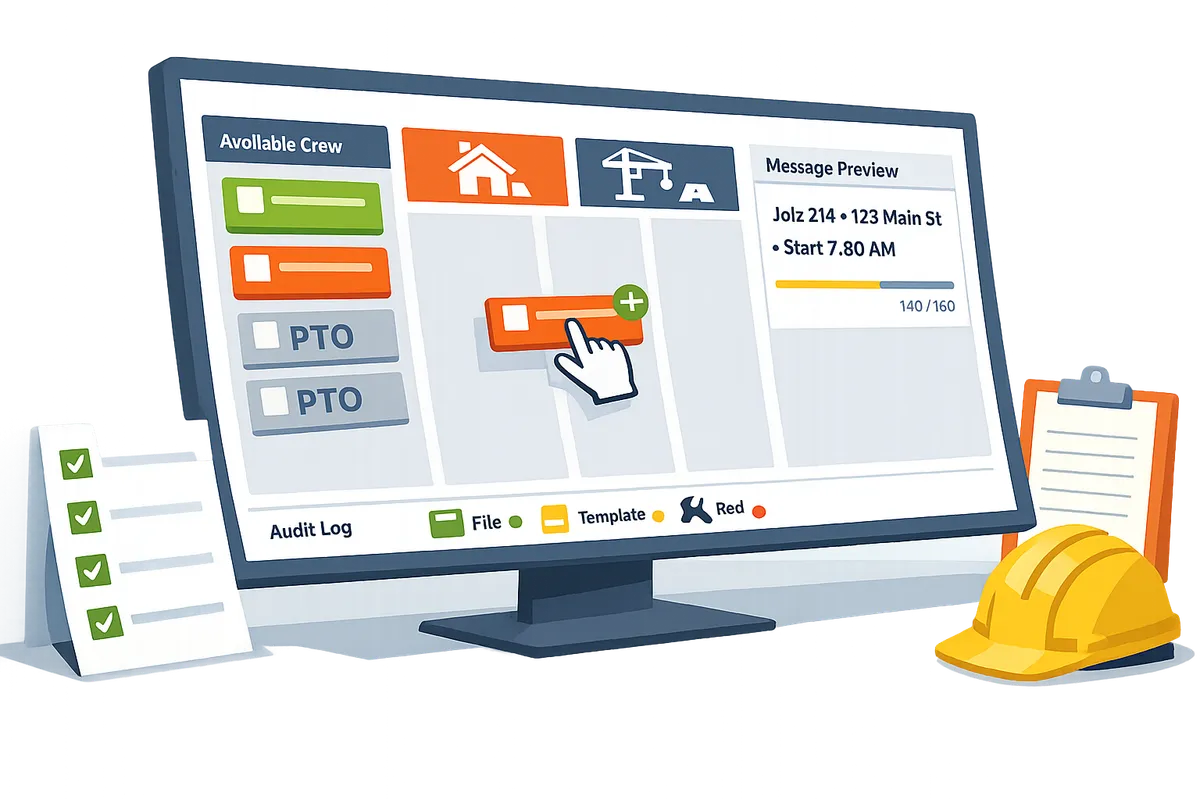
Track scheduler minutes per day and scheduling corrections per week to quantify ROI. Start by collecting a one-week baseline: time each scheduler spends building and sending the board, plus every post-send correction (missed starts, wrong numbers, duplicate assignments). Use CrewSheet’s audit log to count failed sends and incorrect assignments as defects.
A practical measurement plan:
- Baseline week: record minutes and corrections.
- Roll out the four-step workflow and use templates for two weeks.
- Re-measure minutes and defects and compare to baseline.
Use the audit log to attribute faults to cause (data import, template error, manual override) so you can prioritize fixes. For feature references and metrics tools, see Built for the field
How should operators evaluate and implement scheduling software for construction crews?
Operators should evaluate tools by flexibility, communication model, import options, integrations, and total cost of ownership, then implement with a staged checklist that protects data and minimizes downtime. Clear comparisons and a pilot-driven rollout let you test message templates, PTO handling, and CSV imports before the whole crew relies on the system.
Comparison table: feature checklist and trade-offs 🧾
A concise feature table highlights trade-offs between spreadsheets + SMS, CrewSheet, and enterprise platforms so operators can match tool choice to crew size and process maturity.
| Option | Day-board support | Drag-and-drop | No-login sending | CSV import | PTO visibility | ERP integrations | Pricing model | Time-to-value |
|---|---|---|---|---|---|---|---|---|
| Spreadsheets + SMS | Partial (custom day views) | None (manual edits) | Yes (texts from phones) | Native | Manual or absent | None | Low upfront; hidden labor and SMS | Immediate, error-prone |
| CrewSheet | Yes | Yes | Yes (push SMS, no field logins) | Yes (smart column auto-detect) | Visible and grayed-out in pool | CSV today; ERP plans documented | Flat monthly with unlimited SMS | Hours to one day for basic use |
| Enterprise platforms (Assignar-style) | Varies (often hour-grid) | Varies; often rigid | No (field logins required) | Limited or engineered | Usually available with setup | Deep ERP integrations | Per-user or enterprise license | Weeks to months for full rollout |
Choose spreadsheets if you need zero-cost flexibility for ad hoc work and can tolerate reconciliation time. Choose an enterprise platform when you need deep ERP links and role enforcement. Choose CrewSheet when you need a fast day-board, drag-and-drop scheduling, PTO-aware assignments, and push SMS without forcing field-worker logins. See our broader comparison in Crew Scheduling Software for Construction Trades.
Implementation checklist and timeline 🛠️
A staged implementation checklist reduces downtime and preserves data quality.
- Export canonical CSVs. Export jobs and crew from payroll or your ERP with job number, address, start_time, ideal_crew_size, crew_name, phone, and email. Clean duplicate job numbers before import.
- Normalize phone numbers. Convert phones to international format (e.g., +12223334444) and remove punctuation so SMS segments calculate correctly in CrewSheet templates.
- Map and import. Use CrewSheet CSV import to auto-detect name, phone, and role columns. Import jobs first, then crew, then a small sample day to validate mapping.
- Import PTO. Bring PTO as a separate CSV or manual entry so CrewSheet shows unavailable crew grayed-out on the pool.
- Create templates. Build the 2–3 SMS templates you use daily and verify character/segment counts in CrewSheet before sending.
- Dry-run to a pilot group. Send schedule notifications to a small pilot (3–8 crew) and confirm delivery status and clarity. Fix templates and phone-format issues.
- Pilot week and measure. Run a one-week pilot. Measure scheduler time before and after, count message exceptions, and log any scheduling conflicts.
- Scale and train. Roll out to the full crew, train supervisors on the filtered "who's on my job tomorrow" view, and keep a rollback plan (CSV backups) for the first two weeks.
Typical timeline: a single-scheduler shop can be live in 1–3 days for basic sending. Complex shops planning ERP integrations should budget 2–4 weeks. CrewSheet's CSV import, PTO-aware pool, and message templates speed the core loop of build → assign → notify.
💡 Tip: Always use double opt-in for SMS signups and validate phone formats during the CSV cleanup to avoid delivery penalties and reduce rework.
Pricing, TCO, and trial evaluation 💵
Compare flat monthly plans, per-user fees, and per-message SMS costs to calculate a three-year total cost of ownership.
- Build a simple three-year TCO spreadsheet. Include subscription fees, SMS overage, implementation hours (scheduler and admin time), and an estimated reduction in daily scheduler hours. Multiply scheduler-hours saved by the scheduler's loaded hourly rate to estimate annual savings.
- Example scenario. If a scheduler charges $40/hour and saves 1.5 hours/day across 250 working days, that equals about $15,000 in annual labor savings. Use that figure to compare against license and SMS costs.
- Pricing model impact. Flat company plans with unlimited SMS simplify budgeting and remove per-message surprises. CrewSheet publishes a flat monthly plan that bundles unlimited users and SMS, which shortens the break-even calculation for small trades operators.
- Trial evaluation checklist. During a trial, verify real message delivery, import accuracy, PTO handling, and how long it takes to build and send a daily board. Track scheduler time on day 0 and day 7 to validate time-to-value.
For more on how CrewSheet fits a small trades workflow, see Built for the field.
Migration risks and DIY trade-offs ⚠️
DIY spreadsheet workflows cut license fees but create hidden costs in hours, errors, and compliance risk.
- Time cost. Manual copy-paste and group texts consume scheduler hours daily. Those hours compound into lost bids, delayed starts, and missed billable work.
- Error risk. Email and SMS templates stored in sheets break easily. When templates get edited ad hoc, crews receive inconsistent instructions or get scheduled on PTO.
- Data fragmentation. Scattered spreadsheets increase reconciliation work for payroll and reporting and make audits slow.
⚠️ Warning: Failing to import PTO and validate contacts is the most common operational risk. That single mistake causes missed starts, overtime, and morale issues.
CrewSheet reduces these risks by enforcing single-use assignments, showing PTO in the available pool, and providing template guards for outbound messages. The remaining trade-off is moving from a free-but-fragile process to a paid tool that centralizes schedules and communications.
Integration roadmap and future-proofing 🔗
Prioritize tools that accept CSV today and document a clear path to ERP integrations, SSO, and data ownership.
- Confirm CSV mapping and export formats. Make sure the vendor accepts your ERP's CSV structure or can map columns easily. CrewSheet's CSV import auto-detects common columns and gives you a preview before committing.
- Verify SSO options for office staff. Confirm Google and Microsoft SSO so office users sign in with existing corporate accounts and reduce admin overhead.
- Ask about ERP roadmap. If you plan to connect Foundations or Acumatica later, get a vendor commitment or timeline and agree on expected data fields and sync frequency.
- Data ownership and privacy. Require written documentation that you retain ownership of job and crew data and review the vendor's privacy policy. See CrewSheet privacy policy for how data is handled: https://crewsheet.io/privacy-policy.
- Export and backup. Ensure daily exports or backups are available so you can restore the schedule and message history if needed.
For integration details and supported connectors, review Plays nice with your stack.
Frequently Asked Questions
This FAQ answers common buyer questions about choosing and using crew scheduling tools for trades. Each answer gives clear, actionable steps you can use during vendor demos and a pilot. Where relevant, examples show how CrewSheet handles the workflow so you can compare alternatives quickly.
How do I text my crew their schedule every morning? 📱
Use a one-way SMS sender tied to your day-board: build the board, pick a template, and send job details to the assigned crew. CrewSheet designers built the workflow so operators drag names onto jobs, choose a pre-formed template, and send SMS without requiring field-worker logins.
- Build the day-board for the date.
- Select or edit a simple template that includes job location and start time only.
- Run a phone-format validation, send a sample to yourself, then hit send to the assigned crew.
CrewSheet shows an SMS character/segment counter and stores the audit of every send so you can confirm deliveries and troubleshoot problems without asking crew to reply.
💡 Tip: Always use double opt-in for SMS signups so phone numbers are accurate and carriers approve your campaign.
What is the best way to stop double-booking crew members? ⚠️
Enforce single-use rules in the scheduling UI and surface PTO in the same day view so unavailable crew appear grayed-out. Visual conflict warnings and single-use enforcement prevent the most common human errors that cause missed starts and costly rework.
- Import PTO into the day view so the pool reflects real availability.
- Turn on single-use enforcement; the UI should block or flag any second assignment for the same date.
- Scan for grayed-out names or conflict banners before sending notifications.
CrewSheet enforces single-use by design and shows PTO in the available pool, reducing the chance that an operator accidentally texts someone scheduled on leave.
⚠️ Warning: Maintaining PTO in a separate spreadsheet increases the risk of scheduling someone on leave. Keep PTO inside the same scheduler or import it daily.
Is there a cheaper alternative to Assignar for a small trades company? 💸
Yes. Spreadsheets plus SMS are the lowest-cost option, but mid-market tools like CrewSheet add structure and error protection without enterprise complexity or forcing every worker to have a login. Spreadsheets save money up front but create fragile message templates and manual re-entry that scale poorly.
When evaluating alternatives, use a feature checklist that compares: day-board editing, single-use enforcement, PTO visibility, no-login SMS, and import/export capability. For a practical primer on why a no-login model matters, read our article on the no-login approach to crew scheduling.
Can I schedule crews without making every worker create a login? 🙅
Yes. A no-login crew scheduling app sends schedules by SMS or email so field workers receive instructions without accounts or apps. That model removes friction for crews, lowers onboarding time, and avoids forgotten passwords or unused apps.
CrewSheet uses push-based SMS and email as the primary delivery channels. The system intentionally keeps communications one-way; delivery status is logged, but the UI does not depend on crew confirmations. If your operation relies on confirmations, plan for a separate check-in process rather than expecting replies to the schedule message.
For more on when a no-login workflow fits your team, see our deep dive on no-login crew scheduling.
How do I import jobs and crew from a spreadsheet? 📥
Export jobs and crew as CSVs, standardize column names (for example: job_number, address, start_time, ideal_crew_size, phone), then run a staged CSV import and validate a sample before full import. Validating a small sample prevents mass errors from mismapped columns.
Step-by-step:
- Export job and crew CSVs from your accounting system.
- Normalize column headers and formats (use +12223334444 for phone numbers).
- Import a 5–10 row sample and fix mapping issues.
- Run the full import and spot-check 10% of rows after the import.
CrewSheet’s CSV import auto-detects common fields and lets you map mismatched columns during the sample import. Review our integrations guide to see recommended formats for common ERPs and accounting systems.
What should I measure to prove scheduling software ROI? 📊
Measure scheduler minutes per day, scheduling corrections per week, and the number of crew-on-incorrect-job incidents to quantify time savings and error reduction. These metrics tie directly to payroll savings, reduced rework, and improved job starts—numbers finance teams understand.
How to run the measurement:
- Baseline one week: record average scheduler time spent building the board and sending messages, count corrections, and log misassigned starts.
- Pilot four weeks with the new tool and record the same metrics.
- Monetize savings: multiply scheduler hours saved by the scheduler hourly rate and add avoided rework estimates (for example, average rework cost per missed start).
CrewSheet’s audit logs capture send failures and message timestamps so you can include delivery issues in your ROI calculation. Use the baseline-to-pilot comparison to present clear dollar-and-time savings during vendor selection.
Related reading: our Crew Scheduling Software for Construction Trades guide compares common options, and the Built for the field page explains field-focused features in detail.
Next steps to pick the right crew scheduling tool
Choose scheduling software for construction crews by testing a real day’s board.
Compare how each tool handles the day-board workflow, PTO visibility, and one-way SMS delivery. A spreadsheet-plus-group-text setup costs hours each morning and increases missed starts and double-bookings. For small-to-midsize trades, the right fit is the option that saves admin time and prevents avoidable mistakes. See our Crew Scheduling Software for Construction Trades guide for a side-by-side view.
Book a consultation with Crew Sheet to run a 15- to 30-minute walkthrough using your actual jobs and crew. During the session we will build a sample board, try drag-and-drop crew scheduling, and send sample SMS templates so you can see the workflow on real phones. That short test makes it clear which tool reduces morning admin and stops costly scheduling errors.
💡 Tip: Start the consultation with your busiest day and include PTO entries so the trial reveals real conflicts and fixes.