Construction Dispatch Software

Construction Dispatch Software
A single mis-sent start time or a double-booked crew can cost a small trades operator hours and missed billable work each week. Construction dispatch software is crew scheduling and communication software that assigns crews on a day board and sends job details by SMS so field workers receive start time and location without creating logins. This beginner's guide compares solutions and helps you choose a dispatch tool for small construction trades that schedules crews and sends job info by text. Our CrewSheet offers a drag-and-drop day board and one-way SMS sends that let an operator build a day's schedule and text every worker in about 30 seconds. If that feels like a lot, we start from zero and build clear decision criteria. We'll compare common options and show when CrewSheet is the lower-risk, faster path to reliable dispatch. Explore CrewSheet features or read about crew scheduling for trades on our blog post about crew scheduling software for construction trades.
What Are the Fundamentals of Construction Dispatch Software?
Construction dispatch software schedules crews by day and sends one-way job notices by SMS or email. It prevents same-day double-booking, centralizes start times, and cuts the back-and-forth manual texting that stalls small trades operators. Below are the core concepts you need to evaluate and compare tools.
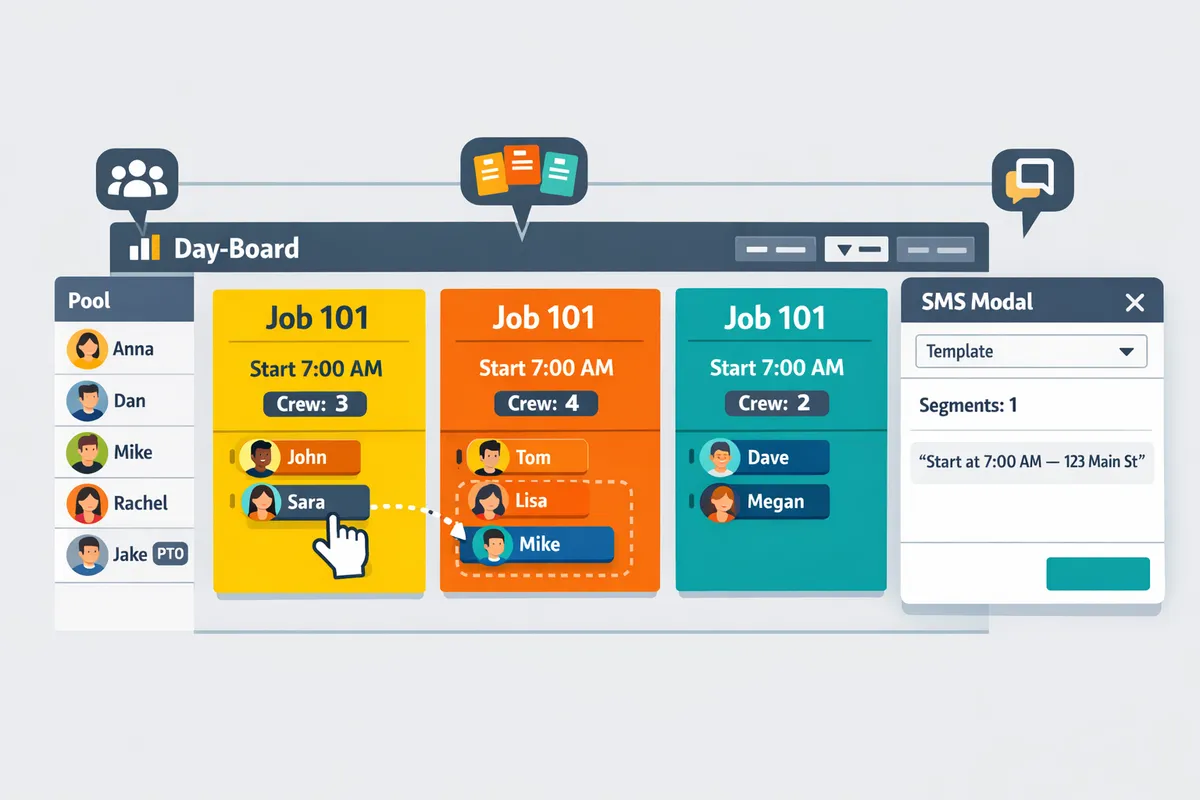
What Is day board scheduling and why does trades scheduling use it? 🗓️
Day board scheduling is a board-style view that shows jobs as side-by-side cards focused on start times rather than minute-by-minute slots. Trades schedule full-day assignments where the start time matters more than 15-minute blocks, so a board reduces visual noise and speeds assignment. For example, a coatings operator schedules five sites a day; dragging a foreman and two crew from the pool to a job card takes one click instead of editing multiple calendar events. Day boards also make overstaffing visible but non-blocking, which keeps flexibility without creating accidental clashes. CrewSheet implements this model with drag-and-drop crew assignment and a dedicated available pool so operators build a day in seconds. For background on the day-board approach and why it fits trades, see our crew scheduling for construction trades guide.
How does crew dispatch by text work in practice? 📲
Crew dispatch by text sends one-way SMS with job location and start time to crew phone numbers without requiring field-worker logins. Operators pick a template, the system shows a live SMS character and segment counter, and the messages go out under carrier-compliant A2P/10DLC registration. That flow keeps field workers off a login roster: foremen and crew receive plain-text instructions and act, instead of confirming in an app. In practice an operator builds the board, chooses a template, and sends the day's notices in about 30 seconds with CrewSheet. Our website recommends keeping replies off to avoid missed confirmations since crews rarely reply when given a start-time instruction.
💡 Tip: Always use double opt-in when collecting crew phone numbers so carrier registration and deliverability stay clean.
See our no-login crew scheduling solution for construction field teams to compare how one-way SMS reduces admin time versus group texts.
What scheduling rules matter for trades: single-use and PTO-aware rostering?
Single-use enforcement prevents assigning a crew member to more than one job on the same day, and PTO-aware rostering marks unavailable workers in the pool. Those two rules directly reduce two common mistakes: double-booking the same worker and texting someone on their day off. For example, a 12-person coatings crew that avoids two double-booked crew-days saves billable hours and reduces emergency calls. PTO-aware pools show unavailable workers grayed-out for the selected date so schedulers see conflicts before they become problems. CrewSheet enforces single-use by blocking same-day duplicates and displays PTO prominently in the available pool, which lowers rework and reduces last-minute scramble. For a deeper look at trade-focused scheduling rules, check Scheduling Software for Construction Crews and our comparison of crew scheduling apps.
How Do I Compare Construction Dispatch Software Options?
Picking the right dispatch tool means matching your daily workflow, your field crew's device habits, and the real administrative costs you carry today. A side-by-side feature comparison, a short checklist you can run during a demo, and a simple 12-month total cost of ownership model will reveal which option actually saves time and money.
What features should a comparison table include? 🧾
A practical comparison table should list scheduling view type, login requirements, SMS compliance, PTO handling, single-use enforcement, integration options, and the pricing model. These fields map directly to daily pain points: whether you can prevent double-booking, avoid texting crew on PTO, keep field workers off login lists, and remain compliant with carrier rules.
| Feature / Option | Spreadsheets + group texts | CrewSheet | Assignar |
|---|---|---|---|
| Scheduling view type | Grid or freeform spreadsheet | Day-board (drag-and-drop cards) | Full project calendar and hour-grid |
| Field crew login requirement | None. Messages via manual group text | No logins for field crew. Push SMS/email only | Requires field-user accounts and logins |
| SMS compliance (10DLC / A2P) | None built in. Risk of carrier limits | Built-in 10DLC registration and compliant sending | Varies by add-on and carrier setup |
| PTO handling | Separate sheet or hidden column; easy to miss | PTO-aware pool. Grayed-out unavailable crew | Central PTO module, requires setup |
| Single-use enforcement (no double-booking) | Manual checks; error-prone | Enforced for the day with visual blocking | Enforced with role rules and constraints |
| Integration options | Manual CSV export/import | CSV import today; ERP integrations planned | Native ERP and HR integrations available |
| Pricing model | Near-zero software cost. Hidden labor costs | Single flat monthly fee (flat plan model) | Seat-based plus modules and implementation |
| Example 12-month TCO (illustrative) | Low subscription cost; high admin labor cost (see note) | Flat-fee model plus reduced admin time (see note) | Higher up-front and per-seat costs; implementation time |
Notes: use this table with the demo vendor's real quotes. See our comparison primer in Crew Scheduling Software for Construction Trades for details on how day-board scheduling and no-login messaging affect daily reliability.
3-step evaluation checklist for small contractors ✅
Use this three-step checklist to quickly screen vendors and validate a free demo. Run these checks during a 15-minute trial to see whether the product fits your team.
- Confirm the scheduling view matches your daily full-day jobs.
- Open the demo and look for a day-board or single-day view. If your jobs are full-day and only the start time matters, a calendar-hour grid adds complexity without benefit. Try moving a crew member between two jobs and see how fast you can rebuild a day.
- Verify one-way SMS with 10DLC compliance and no-app field delivery.
- Ask whether field workers need accounts or an app. Confirm A2P/10DLC registration is included or handled by the vendor. If you cannot deliver a plain SMS without requiring every laborer to create a login, the tool will slow down adoption. For more on no-login workflows, read our No-Login Crew Scheduling Solution for Construction Field.
- Estimate monthly TCO including admin hours saved.
- Measure how long your scheduler spends sending and fixing texts today. Multiply weekly hours saved by your scheduler's hourly rate and annualize it. If the vendor provides a flat-fee plan, divide that annual fee by 12 and compare directly to your monthly labor savings.
Use this checklist when screening vendors or testing a free demo. Try the steps on a real day-of-work scenario, not a contrived demo dataset.
Weighing pricing and total cost of ownership 💰
Compare recurring fees, SMS overages, and the value of admin hours saved to calculate a 12-month TCO. Price alone is a poor signal; the real cost is the ongoing time you and your scheduler spend repairing errors, rescheduling, and fielding calls.
A simple model you can run in a spreadsheet:
- Measure current admin burden. Example: 1.5 hours per day spent on texting and fixes. That equals 1.5 * 5 days * 52 weeks = 390 hours per year. At $30/hour that is $11,700 annual admin cost.
- Model the tool's effect on admin time. If a vendor reduces texting to 0.5 hours per day, your new annual admin cost is 0.5 * 5 * 52 * $30 = $3,900.
- Compute break-even monthly fee. Annual savings = $11,700 - $3,900 = $7,800. Break-even monthly fee = $7,800 / 12 = $650. Any flat monthly fee below $650 would pay for itself in this scenario.
Use this method to compare vendor quotes. For seat-based systems factor in the number of required field logins and training time; those add recurring per-user fees and implementation hours that inflate first-year TCO. CrewSheet follows a flat-fee pricing model and avoids per-field-user seat charges, which simplifies this arithmetic when you compare quotes.
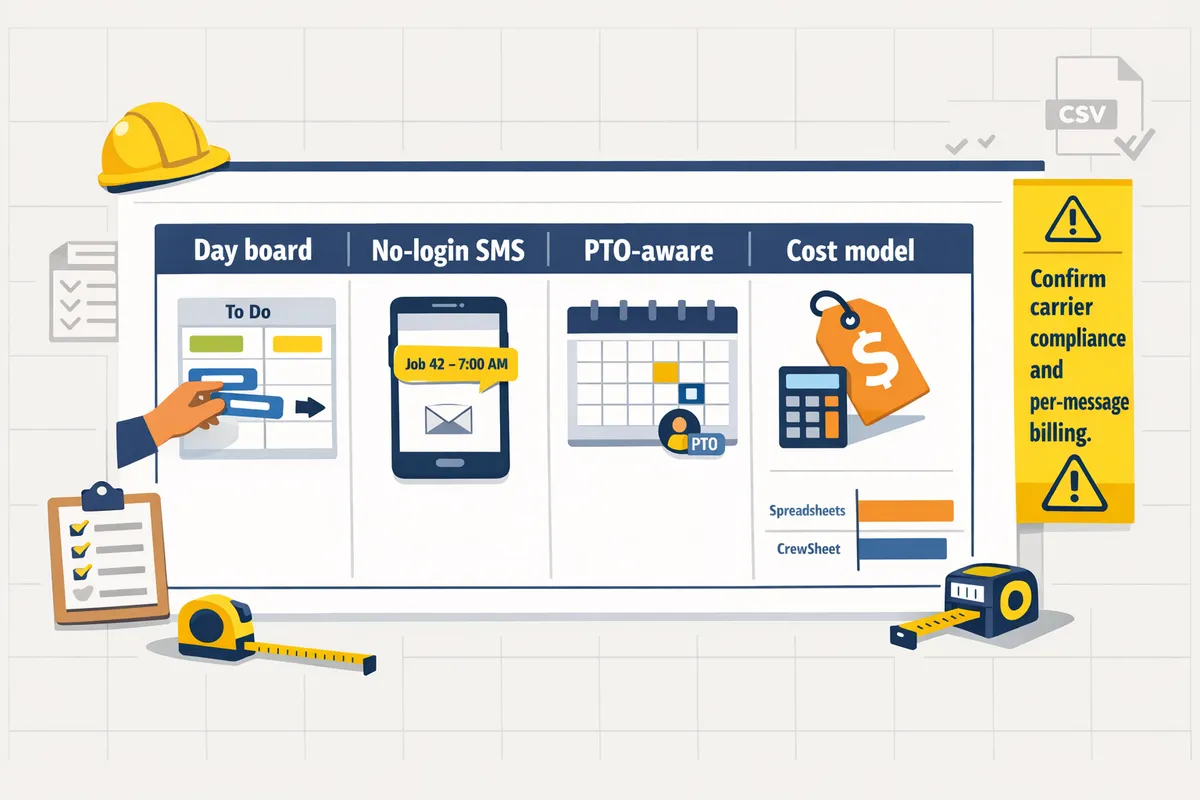
⚠️ Warning: Confirm carrier compliance and per-message billing terms before you sign. Noncompliant SMS can be blocked and surprise overage rules can double messaging costs.
For a longer checklist on workflow fit and sample demo scripts, see Scheduling Software for Construction Crews and our practical guide in Crew Scheduling Software for Construction Trades.
How Can Small Contractors Get Started with CrewSheet?
Small contractors get started with CrewSheet in three clear steps: import your data, build the Day board, and notify crew with a template. This playbook gives a step-by-step migration path, template tips you can copy, and the common onboarding pitfalls to avoid.
From Google Sheets to the Day Board ✅
Move from Google Sheets to CrewSheet by importing CSVs, mapping key columns, and assigning crew on the Day view. CSV is a delimited text file that stores tabular data and is the standard export format from Google Sheets. CrewSheet reads name, phone, job number, address, start time, and ideal crew size during import.
- Export current schedules and roster from Google Sheets as CSV files.
- Open CrewSheet and use the CSV import (see CrewSheet features) to upload jobs and crew. Map columns to job number, address, start time, and ideal crew size.
- Fix obvious formatting issues in the spreadsheet first: remove empty rows, confirm date formats, and normalize phone numbers.
- Open the Day view. Drag names from the available pool into job cards to build the day's board.
- Confirm PTO entries appear grayed out in the pool for the selected day.
- Use the copy-schedule feature to duplicate a day when jobs repeat across dates.
Example: a 12-person coatings crew exported two CSVs (jobs + roster), mapped columns in 20 minutes, and built a week of boards by copying schedules between dates.
Templates, Sending, and Compliance ✉️
CrewSheet provides pre-formed message templates, a live SMS character and segment counter, and carrier-compliant sending via registered 10DLC A2P. 10DLC A2P registration is a carrier registration process that ties business identity to high-volume SMS so carriers are less likely to block legitimate messages.
- Use CrewSheet's template dropdown to avoid free-text mistakes. The live counter shows segments so you can keep messages within a single SMS when possible.
- Pick a template that contains only the essential fields: job number, address, start time, and foreman name. Example template: "Job 1420 at 15 Oak St. Start 7:00 AM. Foreman: Alex. Reply not required."
- CrewSheet sends SMS through a compliant partner and handles campaign registration to reduce carrier rejections. Review the CrewSheet privacy policy for details on data handling and messaging compliance.
💡 Tip: Always use double opt-in for SMS signups when collecting phone numbers from workers to reduce opt-out rates and carrier complaints.
Onboarding timeline and common pitfalls ⚠️
Small rosters typically finish initial onboarding in a few days once CSVs are cleaned and PTO is added; plan a short validation run before full cutover. Running a one-week pilot helps catch mapping errors and messaging issues without disrupting the whole crew.
Onboarding checklist:
- Clean CSV exports. Remove duplicates and normalize phone numbers to an international format (e.g., +12223334444).
- Import jobs and crew into CrewSheet and map columns carefully.
- Enter PTO records so those crew appear unavailable on the Day board.
- Run a validation: build and send one week's worth of schedules to a small group first.
- Fix issues, then cut over.
Common pitfalls and business impact:
- Inconsistent phone formats cause failed sends and wasted vendor time.
- Missing PTO records lead to accidental scheduling, lost productivity, and unhappy crew.
- Over-relying on free-text templates increases proofreading time and the chance of sending incorrect start times.
⚠️ Warning: Skipping a validation run often leads to same-day rework that costs hours in admin time and missed starts.
Suggested further reading: see our Crew Scheduling Software for Construction Trades guide for workflow comparisons and Scheduling Software for Construction Crews to decide whether CrewSheet fits your operations.
What Next: Advanced Use Cases, Integrations, and ROI for Dispatch Tools?
Integration capability, measurable ROI scenarios, and solid privacy controls determine whether a dispatch tool reduces scheduling errors or adds extra work. This section maps common features to practical use cases and gives next steps you can action today.
How do integrations and ERP context affect a dispatch rollout? 🔗
Integrations decide whether jobs flow automatically from accounting into your day board or require ongoing manual exports and imports. CrewSheet currently accepts CSV imports and plans direct integrations with Foundations, Sage, and Acumatica to reduce manual entry. While those integrations are pending, a repeatable CSV workflow keeps the board up to date and minimizes duplicated work.
Follow this 5-step CSV import workflow to avoid errors and save time:
- Export jobs and crew from your ERP with consistent column names (job_number, address, default_start_time, ideal_crew_size).
- Normalize phone numbers to an international format (e.g., +12223334444) and remove duplicates.
- Add a small test file of 5 jobs and 10 crew members to validate column mapping.
- Import to CrewSheet and review the Day board for PTO conflicts and single-use enforcement.
- Reconcile delivery logs and correct column mappings before the next full import.
Use descriptive field names in your CSV so imports map reliably; this reduces rollback work after a bad import.
💡 Tip: Keep a master CSV template for your ERP export and save a dated copy after each import. That makes rollbacks and audits painless.
Read more about how a day-board replaces fragile spreadsheets in our guide on crew scheduling software for construction trades and check capabilities on the CrewSheet features page.
What are realistic ROI scenarios for trades using a day-board dispatch tool? 📊
ROI for a day-board comes from reduced scheduler time, fewer error corrections, and lower emergency overtime costs. Below are three illustrative scenarios you can adapt to your crew sizes and pay rates.
| Metric | Current (manual sheets + texts) | With day-board dispatch tool | Annual savings example (assumes 250 workdays) |
|---|---|---|---|
| Scheduler time spent assembling daily schedule | 45 min/day | 10 min/day | 35 min/day saved → 146.25 hrs/year. At $25/hr = $3,656/year |
| Error corrections and calls to crews | 30 min/day | 10 min/day | 20 min/day saved → 83.3 hrs/year. At $25/hr = $2,083/year |
| Emergency overtime from missed starts | 2 incidents/month, 4 hrs each | 0.5 incidents/month, 4 hrs each | 3 incident reduction/month → 36 hrs/year. At $40/hr overtime = $1,440/year |
How these numbers were built. Take the time saved per day, multiply by workdays per year, then multiply by the relevant hourly rate. Use scheduler wage for admin time and overtime wage for emergency calls. Present the table above to stakeholders with conservative estimates and a sensitivity column (+/- 20%).
Quick steps to build an internal ROI pitch:
- Measure current time spent on schedule assembly and correction for two weeks.
- Convert time to annual hours using your workday count.
- Attach labor rates and add a conservative estimate for avoided emergency costs.
- Include one-year licensing and migration overhead (CSV cleanup or one-time training).
For more workflow context and feature mapping, see our comparison of scheduling software for construction crews and the crew-scheduling buyer guides linked on the blog.
What security, privacy, and compliance checks should I run? 🔒
Verify data ownership, message compliance, and vendor privacy practices before committing to a dispatch tool to avoid legal and scheduling risks. CrewSheet recommends reviewing the CrewSheet privacy policy and the CrewSheet End User License Agreement to confirm how data is stored, who owns exported records, and what happens on cancellation.
Checklist of technical and contractual checks:
- Privacy policy and TOS. Confirm who owns exports and whether you can export all job, roster, and message history on demand.
- Message compliance. Verify 10DLC A2P registration, campaign classification, and carrier vetting to avoid carrier-level rejections.
- Opt-in and consent practices. Ensure your vendor documents opt-in requirements and provides templates for recorded opt-ins.
- Data access and audit logs. Confirm the product provides delivery timestamps, recipient lists, and an audit trail for scheduling actions.
- Retention and breach response. Verify retention windows and incident notification timelines in the contract.
- Export and backup. Ensure you can export CSVs of jobs, crew, and message history without vendor-only APIs.
- Local rules. Confirm phone number formatting, double opt-in, and TCPA-like rules align with your operating states or countries.
⚠️ Warning: Do not send sensitive health or protected personal information over SMS. Keep messages to job location, start time, and basic instructions.
Run the checklist during vendor demos and request redlines to any clauses that restrict your access to historical data. CrewSheet documents its privacy and terms on the product site for easy review.
Frequently Asked Questions
This FAQ answers the most common buyer and operator questions about construction dispatch software, SMS crew notifications, and how CrewSheet handles those scheduling problems. It focuses on practical steps you can use today and the trade-offs between spreadsheets, enterprise platforms, and a no-login push model.
How do I send my crew their schedule every morning?
Use a day-board workflow to assign crews and then send a scheduled SMS or an immediate send using a saved template. A day-board is a schedule view that shows jobs side-by-side and lets you assign crew by drag-and-drop onto job cards. In CrewSheet you build the board for the selected date, pick a pre-formed message template, and push the day's assignments to every worker's phone number or email without requiring a field login. The template composer shows true SMS character and carrier-segment counts so you avoid surprise multi-segment messages.
💡 Tip: Save a short morning template (job number, address, start time, foreman) and reuse it; it cuts proofreading to a single click.
Relevant reading: see our guide on crew scheduling for construction trades for the day-board approach.
How do I stop double-booking crew members?
Enforce a single-use rule that blocks assigning any person to more than one job on the same date. CrewSheet enforces single-use for the selected day and visually flags conflicts when you attempt a second assignment. PTO entries are visible in the available pool so schedulers can see unavailable crew before they assign. Example: if Maria is already assigned to Job 212, dragging her onto another card shows a conflict and prevents the move unless you first remove her from the original job.
Is there a cheaper alternative to Assignar for a small trades company?
Yes. Spreadsheets plus group texts cost less up-front but create recurring admin time, template breakage, and PTO mistakes; CrewSheet occupies the middle ground by offering a purpose-built day-board and push SMS without per-field-user logins. That trade-off reduces the hours you spend copy-pasting and re-texting while avoiding the implementation and per-user costs of enterprise platforms. Use our comparison guidance in Crew Scheduling Software for Construction Trades to weigh admin time, error risk, and feature trade-offs for your crew size.
Can I schedule crews without requiring every worker to create an account?
Yes. A no-login model sends outbound SMS and email to stored phone numbers and email addresses so field workers do not install apps or create accounts. CrewSheet is designed for push-based delivery: you send the schedule and the crew receive it; CrewSheet does not require confirmations from field workers. Delivery-status records exist for operational monitoring, but the communication model is intentionally one-way to match how trades crews operate.
For more on this approach, see our No-Login Crew Scheduling Solution for Construction Field.
How do I keep PTO from messing up my schedule?
Make PTO visible in the available pool so unavailable crew appear grayed-out and cannot be assigned for the chosen date. In CrewSheet you enter PTO on a crew member's profile or import PTO entries; the day-board then shows those people as unavailable and blocks assignment. Example: blocking a week of PTO on a foreman prevents last-minute double-booking and reduces emergency reassignments on morning sends.
How do I import jobs and crew from a spreadsheet?
Export jobs and crew as CSV and use CrewSheet's import tool to map columns to job number, address, start time, and ideal crew size. CrewSheet auto-detects common columns to speed the mapping process. Follow these steps:
- Export your jobs/crew from your accounting or sheet as CSV with headers (job_number, address, start_time, ideal_crew_size, phone, email).
- Open CrewSheet Import, upload the CSV, and confirm the header-row detection.
- Map each CSV column to the CrewSheet field (map phone to contact, map start_time to date/time). Use E.164 formatting for phone numbers when possible (for example, +12223334444).
- Review the preview, fix any row-level errors (duplicate job numbers or missing contact), and commit the import.
Common pitfalls: mismatched date formats, missing phone numbers, and duplicate job IDs. If you rely on CSV imports long-term, export a template from CrewSheet after your first import and reuse that column order.
Next steps to pick and test construction dispatch software.
Schedule a consultation with Crew Sheet to map your current schedule, show a live day board, and see how a 30-second send replaces copy-paste texts. This article's core point is practical: move the daily scheduling loop out of fragile spreadsheets and group messages so operators stop losing hours and crews stop missing starts.
If you want a focused comparison, read our crew scheduling guide to see how a day-board fits trades workflows and why a no-login model matters for field crews. For teams still using sheets and group texts, testing dispatch software for construction trades quickly reveals time saved and fewer PTO mistakes.
💡 Tip: Bring one week of your Google Sheet and a list of crew phone numbers to the consultation so we can recreate your board and show a send in under a minute.
Schedule a consultation with Crew Sheet and get a practical plan for moving from manual texts to predictable, PTO-aware crew notifications.