Construction Field Management Software for Small Contractors

Construction Field Management Software for Small Contractors
Double-booking a crew wastes a full workday and strips margin from small trades contractors. Construction field management software is a category that centralizes daily crew scheduling, displays PTO to prevent accidental shifts, and sends one-way SMS so field workers never need a login. Our beginner's buyer guide compares spreadsheets, enterprise suites like Assignar, and purpose-built options such as CrewSheet, and shows how small HVAC, coatings, and specialty-trade operators move from Google Sheets and group texts to a faster, lower-risk scheduling routine (see our crew scheduling for construction trades guide). You will learn the day-board workflow operators use to drag names, assign jobs, and notify crews in about 30 seconds, plus the real costs of sticking with spreadsheets.
What is construction field management software and how is it different from crew scheduling?
Construction field management software is a category of software that coordinates on-site operations, job records, crew rosters, PTO visibility, and outbound SMS/email for day-based jobs. Small contractors must choose between a narrow scheduling tool and a broader field-management system because that choice affects daily rework, data duplication, and how many tools field crews must touch.
What the system manages: jobs, crews, and communications 🧰
Construction field management software manages job records, per-job rosters, PTO state, and outbound communications from a single operational view. Job records include a number, address, start time, and an ideal crew size; the roster ties specific crew members to that job for a day. Some field-management suites add ERP-style features such as purchase orders or payroll, while others keep scope minimal and focus on scheduling plus notifications.
CrewSheet focuses on the scheduling-and-communication slice so operators avoid duplicate data entry and notify crews without forcing every worker to create an account. For example, a coatings operator creates a job card for "Building A, Roof Coating," drags a foreman and three techs onto that card, and sends an SMS with the start time in under a minute. That single flow removes the common spreadsheet + group-text rework loop.
💡 Tip: Always use double opt-in for SMS signups to avoid delivery issues and carrier-level complaints.
How field management differs from crew scheduling ⚙️
Field management coordinates data flows between ERP/job creation, rostering, compliance, and communications, while crew scheduling focuses only on assigning people to a day board. The practical differences matter for small contractors because they change who touches the schedule, where data lives, and how errors surface during a busy morning.
Operational consequences for small trades contractors:
- Data duplication. Without an integrated approach, job details live in accounting, schedules live in spreadsheets, and PTO lives in another place. That costs hours per week in copy-paste and fixes.
- Login burden. Full ERP-style platforms often require a login per field worker. That creates friction; many crews prefer push-based SMS. CrewSheet uses push SMS/email so field workers do not need accounts.
- Single-day vs. transactional views. Crew-scheduling tools center a day board where start time is the only time detail. Field-management suites add multi-day timelines and job lifecycle data when you need them.
- Integration needs. If you expect job data to flow from Foundations, Sage, or Acumatica later, choose a tool that supports CSV import today and planned integrations tomorrow. CrewSheet accepts CSV imports now and is designed to fit between spreadsheets and heavy ERP platforms.
Key terms every small contractor should know 📋
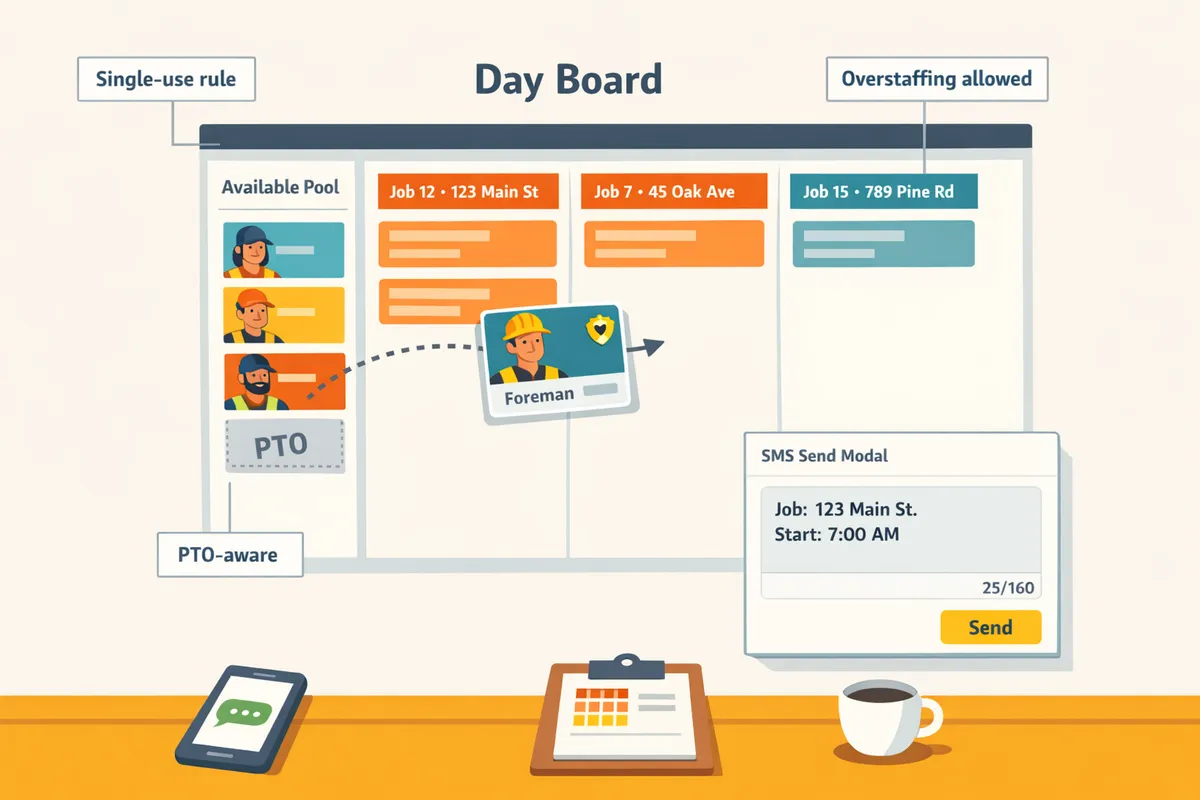
These glossary terms let you compare products consistently: Job, Crew, Roster, Foreman, Available pool, PTO, Single-use rule, Announcement. Use the definitions below when evaluating vendors or writing your migration checklist.
- Job is a scheduling unit that includes number, address, start time, and ideal crew size. Example: "Job 1123 — 45 Main St — 7:30 AM — ideal crew 4" for an HVAC install.
- Crew is the group of workers assigned to a job for a day. Example: a two-person coatings crew plus one supervisor.
- Roster is the per-job list of crew assigned for a specific date. Rosters change day-to-day; they are not the same as permanent team lists.
- Foreman is a field lead assigned to a job; they rotate between jobs and appear as a draggable resource on the board. Example: assign the foreman to a spray crew for a commercial coating day.
- Available pool is the sidebar of unassigned crew for the selected date; it shows PTO and role labels. The pool updates when you change the date.
- PTO is paid time off tracked on the scheduling view so operators do not accidentally schedule someone on their day off. Example: grayed-out entries for a tech on PTO prevent double-booking.
- Single-use rule means one crew member can only be assigned to one job per day to prevent double-bookings. Some tools allow controlled overstaffing; check whether the product enforces or merely suggests ideal crew size.
- Announcement is a broadcast message sent to all crew or a subset for last-minute changes or safety updates. CrewSheet stores a communication history so operators see what was sent and when.
Read practical scheduling examples and a comparison of day-board workflows in our Crew Scheduling Software for Construction Trades post and explore how SMS-first dispatch works in Construction Dispatch Software.
How do small trades contractors use field software day-to-day?
Small trades contractors build a day board, assign crew with drag-and-drop, and push start-time instructions by SMS or email. This routine replaces copy-paste spreadsheets and group texts with a repeatable four-step workflow that reduces double-booking and last-minute phone calls.
Day-board scheduling workflow 🗂️
Day-board scheduling is a day-based scheduling view that places jobs as side-by-side columns and lets operators drag names from an available pool onto a job. Day boards match how coatings, HVAC, and specialty trades work because jobs are typically full-day and only the start time matters. Crew Sheet supports CSV import of jobs and crew, shows an ideal crew size without enforcing it, and prevents same-day double-booking with single-use rules.
Follow this four-step daily happy path.
- Import CSV. Upload job and crew exports from your accounting or CRM to populate the board quickly. CSV import reduces manual re-entry and preserves job numbers and addresses.
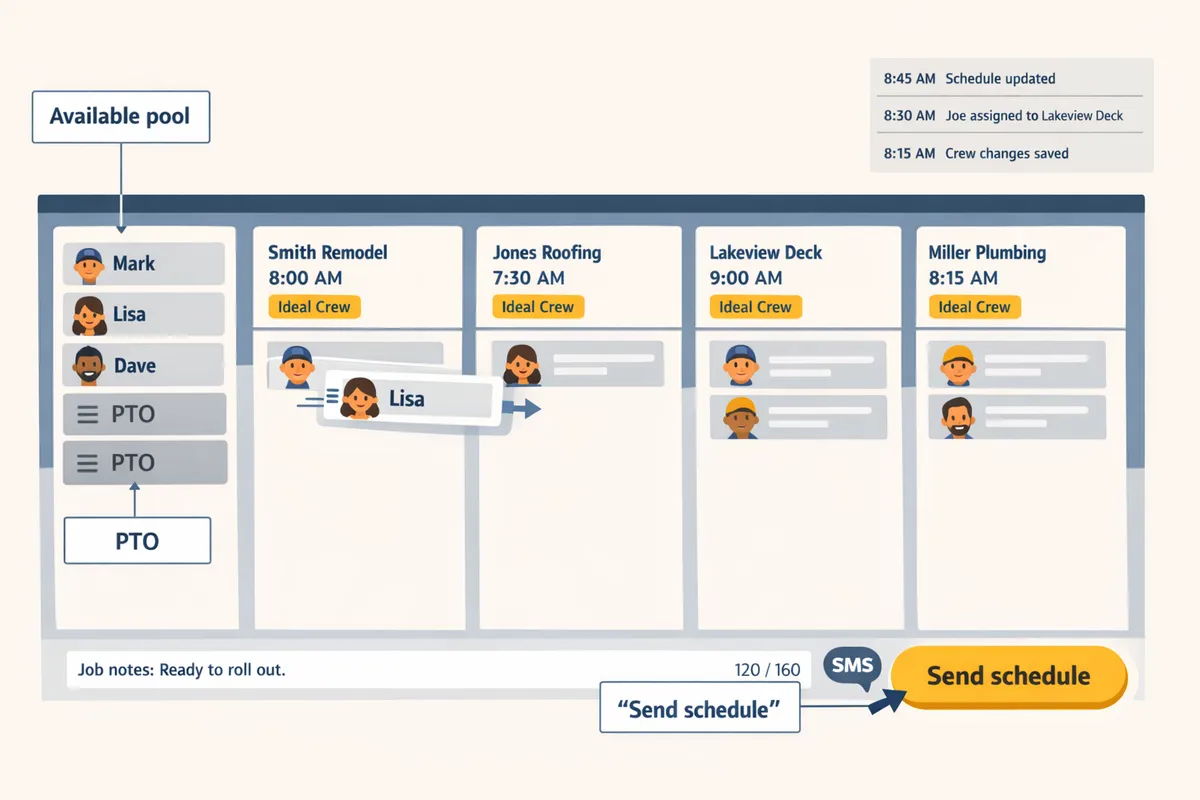
- Build the board. Open Day view and drag crew from the pool into job columns. PTO appears grayed-out in the pool so you can see, but not use, unavailable people.
- Pick a template. Choose a pre-formed message script with the correct job name and start time populated. Templates keep wording consistent and reduce edit errors.
- Send. Push the schedule by SMS or email to assigned crew and log the send in the audit trail.
This day-based flow is faster than hour-by-hour grids for full-day trades. For further reading about day boards and why they beat spreadsheets for small crews, see our guide on Crew Scheduling Software for Construction Trades.
Communications model: one-way SMS and templates 📬
One-way SMS is the outbound-only messaging pattern most field crews accept, where operators push instructions and crew do not reply. Crew Sheet uses push-based SMS and optional email so field workers never need an account; they get a clear instruction like job, address, and start time and follow it. Pre-made templates reduce the risk of broken scripts and the live SMS character/segment counter shows whether a message will split into multiple carrier segments.
Templates should prioritize the essentials: job number, address, start time, and foreman name. Built-in 10DLC A2P compliance handles carrier registration so your sends stay legitimate at scale. Crew Sheet's audit log records delivery attempts so the operator can confirm messages were dispatched without expecting replies.
💡 Tip: Put the start time and job address in the first line of every template. That reduces questions and keeps each SMS to a single segment more often.
For a deeper comparison of SMS-first dispatch tools and when to choose push-only messaging, see our article on Construction Dispatch Software.
PTO-aware rostering and single-use rules
PTO-aware rostering is showing scheduled time off inside the available pool so operators cannot book someone on a day they have off. Crew Sheet displays PTO as grayed-out entries in the pool for the selected date and enforces a single-use rule that blocks assigning the same person to multiple jobs the same day. These two controls cut the most common spreadsheet errors that create rework and missed starts.
Daily review checklist to avoid mistakes:
- Verify the selected date shows PTO in the available pool and confirm grayed-out names match your payroll or PTO calendar.
- Run a quick duplicate-assignment scan or use the single-use enforcement to catch accidental double-booking.
- Confirm every assigned crew member has a valid phone number before sending messages.
- Check templates show the correct start time override for that date if the job deviates from its default.
⚠️ Warning: Scheduling someone on PTO or sending messages to invalid numbers is the most common cause of same-day fixes and lost billable time.
For practical tips on moving from Google Sheets and group texts to a PTO-aware day board, read our notes on Scheduling Software for Construction Crews.
How can a small contractor get started with CrewSheet and retire spreadsheet + group texts?
A small contractor gets started by importing existing job and crew CSVs, building a Day board, and sending the day's schedule by SMS or email from CrewSheet. This replaces manual copy-paste into group texts and keeps PTO visible so operators stop double-booking people. The steps below are a low-friction, 2–3 week pilot plan designed to save time and reduce rework.
Import jobs and crew from CSV and set PTO flags. 📥
Begin by exporting your current spreadsheets as CSV and uploading both jobs and crew into CrewSheet. CSV is a plain-text spreadsheet export that stores rows and columns using commas; CrewSheet auto-detects common columns but you must map headers the first time.
Quick checklist for a clean import:
- Export two CSVs: jobs.csv and crew.csv.
- Required and helpful columns: name, phone (use +12223334444 format), email, job number, job name, start time (date or default_start_time), ideal crew size, role, PTO flag.
- Clean common errors: remove merged cells, trim leading/trailing spaces, ensure unique job numbers, and remove duplicate rows.
- During upload, confirm CrewSheet column mapping and set default start times where missing.
If you need guidance on scheduling concepts or how Day boards differ from hour-grid calendars, read our Crew Scheduling Software for Construction Trades for context.
Build the board and send the first daily schedule. 🚦
Create the Day view in CrewSheet, drag crew from the available pool into job columns, select a message template, and send the schedule by SMS or email. The Day board shows PTO-grayed crew and ideal crew sizes so you can avoid common mistakes at a glance.
Five-minute first-run checklist:
- Set the date and confirm each job's start time.
- Drag a foreman and crew into each job column; CrewSheet prevents double-booking for the same date.
- Verify any grayed-out PTO entries in the pool before assigning.
- Open Send, choose a template, preview the SMS segment counter, and target SMS and/or email.
- Send and check the communication history audit log for delivery timestamps.
Common fixes in week one: correct phone number formatting and resend; unassign someone who was accidentally on PTO and reassign from the pool; use the audit log to confirm who received which message. For more on moving from spreadsheet workflows to a dispatcher tool, see our Construction Dispatch Software guide.
Avoid the usual migration mistakes and protect operations. 🛡️
Run a short pilot, appoint a single operator owner for daily sends, and audit templates and PTO data before full cutover. These three actions reduce missed sends, template breakage, and scheduling errors that cost billable hours.
Typical migration pitfalls and how to avoid them:
- PTO lives in a separate system. Import PTO into CrewSheet or mark it during CSV import so unavailable crew appear grayed-out on the Day board.
- Templates get edited casually. Audit your message templates, lock critical fields (like job address and start time), and preview SMS segments before sending.
- No single owner for daily sends. Name one operator who is responsible for the board and daily sends during the pilot.
Pilot plan and measurement:
- Run a 2–3 week pilot on selected crews or regions.
- Track time spent on scheduling and number of schedule-related rework incidents (missed crews, double-bookings).
- Review results weekly with crew leads and the operator owner, then expand rollout.
💡 Tip: Run a 2–3 week pilot and name one operator to own daily sends; measure minutes saved and reduction in rework each week.
Before full adoption, review CrewSheet's privacy policy and Terms of Service to confirm data handling and compliance for your business.
What next steps help you scale field operations and evaluate alternatives?
Measure pilot ROI, score alternatives with a comparison matrix, plan integrations, and run a short rollout to de-risk the change. These steps turn a successful pilot into repeatable operations and make the cost/benefit obvious for an owner or office manager. Below are concrete evaluation criteria, a ready-made comparison table, a 30–60 day migration plan, and the fields to standardize now for future ERP connections.
How to evaluate ROI and total cost of ownership 📈
Calculate payback by measuring scheduler hours saved, rework avoided, and improvements in on-time delivery. Total cost of ownership is a calculation that sums subscription fees, setup and training time, messaging costs, and the ongoing staff hours tied to scheduling so you see true annual spend. Use these benchmarks as a starting point: a scheduler who saves 1 hour per workday at $30/hour saves roughly $6,000/year (200 workdays). An avoidable rework event that costs a crew 4 billable hours at $50/hour equals $200 lost per event.
Use this simple ROI worksheet you can adapt for crew size and rates:
- Hours saved per scheduler per day. Multiply by scheduler hourly rate and workdays per year.
- Rework reduction per year (estimate number of avoided mistakes × average crew cost).
- Added visibility value (fewer missed start times; estimate jobs kept on schedule).
- Annual subscription + messaging + setup costs = annual TCO.
- Payback = (1 + 2 + 3) / TCO.
According to our experience with field pilots, operators usually reach payback within 3–9 months when scheduler time and rework reductions are included. For a deeper primer on how crew scheduling shifts daily work, see our Crew Scheduling Software for Construction Trades.
Side-by-side comparison table: CrewSheet vs spreadsheets vs enterprise platforms 🧾
Use a scored comparison matrix to rank solutions on scheduling features, communication, PTO handling, setup time, and monthly cost. Score items 1–5 (1 = poor fit for small trades; 5 = excellent fit). Weight core scheduling and no-login SMS higher for small contractors.
| Criteria | Spreadsheets + Group SMS | CrewSheet | Enterprise platform (e.g., Assignar) |
|---|---|---|---|
| Day-board scheduling (drag-and-drop) | 2 | 5 | 4 |
| Send schedule by SMS without field logins | 2 | 5 | 2 |
| PTO visibility in scheduling | 1 | 5 | 4 |
| Overstaffing flexibility (no hard rules) | 5 | 5 | 2 |
| Setup time to first send | 5 (fast, manual) | 4 (fast, structured) | 2 (long implementation) |
| Monthly operating cost (small company) | 5 (low cash cost, high hidden cost) | 4 (predictable) | 2 (high) |
Scoring method: assign 1–5 per row, then multiply rows by priority weights (scheduling and SMS weight=1.5). The total shows which tool fits your priorities. CrewSheet fits the middle market by preserving spreadsheet flexibility while adding PTO-aware scheduling and one-way SMS delivery, making it faster to adopt than heavyweight enterprise tools. Compare this framing with our article on Construction Dispatch Software to see the trade-offs in more detail.
Migration timeline and change-management checklist 🛠️
A 30–60 day rollout with a scoped pilot, clear owner roles, and a single cutover day prevents costly double-bookings. Week 0: choose pilot scope (3–10 jobs/day, 1 scheduler, 1 foreman), export CSVs from your job/crew system, and clean phone numbers and job IDs. Weeks 1–2: import CSVs to the trial account, build the Day board, and run two parallel days where the scheduler sends CrewSheet messages while also maintaining the spreadsheet. Weeks 3–4: collect pilot endpoints — data cleanliness (contacts and job numbers match accounting), message accuracy (templates show correct start times), and absence of double-bookings.
Owner responsibilities:
- Assign a rollout lead (usually the scheduler).
- Book three 45-minute training sessions: operators, foremen, and the office admin.
- Define fallback: keep the spreadsheet owner as single-source contact for 7 days post-cutover.
Cutover actions (day of go-live):
- Freeze spreadsheet edits for the date being cut over.
- Import final CSV and confirm canonical job IDs.
- Send the first production schedule from CrewSheet and verify delivery logs.
- Keep the fallback phone line staffed for two full workdays to resolve any missed messages.
💡 Tip: Always use double opt-in for SMS signups so worker numbers are permissioned and message compliance is simpler.
Integrations and future-proofing your data flows 🔗
Standardize job and contact fields now and rely on CSV import as the interim bridge before you set up direct ERP integrations. Canonical job ID is a persistent identifier that ties a job record in your accounting system to the schedule, and you should store it in a dedicated job-number field in Foundations, Sage, or Acumatica today.
Fields to standardize before you migrate:
- Job number (canonical job ID)
- Job address + short site name
- Scheduled start date
- Ideal crew size
- Foreman name and crew contact phone numbers
CrewSheet supports CSV import today and stores job IDs so later direct integrations become a mapping task instead of a data clean-up project. Plan where the canonical job ID will live in your accounting system (custom job field in Foundations or the job reference in Sage). When you evaluate a future integration, prioritize one that preserves that job ID and maps contacts automatically.
If you want an operational checklist for moving from spreadsheet dispatch to a structured tool, see our notes from the field for practical tips and common pitfalls.
Frequently Asked Questions
This FAQ answers the common buyer questions contractors ask when evaluating construction field management software. Use these short answers to score vendors during a trial and plan a low-risk rollout from spreadsheets to a purpose-built tool.
How does construction field management software differ from crew scheduling tools? 🗂️
Field management software coordinates jobs, rostering, and data flows across systems while crew scheduling tools focus on daily assignments and dispatch. Field management software is a category that adds job metadata (addresses, job numbers), PTO visibility, communications audit logs, and exports for payroll or ERP reconciliation. For example, a lightweight crew scheduler may only show a single-day board for assignments, while a field management platform keeps a synced job list, tracks who was sent what, and preserves the record for invoicing or payroll.
CrewSheet sits in the middle of the market by keeping the spreadsheet-like flexibility operators want while adding job imports, PTO awareness, and an audit trail. If your workflows require frequent CSV imports from accounting or a single source of truth for jobs, a field management tool like CrewSheet is the safer choice versus a bare scheduling widget. Read more about the scheduling approach on our Crew Scheduling Software for Construction Trades page.
Is CrewSheet a good fit for a 10–30 person HVAC or coatings company? ✅
Yes. CrewSheet targets small-to-midsize trades with rotating daily jobs and operators who need quick SMS notifications without forcing field logins. It fits teams that run a day board, need PTO awareness in the scheduling pool, and want office staff to be unlimited users while field crew remain login-free. For a 10–30 person HVAC or coatings company, the main benefits are faster morning sends, fewer scheduling errors, and reduced rework from copy-paste messages.
Practical indicators CrewSheet fits your business: you dispatch crews to a different job every day, you rely on a central operator to build the board, and you currently use spreadsheets plus group texts. If those describe you, try the two-step pilot: import your jobs and crew, build a week of day boards, and time how long it takes to send the daily schedule.
Can I schedule crews without forcing every worker to create a login? 🔑
Yes. CrewSheet uses push-based SMS and email delivery so field workers do not need accounts or apps. That reduces adoption friction in crews that resist installing new software or creating usernames. In practice an operator drags names on the day board, picks a template, and hits send; crew receive the start-time and location by text in about 30 seconds.
This one-way model intentionally avoids requiring confirmations or in-app replies. If your team expects confirmations, test a manual call workflow alongside CrewSheet during the pilot to see how communication flows change.
How do I avoid double-booking crew and scheduling someone on PTO? 📅
Avoid double-booking by using a PTO-aware available pool and single-use enforcement that prevents assigning a crew member to more than one job per day. PTO is paid time off that should appear in the pool as a grayed-out entry for the selected date so schedulers can see but not assign that person.
Practical checks before sending: confirm the pool shows grayed-out PTO entries, use single-use enforcement so the UI blocks a second assignment, and verify per-job start times if a role needs different reporting times. CrewSheet highlights PTO in the pool and enforces single-use rules so operators cannot accidentally assign someone twice.
💡 Tip: Keep PTO as the single source of truth (payroll or HR export) and import updates weekly to avoid drift.
What should I compare when choosing the best construction field management software for small contractors? 🧾
Compare the scheduling UX, SMS compliance and templates, PTO handling, overstaffing flexibility, setup time, and total monthly cost. These criteria map directly to the day-to-day pain points that waste time or increase rework.
Use this quick scoring checklist during a trial (score 1 to 5):
- Day-board vs calendar UX: Can you build a day board in under two minutes?.
- SMS templates and segment counter: Does the tool prevent broken scripts and show true segment counts?.
- PTO visibility and single-use enforcement: Are PTO entries visible and are double-bookings blocked?.
- Overstaffing flexibility: Can you exceed the ideal crew size without error?.
- Setup time and CSV import quality: How long to import your job and crew CSVs without fixes?.
- Monthly cost and user model: Are office users unlimited while field crew remain login-free?.
Score each vendor on those items and run the same 30‑minute pilot task: import CSVs, build a day board, and send a test SMS. Compare time-to-send and error counts. See more on dispatch trade-offs in our Construction Dispatch Software overview.
How do I import existing jobs and crew from my accounting system or spreadsheets? 📥
Export jobs and crew as CSVs, then import them into CrewSheet by mapping columns like job number, address, start time, phone, and role. CrewSheet auto-detects common columns but mapping avoids validation errors for phone formats or missing start times.
Step-by-step import process:
- Export job and crew lists from your accounting system as CSVs. Common column names: job_number, job_name, address, start_time, ideal_crew_size. For crew: name, phone, email, role, employee_id.
- Open CrewSheet import and map each CSV column to the matching field. Confirm phone numbers use a uniform format (e.g., +12223334444).
- Fix any flagged rows (missing phone or address) and re-run the import for just those rows.
- Spot-check three jobs on the board and send a single test SMS to yourself to confirm mapping and template output.
If your ERP cannot export CSVs, export a filtered jobs report or copy-paste into a sheet, then save as CSV. See our Crew Scheduling Software for Construction Trades post for common import tips.
Can I rely on SMS delivery and does CrewSheet handle compliance? 📩
Yes. CrewSheet sends SMS through compliant channels and includes 10DLC A2P registration for carrier approval while tracking delivery status for operational reliability. Delivery-status tracking is used for operational monitoring, not as a guaranteed read receipt; CrewSheet intentionally offers outbound-only messaging without expecting confirmations.
Operational notes: CrewSheet shows delivery status so operators can re-send if a number fails. The platform does the carrier registration work (10DLC A2P) required for high-volume sending. Do not expect two-way chat, read receipts, or guaranteed instant delivery; treat delivery status as an operational signal and create a fallback call plan for critical late changes.
💡 Tip: Always use double opt-in for SMS signups to protect deliverability and reduce carrier complaints.
⚠️ Warning: Avoid sending personal health information over SMS; treat phone messages as unencrypted short-form notices.
For more hands-on comparisons and trial tasks, see Notes from the field. You can also explore our feature list at CrewSheet features to match items on the checklist above.
Start with a short consultation to see Crew Sheet handle your daily crew dispatch.
You can stop relying on fragile spreadsheets and group texts by moving to construction field management software that centralizes day-of assignments, blocks double-booking, and shows PTO before someone gets scheduled. This article compared options and explained the core trade-offs so you can pick a simpler, lower-risk path.
If you want a practical alternative to manual SMS and Google Sheets, consider Crew Sheet as the best construction field management software for small contractors when you need a no-login, SMS-first workflow that keeps scheduling flexible. Review our practical comparisons and checklists in the crew scheduling guide to confirm which trade-offs matter for your crew.
Schedule a consultation to walk through your typical day board and see how Crew Sheet fits your routine. For more on dispatch workflows and how SMS-first scheduling reduces morning rework, read our post on construction dispatch software or explore crew scheduling for construction trades for step-by-step examples.