Drag-and-Drop Crew Scheduling for Construction

Drag-and-Drop Crew Scheduling for Construction
Manual scheduling from Google Sheets and group texts creates morning scramble, mistaken job locations, and wasted office hours for small trades operators. Drag-and-drop crew scheduling is a visual scheduling interface that lets operators assign workers from an available pool onto day-long job cards by dragging names, preventing double-booking and making start times explicit. Our product CrewSheet applies that pattern with a single-day board and one-way SMS so operators build the board and notify every worker in about 30 seconds; see CrewSheet for the product overview and the day board scheduling guide for the interface details. This best-practices guide shows step-by-step setup, PTO-aware rules, and four simple board rules most operators miss.
How does day board scheduling work for construction crews?
Day board scheduling displays one day's jobs as cards and lets an operator assign crew by dragging names from an available pool into job columns. This single-day focus suits full-day construction work because start time is the only time-sensitive field for most jobs; crews are assigned for the day rather than by the hour.
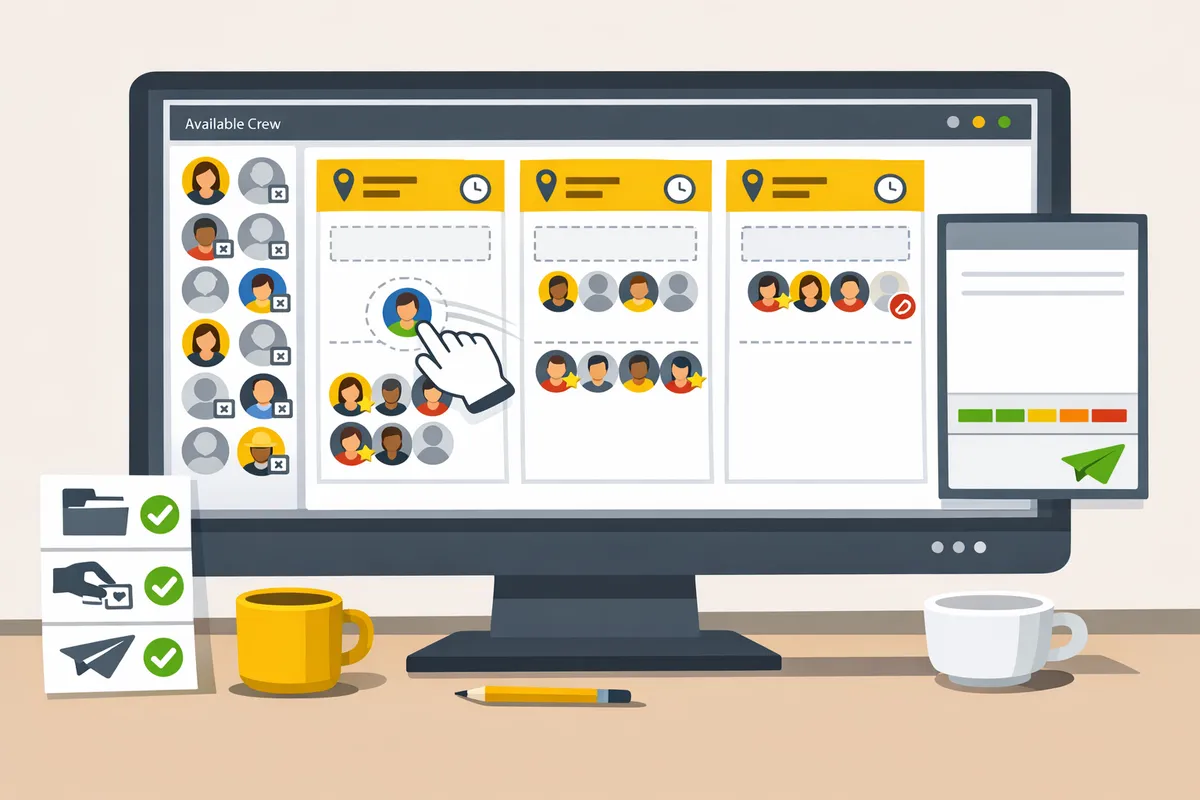
Day board scheduling defined and when to use it 🧱
Day board scheduling is a visual single-day schedule that places jobs as cards and crew as draggable resources in a pool. Use it when jobs typically occupy the full workday and you only need to set a start time, not hour-by-hour slots. For example, a coatings crew that travels to multiple sites in a week usually needs a start location and a foreman, then works the day; the day board fits that pattern. Crew Sheet's day view shows job cards side-by-side, ideal crew size hints, and a pool you drag from so you can build the day's roster in minutes. See the Crew Sheet schedule board guide for details on filters, notes, and sending the day's messages.
Key terms: crew, job, pool, foreman, and single-use rule 🏷️
Job, Crew, Available pool, Foreman, PTO, and Announcement are the core terms that map directly to daily construction operations.
- Job — a work assignment at a specific location; maps to a site job card with number, address, and start time. Example: "Job 214 — Warehouse prep, 7:00 start."
- Crew — the group of workers assigned to a job for the day. Example: "Coatings crew A, 6 installers + 1 foreman."
- Available pool — the sidebar of unassigned crew for the selected date; it updates per day and shows PTO states. Example: operators drag Alice from the pool into Job 214.
- Foreman — the field lead assigned like any crew member; a foreman appears in rosters and can be filtered for supervisor view. Example: assign Sam as foreman on tough-access sites.
- PTO — a calendar flag that marks someone unavailable; PTO entries appear grayed-out in the pool to prevent mistakes. Example: Marco shows as PTO on June 12 and cannot be assigned.
- Announcement — a broadcast message to selected recipients or the whole crew for urgent updates. Example: send an afternoon rescheduling announcement if weather delays a start.
Crew Sheet enforces the single-use rule: one crew member cannot be assigned to more than one job on the same day.
How the drag-and-drop roster reduces double-booking 📋
Drag-and-drop roster assignment reduces double-booking by enforcing a one-job-per-day rule and visibly graying out PTO-marked workers. The board blocks conflicting assignments at the point of drag so the operator sees and resolves clashes before sending messages. For example, if you manage a 12-person coatings crew and two painters put PTO into the system, the pool shows those two as unavailable; dragging a third worker who is already assigned to another job will trigger the single-use block. That prevention avoids scenarios where a double-booked day forces emergency overtime and lost billable days. Crew Sheet also lets you overstaff a job when needed while still preventing accidental duplicate assignments.
See the Assigning crew guide for step-by-step controls on moving people between jobs and handling PTO.
Where a day board fits in your tech stack (CSV import vs future ERP sync) 🔁
The day board should act as the operational layer that receives job and crew data from your accounting or ERP. Today Crew Sheet uses CSV import as the practical bridge: drop job and crew exports from your accounting system, map columns once, and the schedule board becomes the single source for daily assignments. Crew Sheet's import detects common columns (name, phone, email, role, default_start_time) and lets you map them to fields so the board populates correctly.
CSV import reduces manual re-entry but introduces data hygiene work: consistent phone formats, correct job addresses, and an explicit PTO column make the day board reliable. ERP integrations are on the roadmap to remove the CSV step, but until then CSV imports are the fastest, lowest-risk path to move your jobs onto the board. For instructions on importing and matching columns, follow the Assigning crew documentation.
💡 Tip: When importing, map the PTO column and phone number column explicitly. That prevents accidental assignments and ensures Crew Sheet can send start-time SMS without missing contact data.
For how operators start with the board and send texts, see Welcome to CrewSheet and our comparison in Scheduling Software for Construction Crews.
What are proven best practices for drag-and-drop crew scheduling?
Proven best practices are a short daily workflow, visible PTO with single-use enforcement, reliable message templates, and job-specific dispatch patterns. These practices reduce double-bookings, cut time spent on corrections, and make the day-board a predictable part of an operator's morning routine.
The 4-step daily workflow operators use 🛠️
A repeatable four-step workflow keeps the board fast and error-free. Start each day with the same checklist so the scheduler never improvises under pressure. Crew Sheet maps to each step, so operators move from CSV import to send without switching tools.
- Import jobs and crew (if needed). Check CSV columns, confirm default start time, and correct any address typos. Crew Sheet's CSV import auto-detects common columns to speed this step. (Estimate: 1–5 minutes for a normal day.)
- Build the board. Open Day view, drag the pool onto job cards, use bulk-assign for repeat crews, and check the ideal crew size indicator. Single-use enforcement prevents double-booking; PTO appears grayed out in the pool. (Estimate: 3–10 minutes.)
- Pick a message template. Select a pre-formed template from the message library, confirm dropdown values (job name, start time), and preview the SMS segment counter. Templates reduce manual copy-paste errors.
- Send and record. Send to SMS/email, then review the communication audit log for deliveries. If a last-minute call comes in, update the board and repeat the send step for affected crew only.
Checklist (quick):
- CSV validated and uploaded. Link to the day: open the Day board. See file import notes in the schedule board guide.
- All PTO visible and no grayed-out crew assigned. Refer to Assigning crew for single-use rules.
- Template chosen and previewed. Use the message templates in Welcome to CrewSheet.
- Send completed and audit log checked.
PTO handling and single-use enforcement to avoid scheduling mistakes 📅
Make PTO visible in the available pool and enforce one-job-per-day to stop scheduling someone on their day off. When a crew member has PTO on the selected date, Crew Sheet shows them grayed out with the PTO label and prevents dragging them onto a job card. This visibility avoids the common spreadsheet mistake where PTO lives in a separate file.
Example: a foreman marks PTO for June 10; on June 10 that foreman appears dimmed in the pool and the UI blocks any drag event that would assign them. That block is logged so the scheduler can explain why an assignment failed.
Consequences of not enforcing this: accidental overtime costs, upset crew, and admin time fixing payroll. Keep PTO synced with payroll or HR systems regularly; stale PTO entries cause schedule churn.
⚠️ Warning: Do not rely on a separate spreadsheet for PTO; any delay in syncing leads to accidental assignments and call-backs that waste field hours.
Designing message templates so templates never break ✉️
Use controlled, pre-formed templates with dropdown variables and a live SMS segment counter so scripts cannot be broken by ad-hoc edits. Crew Sheet supports template dropdowns (job, address, start time, safety note) and shows the SMS segment count as you edit, which prevents long messages from splitting unexpectedly.
Recommended template rules:
- Naming convention: channel_date_role_job (for example: SMS_AM_Coatings_Dispatch).
- Required elements in every dispatch: job name, full address, start time, and a short safety or PPE note when relevant.
- Controlled variables only: avoid free-text tokens for critical fields. Use dropdown selectors for job and start time so the template pulls validated data.
Template content example (conceptual):
- "[JobName] at [Address]. Start: [StartTime]. Bring: [SafetyNote]. Respond: no reply needed."
Small habits that prevent errors:
- Version templates instead of editing live ones. Keep an archive of working templates.
- Always preview and send one test SMS to yourself before broadcasting.
💡 Tip: Preview templates with the live counter and send a test message to your phone before hitting send to the whole crew.
Construction-specific workflows and examples (coatings, HVAC) 🚧
Map the board to real dispatch patterns so the scheduler follows field logic, not the spreadsheet's quirks. Crew Sheet adapts to coatings teams, HVAC runs, and foremen who need a "who's on my job tomorrow" snapshot.
Coatings morning dispatch (example):
- Import the day's jobs from accounting via CSV and confirm default start times.
- In Day view, assign a foreman and crew to each job card using bulk-assign for crews that travel together.
- Select the "Coatings AM Dispatch" template and preview safety notes for surface prep.
- Send and confirm audit entries for each job.
HVAC split-run example:
- Create two job cards for the same address with different start-time overrides.
- Assign two technicians: one to the AM run, one to the PM run; single-use enforcement prevents crossing.
- Use an HVAC template that includes unit serials or access instructions.
Foreman "who's on my job tomorrow" workflow:
- Foremen open Supervisor view and filter to their job date. Crew Sheet shows assigned crew and their contact info without requiring field logins.
Each scenario links back to the schedule board and Assigning crew documentation for step-by-step UI actions.
Quick comparison: spreadsheets vs Crew Sheet vs Assignar
For practical decision-making, compare the three approaches on time-to-send, PTO visibility, login requirements, rigidity, and business impact.
| Feature / Impact | Status quo (Google Sheets + group texts) | Crew Sheet | Assignar |
|---|---|---|---|
| Time-to-send (daily) | Manual copy-paste, 15–90 minutes depending on errors. | One workflow; board-to-SMS in a few minutes. | Setup-heavy; faster once configured but requires logins and training. |
| PTO visibility | Often in a separate file; high risk of double-booking. | PTO shown in the pool and blocks assignments on that date. | PTO visible but tied to rigid role constraints and workflows. |
| Login requirement | No logins for crew; texts sent manually. | No field-worker logins; push SMS/email only. | Requires user accounts for field staff. |
| Flexibility / rigidity | Very flexible but fragile and error-prone. | Flexible: overstaffing allowed, foremen as draggable resources. | Rigid role enforcement; overstaffing and role swaps are harder. |
| Error risk | High. Message scripts break; accidental assignments common. | Lower: templates and single-use enforcement reduce mistakes. | Moderate: process controls reduce some errors but add workflow overhead. |
| Business impact | Wasted office hours, missed jobs, payroll corrections. | Faster dispatch, fewer payroll errors, lower admin overhead. | Scales for enterprise but forces full-platform adoption and training. |
For operators deciding between options, see our deep dive in Scheduling Software for Construction Crews and the step guide in Crew Scheduling Apps: Best for Construction 2026.
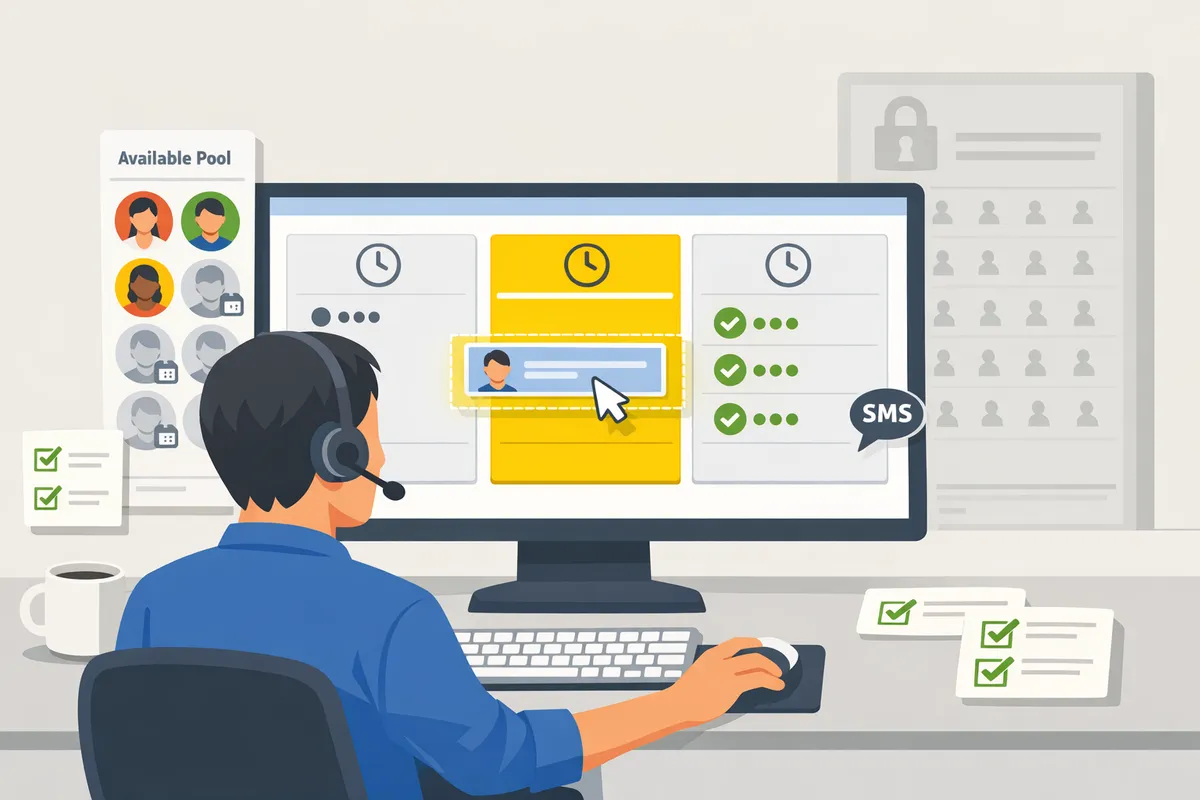
How do you implement drag-and-drop crew scheduling and measure success?
Implement with a staged pilot that imports jobs and crew via CSV, runs shadow days, then flips to live sending while tracking operator time saved, schedule errors prevented, and missed starts. This approach reduces risk and proves value quickly for small trades teams. Below are concrete rollout steps, integration details, an ROI checklist, common migration pitfalls, and cost factors to compare.
Step-by-step rollout for a small trades team 🪜
Run a staged rollout: pilot with one foreman, import jobs and crew from CSV, run two shadow days, then move to live schedule sending.
- Pilot setup (1 day). Owner or office admin exports two CSVs: jobs and crew. Import into CrewSheet and map columns. Assign one foreman and 3–6 crew for a single trade.
- Shadow days (2 business days). Build the day board and do not send SMS. Track time to build schedule and any mapping errors.
- Live flip (1 day). Send schedules for a single crew line. Keep templates locked.
- Rollout (1 week). Add other foremen and job types in waves. Roles and time estimates: operator (4–8 hours total for pilot), foreman (2 hours for feedback), admin (1–2 hours for CSV cleanup). Why not DIY spreadsheet conversion. Manual CSV mapping, repeated copy/paste, and template breakage often cost more staff hours than a short CrewSheet pilot that exposes issues within days. See our Getting Started guide in Welcome to CrewSheet for initial setup steps.
Integration and data flow: CSV import today, ERP plans tomorrow 🔗
Use CSV import as the initial bridge to populate the single-day schedule board while planning future ERP syncs. Required job CSV columns (typical):
job_number. - job_name. - address. - start_time (date and time). - ideal_crew_size. Required crew CSV columns (typical):
first_name. - last_name. - phone (E.164 preferred). - email. - role. - PTO_dates (optional). Common mapping mistakes and fixes:
Date and time split into two columns. Merge into an ISO-style start_time for consistent imports.
Phone numbers with local formats. Normalize to E.164 before import to avoid send failures.
Missing job numbers. Add a unique job_number to keep schedule history clean. CrewSheet offers smart column auto-detection that speeds mapping and flags missing fields. Plan ERP integrations but treat CSV as your dependable interim data flow. For assignment mechanics, see Assigning crew on the schedule board.
Measuring ROI: metrics, sample calculator, and what to track 📊
Track operator hours saved, schedule errors prevented, and missed-start reductions to quantify ROI. Metrics to capture daily or weekly:
- Time-to-build-and-send (minutes per day).
- Number of schedule corrections (calls/texts after send).
- Missed starts or late arrivals (events per week).
- Operator hours spent on rework or chasing crew. Simple ROI calculator (sample approach):
- Measure average operator minutes saved per day after pilot.
- Convert to hours saved per month.
- Multiply hours saved by the operator fully loaded hourly rate to get labor savings.
- Add avoided overtime and reduced rework costs estimated from fewer missed starts. Example: if an operator saves 30 minutes per day and the fully loaded rate is $40 per hour, monthly savings = 0.5 hours/day * $40 * workdays per month. Frame these as example inputs, not product claims. CrewSheet accelerates the schedule-and-notify loop and makes the time-to-send and schedule correction metrics measurable from day one. For broader context on how scheduling apps compare to spreadsheets, see Scheduling Software for Construction Crews.
Common migration pitfalls and how to reduce risk ⚠️
Fragmented PTO records, inconsistent contact lists, and editable message templates cause the majority of migration issues. Immediate fixes to reduce risk:
- Consolidate all crew contacts into a single CSV and include PTO flags.
- Validate phone numbers into a single format before import.
- Lock schedule message templates during the pilot so operators do not accidentally change script text.
- Run two shadow days where the operator builds the board but does not send SMS; log issues and correct data mappings. ⚠️ Warning: Verify contact formats like +12223334444 before sending. Sending to mixed phone formats causes delivery failures and extra work. CrewSheet’s PTO-aware pool and template controls help prevent common mistakes like scheduling someone on PTO or breaking message scripts.
Pricing and total cost of ownership considerations for small contractors 💰
Compare operator labor, SMS costs, and spreadsheet maintenance when evaluating total cost of ownership for a crew scheduling tool.
| Cost factor | What to include | How CrewSheet changes it |
|---|---|---|
| Operator time | Hours per day building schedule and fixing errors | Reduces repeat work by centralizing day board and templates |
| SMS and delivery | Per-message fees or per-user surcharges | Flat pricing removes per-message surprises and simplifies budgeting |
| Hidden spreadsheet labor | Time spent reconciling jobs, PTO, and contacts across systems | Eliminates repeated copying and manual template fixes |
| Onboarding and migration | CSV cleanup, pilot days, admin time | Short pilot approach keeps migration time low |
| Opportunity cost | Lost billable hours from missed starts | Fewer missed starts means more crew billable time |
To evaluate TCO, add monthly labor savings to avoided overtime and compare to the subscription cost. For a guided comparison of alternatives and trade-offs, consult Crew Scheduling Apps: Best for Construction 2026 and our feature overview in CrewSheet features.
For step-by-step assignment details during the pilot, see Assigning crew in our docs.
Frequently Asked Questions
This FAQ answers the practical operator questions that come up when evaluating drag-and-drop crew scheduling and Crew Sheet. Each answer gives a clear, extractable statement first, then one or two supporting details you can act on immediately.
How does drag-and-drop crew scheduling prevent double-booking? 🛑
Single-use enforcement prevents one crew member from being assigned to more than one job on the same day. Crew Sheet blocks conflicting drops on the day board and shows an inline tooltip explaining the conflict when you try to assign someone already rostered. For example, a double-booked day can cost a 12-person coatings crew two lost billable crew-days, so the board’s immediate visual block and roster badge stop that lost time. For step-by-step assignment rules and edge cases, see the assigning crew guide on our site.
Can I send my crew their schedule by text without them creating accounts? 📲
Yes. Crew Sheet sends one-way SMS or email to phone numbers and addresses so field workers do not need logins or apps. The communication is push-based: the operator composes or selects a template on the board, sends, and Crew Sheet delivers outbound messages to the roster. Built-in A2P compliance reduces carrier friction, and delivery-status webhooks report delivery outcomes to your operations team without requiring crew replies.
💡 Tip: Confirm phone numbers and opt-in status before a large send to reduce undelivered messages and carrier complaints.
How does PTO appear on the day board and stop accidental scheduling? 🏖️
PTO-marked crew appear grayed out and labeled in the available pool so operators cannot drag them onto jobs. When you import or enter PTO into Crew Sheet, the day board visually separates available resources from PTO-marked ones and shows the PTO reason and dates on hover. During migration, keep one PTO source of truth to avoid mismatches; importing PTO from your HR spreadsheet and disabling secondary lists prevents accidental scheduling.
⚠️ Warning: Do not maintain PTO in multiple systems during migration. Conflicting PTO sources cause accidental assignments and unnecessary crew texts.
Is Crew Sheet a practical alternative to Assignar for a small trades company? ⚖️
For small-to-midsize trades that need flexibility and no field-worker logins, Crew Sheet provides a lighter, faster option than rigid enterprise platforms like Assignar. The following comparison highlights the operational differences so you can weigh setup time, enforcement, and account overhead.
| Feature | Crew Sheet | Assignar |
|---|---|---|
| Field-worker account requirement | No logins required; SMS/email only | Typically requires user accounts for field workers |
| Single-day assignment enforcement | One-job-per-day enforced with overstaff allowed | Strict role and crew-size enforcement can block overstaffing |
| PTO visibility | PTO shown in pool and blocks assignment | PTO available but often requires separate configuration |
| Overstaffing | Allowed; ideal crew size is a guideline | Often enforced as a hard limit |
| Typical operator setup | Quick CSV import and immediate day-board use | Longer implementation and role mapping |
If your crew workflows need fast edits, flexible foreman assignment, and no-per-worker logins, Crew Sheet reduces admin time and reduces the friction of getting the crew texted that morning. For more market context, compare options in our buyer guide to crew scheduling apps.
How do I import jobs and crew from a spreadsheet into the day board? 📥
Use CSV import with smart column auto-detection to map name, phone, email, job number, start time, and ideal crew size. Follow these steps:
- Export your jobs and roster from your accounting or HR system into two CSV files: jobs and crew. Include phone numbers and PTO flags.
- Open Crew Sheet’s CSV import, upload the jobs file, and confirm the auto-detected columns (name, address, job number, start time).
- Repeat for the crew CSV and verify phone and email columns.
- Validate by importing 5 sample rows and checking that start times, job numbers, and PTO appear correctly on the day board.
- Save that mapping as a template CSV for repeat imports.
Validating sample rows avoids bad sends and prevents accidentally scheduling someone on PTO. For detailed setup and example column headings, see our getting-started guide.
What does one-way SMS communication mean for confirmations or replies? ✉️
One-way SMS means Crew Sheet sends instructions without requiring crew to reply or log in. Operators should not expect crew replies to appear in the app. Delivery-status webhooks exist to show whether messages reached the carrier and handset, but they are not read receipts or confirmations of attendance. If you need confirmations, use a foreman phone-call workflow or require a single point of contact to acknowledge in your office. See our communications overview for recommended operator workflows and how delivery-status webhooks support operational reliability.
Choose one high-impact scheduling practice and apply it today.
A focused day-board routine cuts scheduling errors and saves your team hours each morning. Putting a single-day board into regular use makes drag-and-drop crew scheduling practical for daily ops. For most small trades crews, the biggest wins come from a short, repeatable process you can train the office on.
- Start by building the board for tomorrow and locking PTO visibility. This prevents costly double-books and keeps the pool accurate.
- Assign foremen and critical crew first, then fill remaining spots. This reduces last-minute reshuffles.
- Use one tested SMS template and send a single test to yourself before notifying the whole crew.
💡 Tip: Send a test SMS to your phone to confirm template text and start-time accuracy before dispatching to the crew.
Try Crew Sheet by following our getting-started guide to build your first day board and send a live schedule. For a broader comparison of approaches, see our article on scheduling software for construction crews and the procedural guide for assigning crew.
Subscribe to our newsletter for short implementation tips and real-world scheduling templates.