Foreman View: Who Is On My Job Tomorrow

Foreman View: Who Is On My Job Tomorrow
A single missing crew name for tomorrow often triggers 30–60 minutes of calls, reassignments, and last-minute delays. 'foreman view: who is on my job tomorrow' is a supervisor-focused roster that shows assigned crew, start time, and contact info for the selected date. In this best-practices guide our website shows foremen and schedulers a step-by-step routine, two ready-to-use roster templates, and clear software recommendations to produce a reliable 'who is on my job tomorrow' list. Our CrewSheet day board makes assignment quick with drag-and-drop and sends start-time SMS without requiring field logins. Follow the four-step morning routine below and see the CrewSheet features and crew management tips that prevent PTO mistakes before they cost a crew.
How does the foreman view show who is on my job tomorrow?
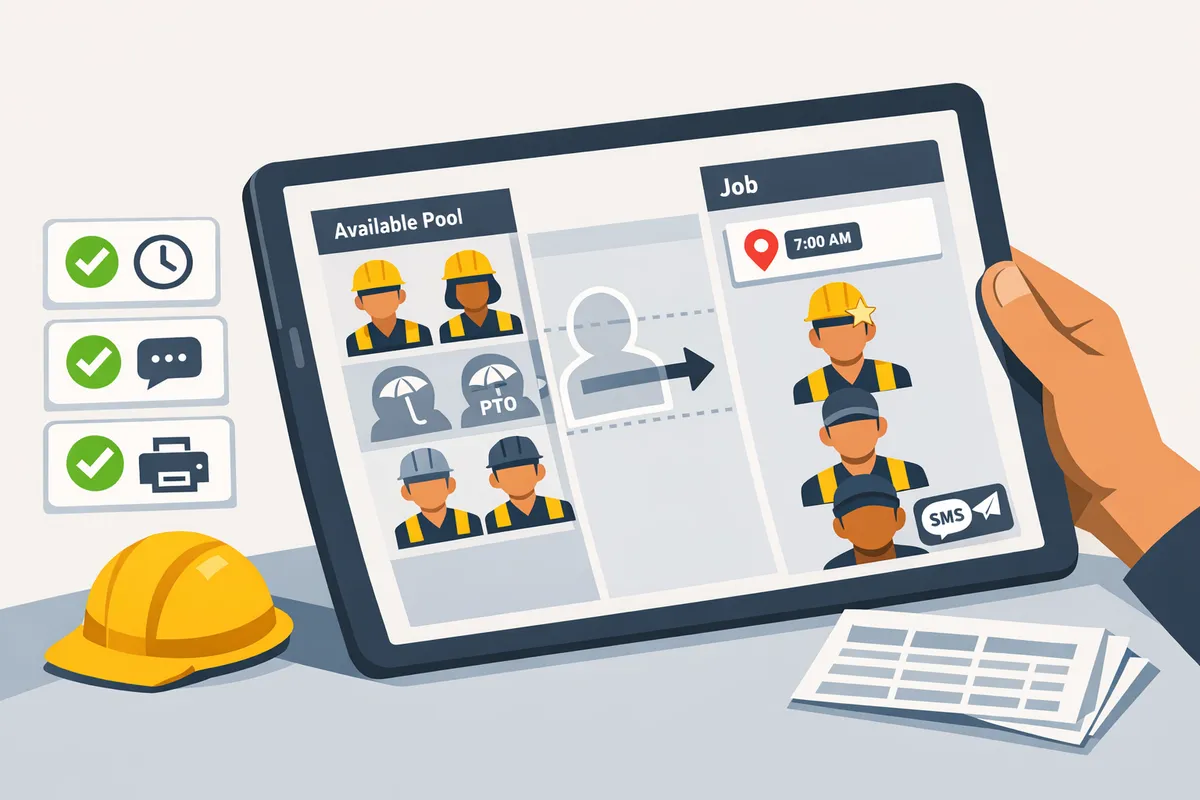
The foreman view filters the day board to show only the crew and supervisors assigned to a chosen job and date. Foreman is a field lead that is assigned to a job for the day via drag-and-drop on the day board. This filtered roster gives field leads a concise, mobile-friendly list they can open to confirm assignments without scrolling through the full schedule.
Filter the day board to a single job and date. 🧭
Select the date, click the job card, and enable the supervisor filter to surface only assigned crew and the foreman.
- Pick the date at the top of the Day view.
- Click the job card (the column for that job) to open its roster.
- Toggle the supervisor filter to show foremen and supervisors only, or clear it to see the full crew.
- Use the pool sidebar to review who remains unassigned for that same date.
These are the exact UI actions operators follow in CrewSheet to produce a 'who's on my job tomorrow' list; see the CrewSheet day board docs for screenshots and step-by-step UI notes. The same filtered view works on phones and tablets so foremen can pull the roster at the site gate.
See PTO and availability directly in the pool. ⛔
PTO entries appear grayed-out in the available pool so schedulers and foremen avoid assigning someone on their day off. CrewSheet marks PTO records with a label and dimmed state for the selected date, making unavailable workers visible without removing them from the roster. This prevents accidental double-booking and saves time compared with separate PTO calendars. For details on how PTO changes pool state and how to edit entries, see the CrewSheet managing crew docs.
💡 Tip: Confirm any new PTO entries with the crew member before you send schedules; a last-minute PTO added after you send texts creates the common scramble of calls and replacements.
Understand the single-use rule and overstaffing policy.
CrewSheet enforces a single-use rule so a crew member can only be assigned to one job per day, while the system allows overstaffing for jobs. Single-use prevents double-booking and the lost labor that causes a full wasted workday. Overstaffing is explicitly allowed because trade crews often require flexible sizing; CrewSheet shows the job's ideal crew size and the actual assigned count so operators can see overstaffing at a glance. Supervisor and role settings affect counts. For example, if a job lists an ideal crew size of four but seven people (including a foreman) are assigned, the foreman view displays all seven names and highlights the mismatch. Review roles and supervisor behavior in the roles and supervisors docs to understand how supervisor toggles affect the foreman roster.
Quick checklist: the 5 items a foreman needs before leaving the office.
A foreman should confirm these five items in the filtered view before heading to site: assigned crew list, start time, full address, special notes, and contact numbers.
- Assigned crew list — verify names match expected team and no one is on PTO.
- Start time — confirm the job-level start time or any date-specific override.
- Full address — copy the job address into navigation or photos.
- Special notes — check safety items, access instructions, and material pickup details.
- Contact numbers — ensure the operator and on-site superintendent numbers are included.
Each item is visible in the filtered Day view; operators use these checks to reduce calls and last-minute reassignments. See the The schedule board for a printable quick checklist and the roles and supervisors docs for guidance on foreman role setup.
⚠️ Warning: Make edits in the Day view and then hit Send; unsent changes do not notify crew and defeat the purpose of the foreman roster.
What proven practices keep the foreman view accurate and reduce last-minute issues?
A three-step daily roster routine, a small set of tested SMS templates, and printable jobsite sheets keep the foreman view dependable and cut last-minute friction. These practices take under five minutes each morning and prevent the most common errors: missed PTO, double-booking, and broken message scripts. CrewSheet short-circuits manual steps like CSV import, PTO visibility, and template picking so operators can focus on exceptions, not fixes.
Three-step daily roster routine ✅
Follow import, confirm, send each morning to lock the 'who is on my job tomorrow' roster in under five minutes.
- Import or copy the day. Pull yesterday's or the ERP CSV into the day board and copy jobs to the target date. CrewSheet's CSV import and copy-schedule feature reduce manual re-entry.
- Confirm PTO and supervisors. Filter the foreman view and scan grayed-out PTO entries. Confirm the supervisor/foreman assignment for each job so the filtered roster shows the right lead.
- Send the daily SMS. Pick a tested template, preview the segment counter, and send. Sending from the day board takes about 30 seconds when the board is prepped.
Operator checklist (30–300 seconds per item):
- Copy or import jobs for the date. See the schedule-copy tools on the day board.
- Scan the pool for grayed PTO entries and resolve conflicts. See managing crew docs for PTO export.
- Verify at least one supervisor is assigned per job.
- Select a template and check the live character counter before sending.
⚠️ Warning: Do not assume availability from another system; always confirm PTO in the scheduling view. Scheduling someone on PTO causes rework, payroll headaches, and unhappy foremen.
Learn the day-board steps in our day board guide
Keep message templates short ✉️
Keep two to three tested SMS templates — standard start, delayed start, and urgent alert — to reduce proofreading time and avoid accidental edits. Short, focused templates reduce segmentation costs and reading errors. Template best practices:
- Strict fields only: job name/number, full address, start time, and one short instruction (e.g., 'Meet foreman at gate').
- Aim for one SMS segment when possible; use the live character/segment counter in CrewSheet's composer to confirm.
- Give a fixed pattern so operators can update times without rephrasing the whole message.
Practical example: Standard start — 'Job 342. 123 Main St. Start 7:00 AM. Meet Mike at gate.' This gives the foreman and crew the essential facts in one glance. Use the template picker on the day board to avoid copy-paste errors.
Read about using templates and sending from the schedule board
Printable templates and quick sheets 📋
Use three ready-to-use templates — one-page roster, jobsite sign-in, and foreman daily plan — to simplify handoffs and site checks. Each sheet is a single page so foremen can keep it in a clipboard and supervisors can glance at assignments quickly. What each sheet contains and how to populate it:
- One-page roster. Columns: name, phone, role, assigned job. Populate by filtering the foreman view for the date and copying the roster row into the sheet.
- Jobsite sign-in. Columns: name, time in, time out, safety notes. Print and keep at the site entrance for compliance or end-of-day checks.
- Foreman daily plan. Sections: jobs (with start times), equipment needs, critical safety notes, and contact list. Export the day's jobs from CrewSheet or use the day board print options to fill the plan in under 60 seconds.
For CSV export and crew management steps, see the managing crew guide
Spreadsheets vs Assignar vs CrewSheet — at-a-glance comparison 🔍
CrewSheet provides fast, no-login SMS sends and a single-day board; spreadsheets are fragile and Assignar requires full-platform adoption.
| Solution | Flexibility | Cost / Complexity | Login requirements | PTO-awareness | Time-to-send |
|---|---|---|---|---|---|
| Spreadsheets + group texts | Very flexible but error-prone | Low monetary cost, high time cost | No logins for crew, operator handles messages | Usually separate; high risk of misses | 5–30+ minutes per day (manual copy/paste) |
| Assignar (enterprise) | Structured, rule-driven | High setup and licensing cost | Field workers typically require logins | Built-in but rigid; roles and crew-size rules can block real-world changes | 5–15 minutes once fully adopted, but adoption overhead is high |
| CrewSheet | Flexible day-board with lightweight structure | Single flat plan; lower operational cost than enterprise | No logins for field crew; push SMS to phone numbers | PTO shows in the pool for the selected day | ~30 seconds from a prepared board to sent messages |
CrewSheet aims to replace fragile spreadsheet workflows while avoiding the implementation and login burden of enterprise suites. See our buyer guide on scheduling software for construction crews for more comparisons and practical advice: Refer to our guide on scheduling software for construction crews
How do you implement and measure a reliable foreman view workflow with CrewSheet?
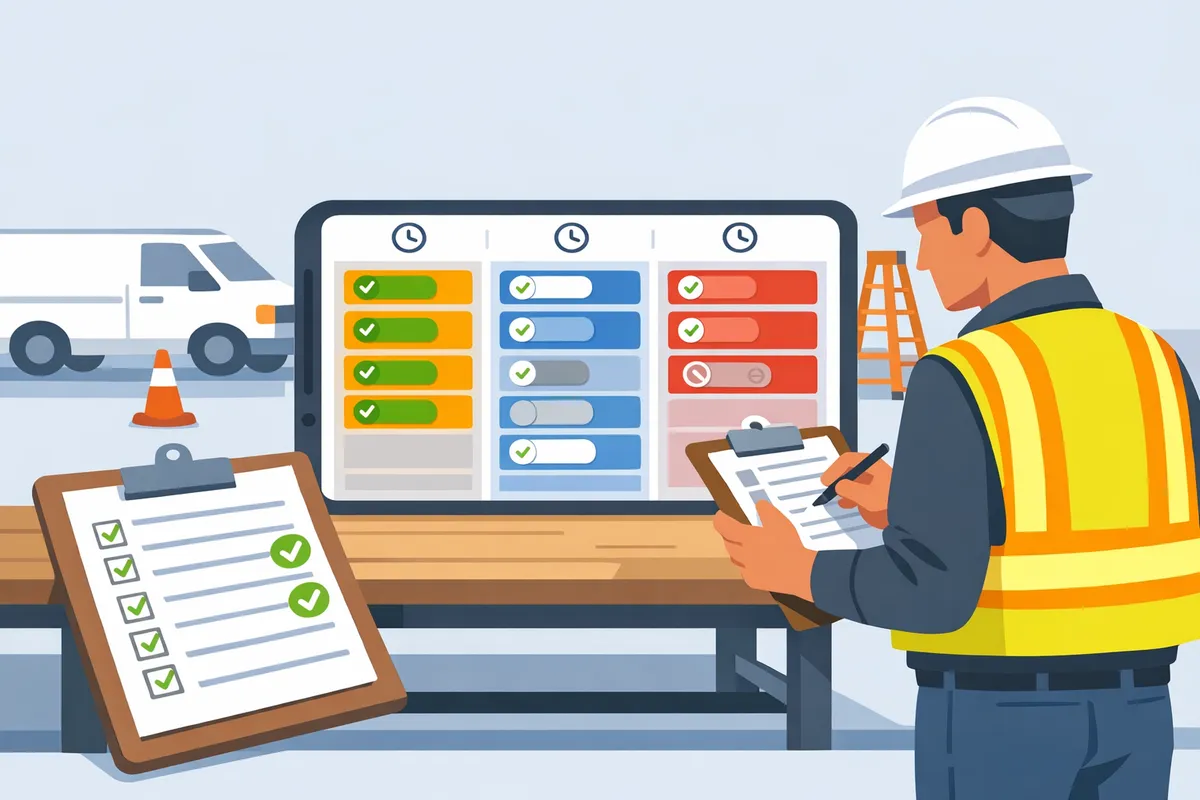
Implementing a reliable foreman view with CrewSheet means turning your jobs and crew list into a repeatable daily routine you can build, send, and measure. This section gives a compact checklist to get the day board ready, the KPIs to prove time saved and fewer no-shows, and the audit steps to support accountability.
Implementation checklist: CSV to sent SMS 🔁
Follow these numbered steps to go from spreadsheet exports to a sent foreman message in CrewSheet. Each step maps to a specific UI action so your scheduler can complete the loop without guesswork.
- Export jobs and crew from your ERP or Google Sheet as CSV. Use consistent column names (job number, address, start_time, ideal_crew_size; crew name, phone, role). See Managing crew guide for recommended CSV formats.
- Import jobs and crew into CrewSheet using the CSV import. Verify auto-detected columns and fix any mismatches before saving.
- Check PTO first. Open the pool and confirm grayed-out PTO entries for the selected date so you do not schedule someone on their day off.
- Build the day board. Drag crew from the pool into job columns, respecting the single-use rule. Use the The schedule board guide for quick tips on copying schedules and preventing double-booking.
- Flag the foreman/supervisor per job. Set the supervisor role on the job card so foremen can open the supervisor view for 'who's on my crew tomorrow.' See Roles and Supervisors for details.
- Choose and lock a short list of message templates. Pick the template and confirm start times on each job card; standardize the phrasing to avoid confusion.
- Send the schedule. Use the Send action on the day board to push SMS (and email if used). The communication history writes the event to the audit log.
KPIs to measure impact and prove ROI 📊
Measure time-to-send, scheduling corrections after send, and job no-show rate to quantify operational gains from a reliable foreman view. Track these weekly so you can show trending improvements and calculate saved hours.
- Time-to-send. Measure the elapsed time from opening the day board to hitting send. Run a stopwatch for five consecutive mornings, average the time, then compare after process improvements. Shorter time-to-send reduces the scheduler's morning labor cost.
- Scheduling corrections after send. Count edits to assignments or start times that occur after the initial send. Pull that from CrewSheet activity for the date. Each correction usually costs 15–30 minutes in calls and reassignments; reduce corrections to cut those lost hours.
- No-show rate. Define no-show rate as (no-shows / scheduled workers) for the day. Use your site sign-in sheet or foreman report to record no-shows and reconcile against the sent roster.
Example. For a small contractor that schedules 40 crew-days per week, reducing corrections from 6 to 2 per week saves roughly 8–12 hours of rework. Multiply saved hours by your loaded labor rate to estimate weekly dollar savings. Use the Dashboard export to present this to leadership.
Refer to our guide on scheduling software for construction crews for broader benchmarks and how this KPI set compares to spreadsheet workflows. Refer to our guide on scheduling software for construction crews
Use the communication history and audit log for accountability 📁
CrewSheet's communication history and audit log record who was messaged, when, and which channel delivered the schedule. Use the log as a single source to resolve disputes and cross-check payroll.
- How to extract a record. Filter the communication history by job and date, then export the entries you need for payroll or incident review.
- Dispute resolution. If a worker claims they never got a message, show the audit row with timestamp, recipient number, and send status to settle the claim quickly.
- Payroll and training. Use exported sends to reconcile site sign-in sheets against who was scheduled that day. Pull low-performing patterns (frequent late starts, repeated corrections) into a short coaching checklist for foremen.
See the day board docs for the exact steps to view send history tied to a specific date. Day board docs
Common pitfalls and fixes for foremen and schedulers ⚠️
The three most frequent errors are scheduling someone on PTO, entering the wrong start time, and using an outdated or broken template; each error has a crisp operational fix.
- Forgotten PTO. Fix: Always open the pool and visually confirm grayed PTO entries before assigning. Add a quick filter step at the top of your SOP: 'Confirm PTO for selected date.'
- Wrong start time. Fix: Standardize a two-second start-time check. Make it part of the send flow: glance at each job card's start_time field before selecting Send.
- Broken template. Fix: Keep templates to a short approved list and lock edit permissions to one scheduler. When a template changes, run a 30-second preview step and save it as a new version rather than editing the live template.
⚠️ Warning: Validate PTO entries in CrewSheet before assigning anyone; accidental scheduling on PTO creates the largest single source of corrective calls.
Operational SOP (one-page). Pair CrewSheet templates with this short SOP: 1) Import/refresh CSV, 2) Confirm PTO, 3) Assign crew and set supervisor, 4) Preview templates and start times, 5) Send and export audit record. Keep this SOP next to the day board and in your scheduler's checklist.
For more on field-focused design and why a no-login push model reduces friction for foremen, see Built for the field
Frequently Asked Questions
This FAQ answers the specific operational and CrewSheet questions schedulers and foremen ask about getting a reliable 'who is on my job tomorrow' roster. Use these short how-to answers to stop morning scramble, prevent accidental assignments, and audit who got notified.
How do I show only my job's crew for tomorrow in the foreman view? 📅
Open the day board, pick the target date, open the job card, and enable the supervisor filter to display only the assigned foreman and crew. CrewSheet's supervisor filter hides other jobs and the pool so a foreman sees a clean, job-level roster. If you need the click sequence or screenshots, follow the day board documentation for step-by-step guidance and see the roles and supervisors doc to confirm the foreman flag is set correctly.
Can I avoid scheduling someone who is on PTO? 🏖️
Yes. Mark PTO on the crew member's calendar and CrewSheet will gray out and label unavailable people for the selected date so they cannot be assigned. This PTO visibility prevents accidental scheduling and the subsequent 30–60 minute scramble that happens when someone shows up expecting work. See the managing crew guide for the exact PTO entry steps and best practices for bulk PTO imports.
Do field crew need to create logins to receive the roster? 📱
No. CrewSheet sends one-way SMS or email to the phone numbers and addresses on file so field workers do not need accounts or app installs. The outbound-only model reduces friction for field crews and keeps the workflow fast for schedulers; all sends are recorded in the communication history for auditing.
💡 Tip: Keep a written consent record for every phone number you message to reduce carrier compliance issues and streamline 10DLC registration.
Refer to our feature overview on being built for the field for more on the no-login approach.
What if I need to change the crew after I already sent the text? 🔁
Edit the day board to update assignments, then resend the updated schedule or use an announcement template to notify only the changed recipients. CrewSheet records each send in the communication history so you can audit who received which version and when. For late changes, announcements are faster and clearer than resending full schedules; see the day board docs for the exact resend and announcement workflow.
How does CrewSheet prevent double-booking a crew member? ⛔
CrewSheet enforces a single-use rule that blocks assigning a person to more than one job on the same date while still allowing overstaffing a single job when needed. This prevents the common double-booking mistake that costs a full workday, yet keeps the flexible crew-size behavior small trades prefer. Review the schedule board documentation to see how single-use enforcement appears in the pool and job cards.
Is there a quick way to get started if our schedule lives in Google Sheets? ↩️
Yes. Export your sheet as a CSV, import jobs and crew into CrewSheet, map fields (name, phone, email, role, PTO) and then build the day board with drag-and-drop assignments. The managing crew guide includes CSV mapping tips and field-name recommendations to avoid import errors and speed onboarding. If you want a short workflow comparison for small contractors moving off spreadsheets, see our guide on scheduling software for construction crews.
A short, repeatable day-board routine delivers a reliable 'who's on the job tomorrow' roster.
The practical takeaway is simple: build the day board, confirm PTO, and send the roster. Use the foreman view: who is on my job tomorrow to open a filtered roster for the next day and export or SMS that list to your foremen. This removes last-minute calls and prevents double-booking while keeping messages clear for crews.
💡 Tip: Start with one job card and one message template. Confirm PTO in the pool, drag the foreman onto the job, then hit send.
Create your first day-board schedule in Crew Sheet to try the routine. Follow the schedule board guide to assign supervisors, mark PTO, and send the morning SMS in a few clicks. If you want more background on why this replaces spreadsheets and group texts, see our article on scheduling software for construction crews.
Subscribe to our newsletter for short implementation tips and occasional workflow updates.