The PDF work plan
The work plan is a printable PDF of the schedule you're looking at. Hand it to a foreman, pin it in the shop, or keep it in the truck.
Download the work plan
- On the schedule, open the Day or Week tab and go to the date or week you want.
- Click PDF in the actions bar.
- The PDF downloads to your computer.
The PDF button appears on wider screens only, and not in the Month view. The PDF follows the division filter at the top of the schedule. With more than one division in view, each division starts on its own page.
Day view: the day plan
From the Day tab, you get one page per division for that day, titled with the full date (for example "Work plan · Monday, October 5, 2026"). Each page has a table of the day's jobs in start-time order:
- Start: the job's start time for that day, such as 6:30 AM
- Job: job number and name
- Location: the job address
- Supervisor and Crew: who is assigned
- Equipment: the units assigned to the job
- Notes: that day's job notes
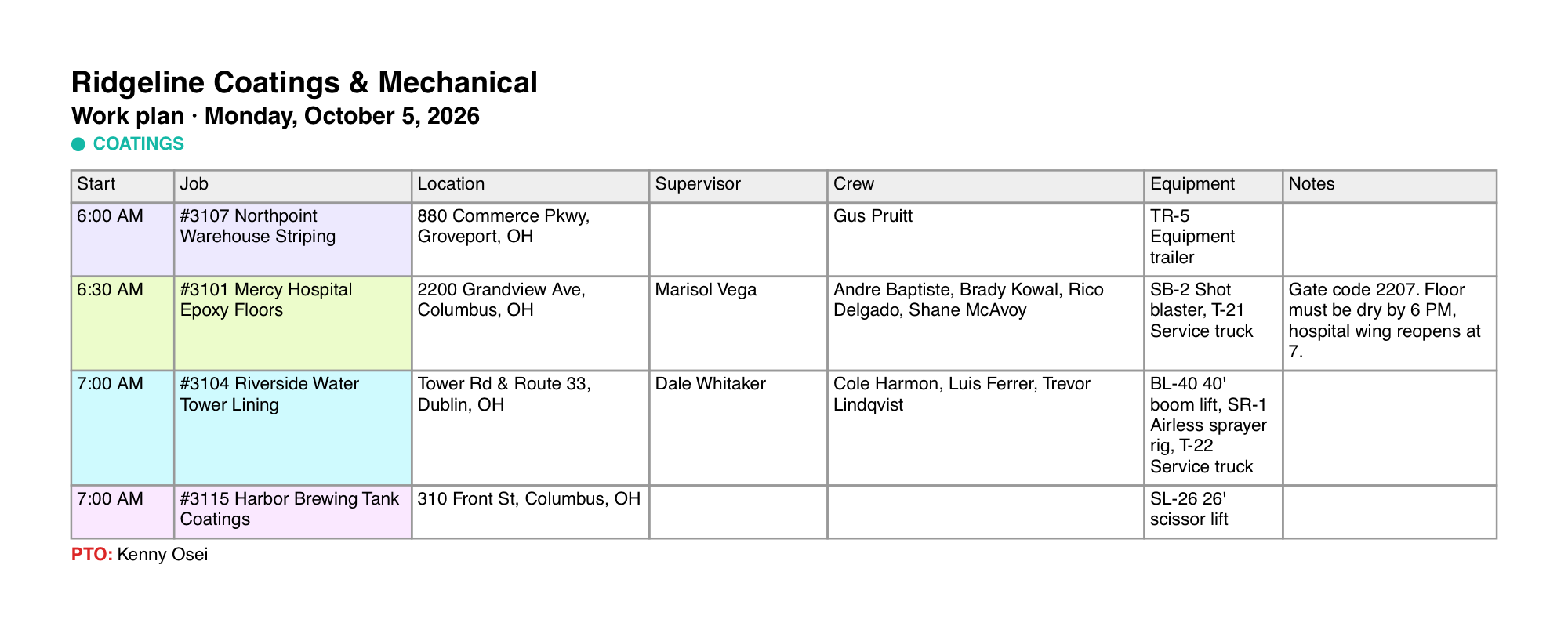
Below the table, Off lists crew marked OFF and PTO lists crew on time off. Partial-day time off shows its hours and unapproved requests say "requested".
Week view: the crew grid
From the Week tab, you get a grid with one row per crew member and one column per day, Monday to Sunday. Weekend days appear only when something is scheduled on them. Each cell shows the person's start time and job, plus any equipment. Supervisors are marked "(sup)", and the cell reads OFF, PTO, PTO requested, or the hours off where that applies.
Each job has its own color. A legend at the top of the page matches colors to jobs, so you can follow a job across the week.
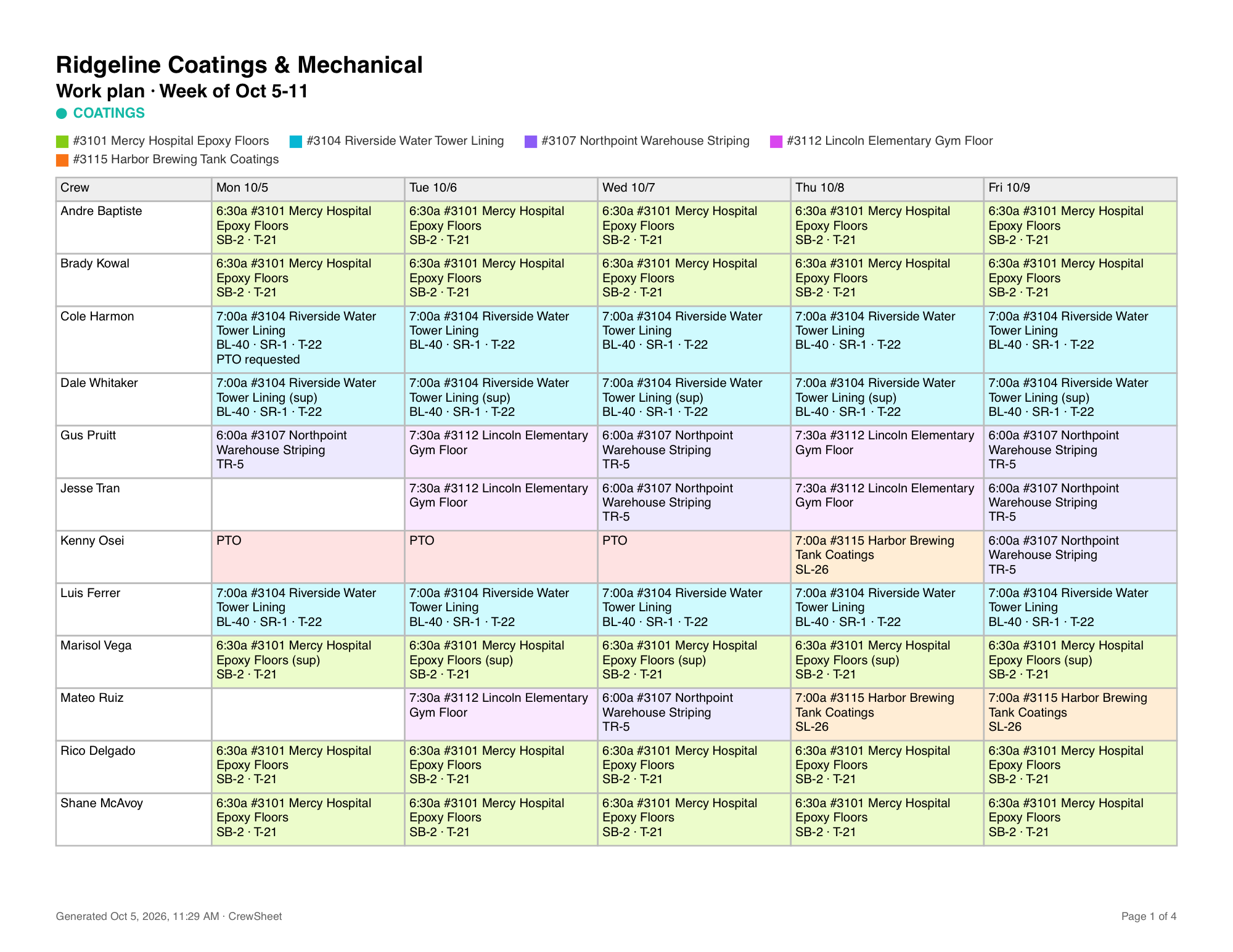
Every page has your organization's name at the top, plus the time it was created and a page number at the bottom.
Other places to get it
The crew activity report has its own PDF button that covers whatever date range you choose there. You can also attach the work plan to automatic digest emails. See Digest rules.