Sending the week
Send Week texts or emails each crew member one message covering several days, so they see their whole week in one place. You send it from the week view, right away or at a time you pick.
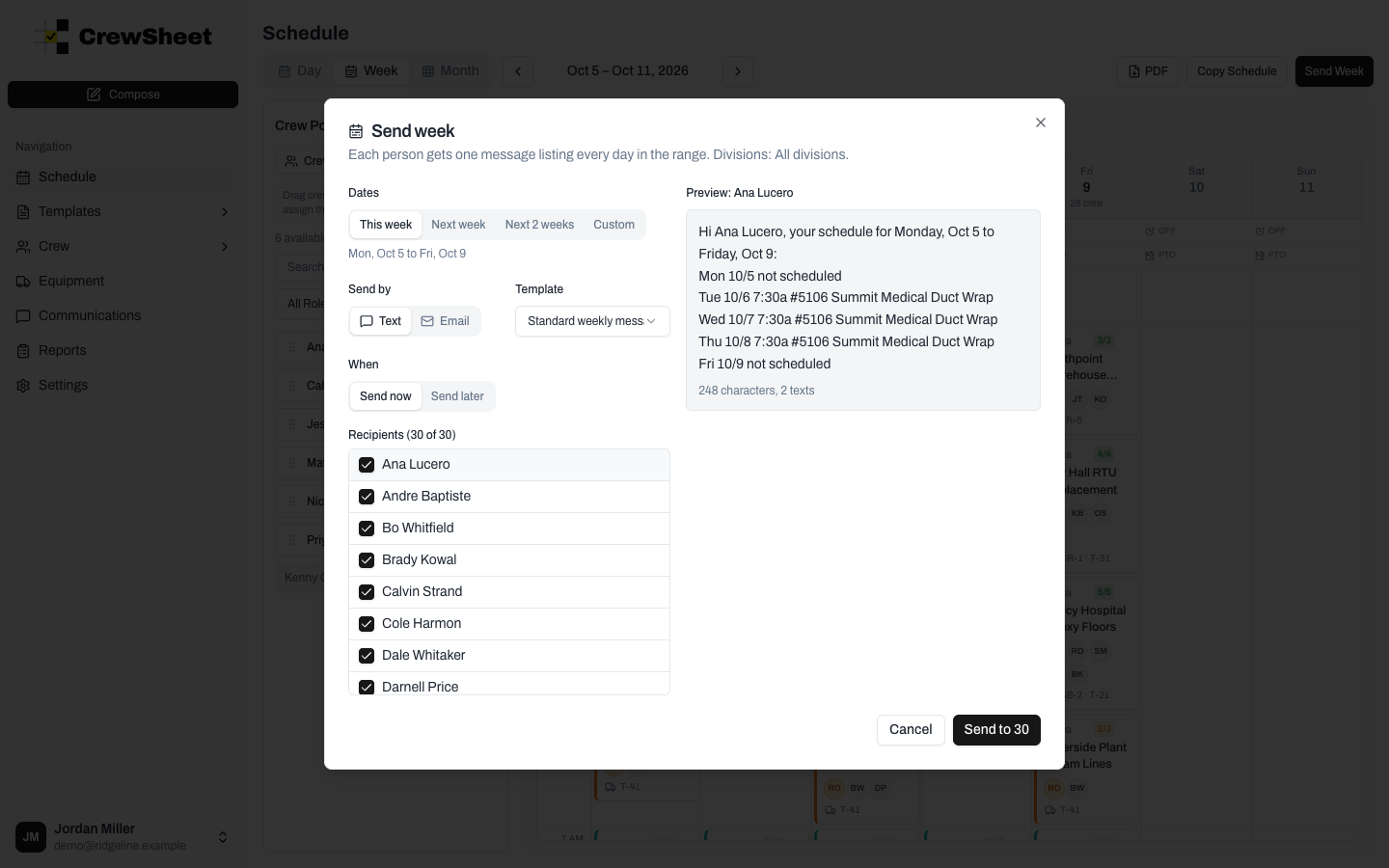
Send the week
- On the schedule, switch to the Week tab and go to the week you want to send.
- Click Send Week in the actions bar.
- Under Dates, pick This week, Next week, Next 2 weeks, or Custom. The presets cover Monday to Friday of the week you're viewing. Custom lets you choose a start and end date, up to 31 days.
- Under Send by, choose Text or Email.
- Choose a Template. Standard weekly message is the built-in default, and any weekly templates you've created are listed below it (see Message templates).
- Check the Recipients list. Click a name to preview that person's message on the right.
- Under When, leave Send now selected and click Send to (the button shows how many people are selected).
When the send finishes, CrewSheet shows how many messages went out and how many failed, and lists anyone who was skipped because they have no phone number (for texts) or email address (for emails). Every message is logged in Communication history.
Send Week follows the division filter at the top of the schedule. If your organization has more than one division, the dialog names the divisions it will include.
Who gets a message
By default, everyone who has a job or is marked OFF on at least one day in the range is checked. Anyone else in the list, such as crew with only PTO in those dates, starts unchecked. Check or uncheck people as needed. Crew with no phone number (for texts) or no email address (for emails) can't be checked and are marked no phone or no email.
What crew receive
Each person gets one message with a line for each day:
- A job day shows the day, start time, job number, and job name, for example
Tue 10/6 7:30a #5106 Summit Medical Duct Wrap. - Days they're marked OFF read OFF, and PTO days read PTO, PTO requested, or the hours they're off.
- A weekday with nothing scheduled reads not scheduled. Empty weekend days are left out.
The standard weekly message reads like this:
Hi Ana Lucero, your schedule for Monday, Oct 5 to Friday, Oct 9: Mon 10/5 not scheduled Tue 10/6 7:30a #5106 Summit Medical Duct Wrap ...
Texts stay short, so they leave out the address. Emails show the days as a table with the start time, job, address, supervisor (or crew, for a supervisor), equipment, and notes. The email subject is "Your schedule:" followed by the dates, unless your template sets its own.
Longer ranges make longer texts. The preview shows each message's length, and CrewSheet warns you when some messages run more than six texts long. For a long range, consider Email or fewer days.
Send it later
- Under When, choose Send later.
- Pick a date and time. It must be at least 15 minutes from now.
- Click Schedule for (the button shows how many people are selected).
A weekly send scheduled for later is built from the schedule when it goes out, not when you queue it. Changes you make before then are included, and anyone who picks up work in those dates is added unless you unchecked them.
While a weekly send is waiting, the week view shows a banner with the dates and the send time. Click Reschedule to pick a new time, or Cancel to stop it. You can also manage it from Communication history, where it's listed with a Weekly label. If a weekly send can't go out within six hours of its scheduled time, CrewSheet doesn't send it. The send is marked failed and its detail page explains why.
Sending the same dates twice
If dates in your range were already sent in a weekly message during the past week, the dialog lists those earlier sends. Check Send again anyway to send anyway.
Changes after a weekly send
CrewSheet remembers which jobs each weekly message told crew about, day by day. On the day board, each of those jobs shows a Sent badge, the same as after a daily send. If you then change a job's crew or start time on one day, that job is marked Changed for that day only.
To notify just the people affected, click the Changed badge, or open the job's ⋮ menu and choose Send Update. See Sending the schedule. Change tracking compares against the most recent send for that day, whether it was a daily send or a weekly one.