Digest rules
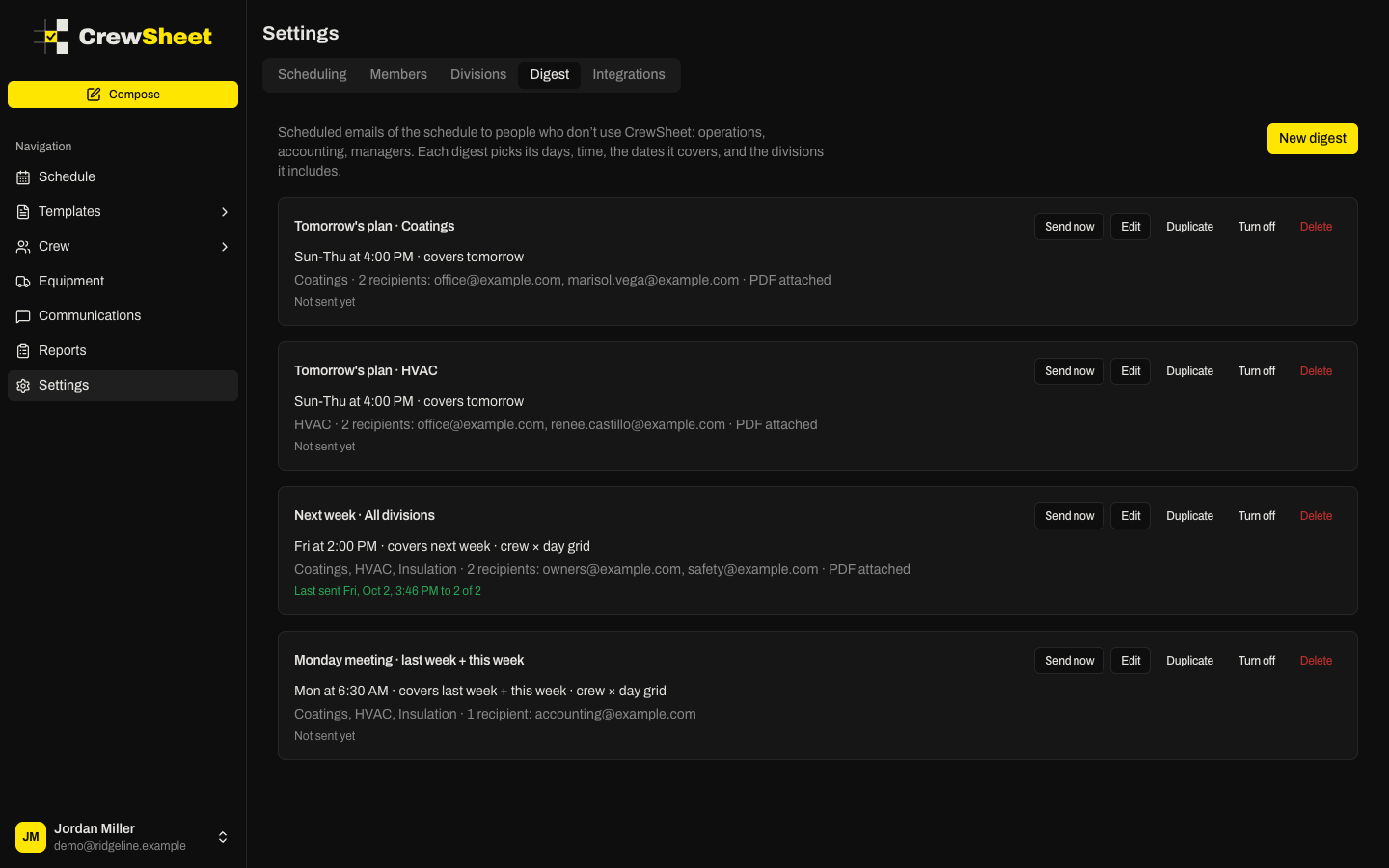
A digest is a scheduled email of the schedule for people who don't use CrewSheet — operations, accounting, owners, a safety manager. Each digest has its own days and time, the dates it covers, the divisions it includes, and its own recipient list. You can set up as many as you need: tomorrow's plan for each division every afternoon, next week's schedule every Friday, last week and this week for a Monday meeting.
Digests live in Settings > Digest. Admins and supervisors can create and change them; other roles see them read-only.
Create a digest
- Go to Settings > Digest.
- Click New digest.
- Give it a Name recipients will recognize, such as "Morning work plan".
- Choose the divisions, days and time, coverage, and recipients (each is explained below).
- Click Preview to check what the email will look like.
- Click Save.
A new digest starts out on weekdays at 6:00 AM, covering today. Change any of these before you save.
To start from an existing digest instead, click Duplicate on its card. The copy opens with the same settings and "(copy)" added to the name.
Choose the divisions it covers
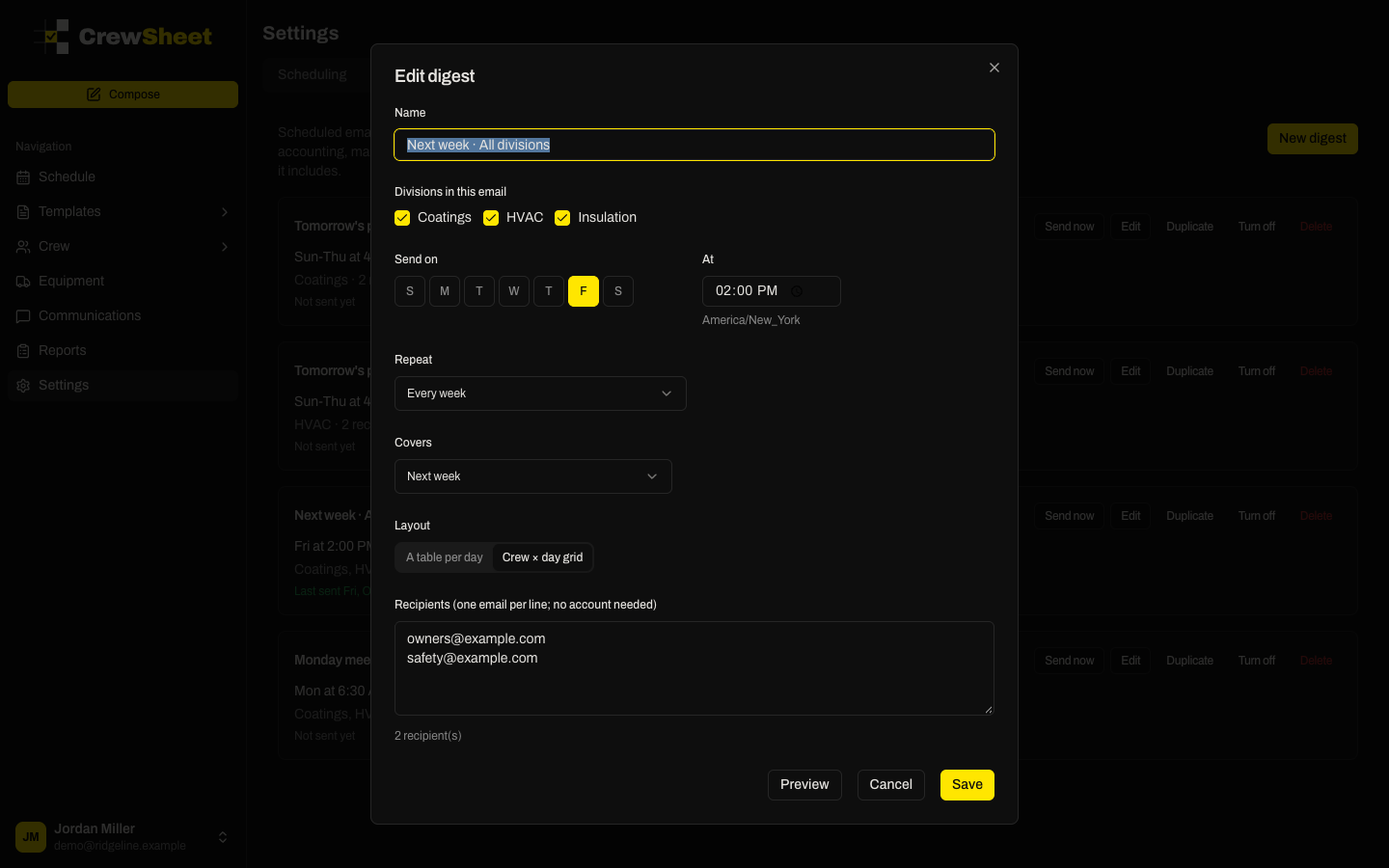
If your organization has more than one division, check each one to include under Divisions in this email. A new digest includes all of them. When a digest covers several divisions, the email has a section for each one.
To send each division its own email with its own recipients, make one digest per division.
Set the days and time
- Under Send on, click the days of the week the digest should go out. Selected days are highlighted.
- Set the time in At. The time uses your organization's timezone, shown below the field.
- Under Repeat, choose Every week or Every other week.
- If you chose every other week, set Starting the week of to a date in the first week it should send. It then skips every second week from there.
The card sums up the schedule, for example "Sun-Thu at 4:00 PM" or "Fri at 2:00 PM, every other week".
Choose the dates it covers
Covers sets which days of the schedule the email includes. These dates are counted from the day the digest is sent.
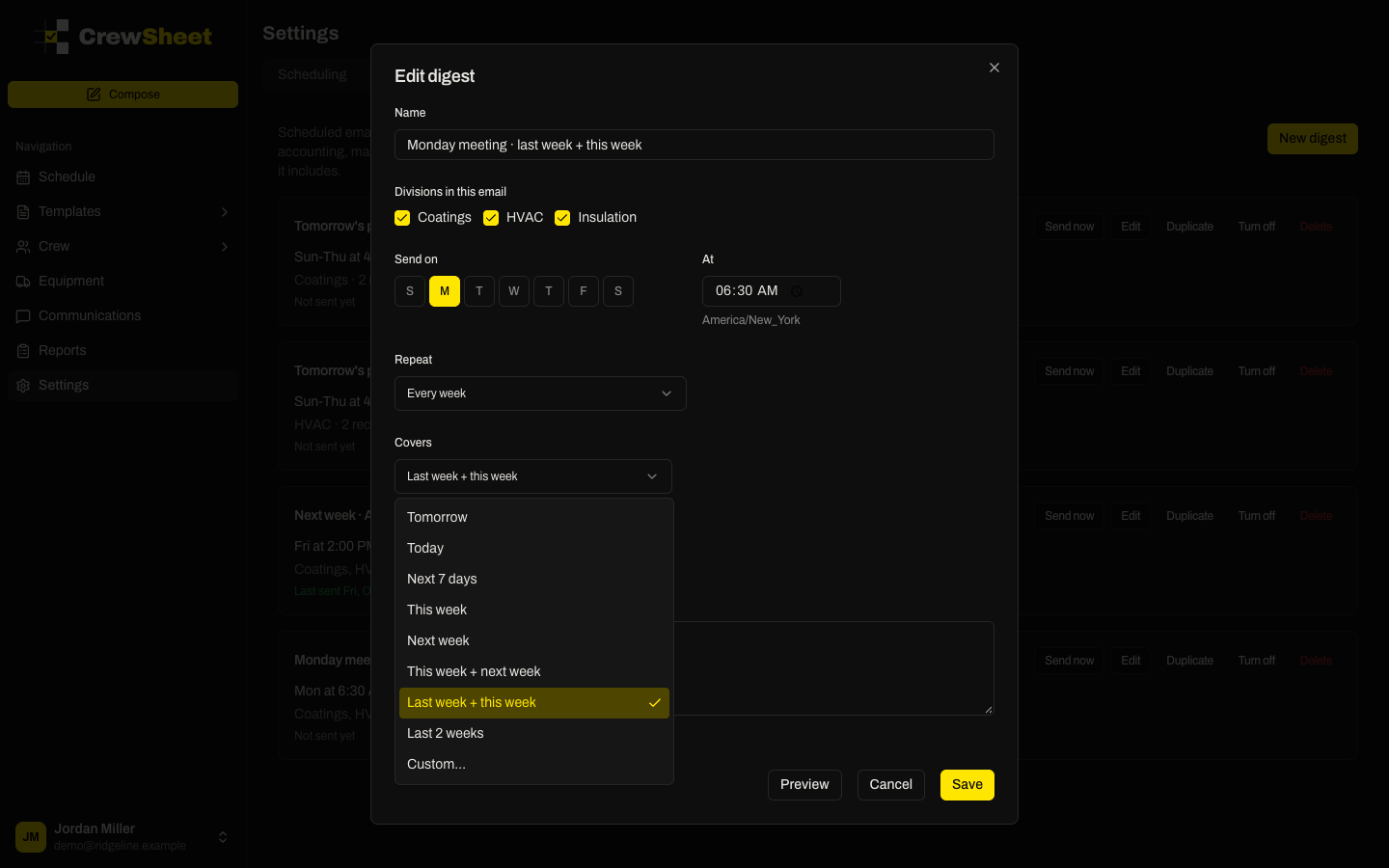
- Tomorrow or Today — a single day.
- Next 7 days — tomorrow plus the six days after it.
- This week or Next week — Monday to Sunday.
- This week + next week — two weeks looking ahead.
- Last week + this week or Last 2 weeks — looking back, useful for a weekly review or for accounting.
For anything else, choose Custom…. Then enter how many days or weeks to include and where to start: 0 is today (or this week), 1 is tomorrow (or next week), and -1 is yesterday (or last week). For example, "2 weeks starting -1 weeks from this week" covers last week and this week.
Pick a layout
When a digest covers more than one day, choose a Layout:
- A table per day — one section for each day, listing who is working where and when, and who is off or on PTO.
- Crew × day grid — one row per crew member and one column per day, so you can see each person's week at a glance.
Single-day digests always use a table.
Add recipients
Type email addresses in Recipients, one per line. Recipients don't need CrewSheet accounts. The count below the box shows how many addresses CrewSheet found.
A digest with no recipients won't send, and its card shows No recipients.
Skip empty or unchanged emails
Two options cut down on emails people don't need:
- Don't send when nothing is scheduled — skips the email if the dates it covers have no work.
- Don't send when nothing changed since the last email — skips the email if the schedule is the same as last time it was sent.
These only apply to scheduled sends. Send now always sends.
Attach a PDF work plan
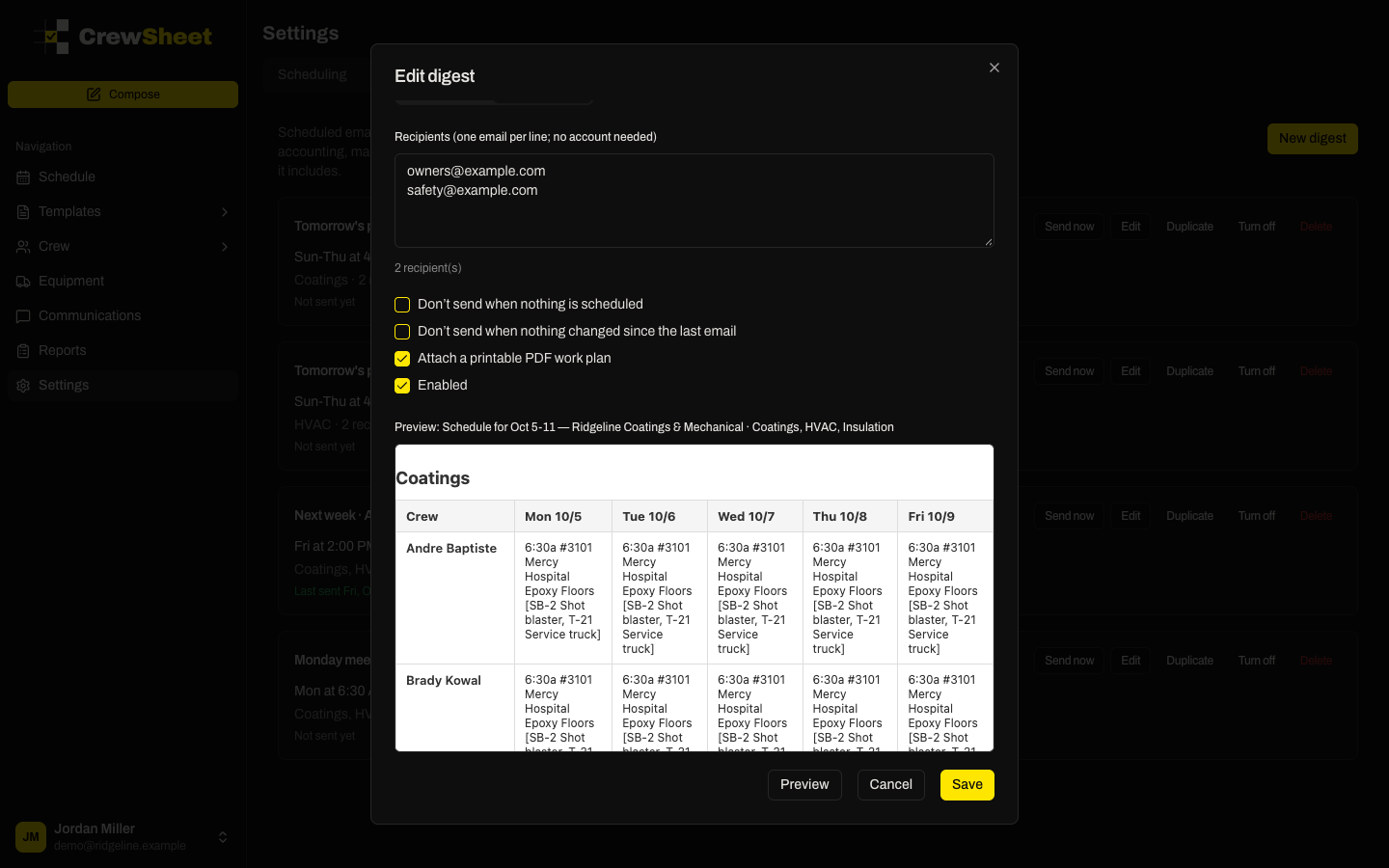
Check Attach a printable PDF work plan to add a PDF of the same dates to the email. The PDF follows the digest's layout — tables per day or a crew-by-day grid — with each job color coded so it's easy to follow across the page. It prints on landscape letter paper, ready to hand out or post at the shop.
If the PDF can't be created for some reason, the email still goes out without it, and the card notes what happened.
Preview a digest
Click Preview at the bottom of the form. CrewSheet builds the email from the current schedule and shows it below the settings, with the subject line it will use. If nothing is scheduled on those dates, the preview says so.
Preview doesn't send anything, and it reflects any changes you haven't saved yet.
Send a digest now
To send a digest right away instead of waiting for its next time, click Send now on its card. It goes to every recipient, covering the dates counted from today. A message at the top of the page confirms how many recipients it reached.
Send now is greyed out until the digest has at least one recipient. It ignores the skip options and works even when the digest is turned off.
Check whether it sent
The last line of each card shows how the most recent send went:
- Not sent yet — the digest hasn't gone out since it was created.
- Last sent — when it went out and how many recipients received it, for example "to 2 of 2". "(sent manually)" means it came from Send now.
- Skipped — nothing was scheduled, or nothing changed, so no email was sent.
- Failed — the send didn't go through. CrewSheet tries a scheduled digest up to 3 times and shows which attempt failed and why.
If the app is briefly unavailable at send time, CrewSheet catches up and sends the digest when it's back, as long as that's within a few hours of the scheduled time. A digest never sends more than once a day on its own.
Turn a digest on or off
- Click Turn off on a card to pause a digest without losing its settings. A paused digest is dimmed and marked (off).
- Click Turn on to start it again.
You can also check or uncheck Enabled when editing a digest. To remove a digest for good, click Delete and confirm.