Members and invites
Members are the office staff who log in to CrewSheet to build schedules and send messages. Field crew do not need accounts — they only receive texts and emails. This page covers inviting teammates, setting their role, and managing access.
Understanding roles
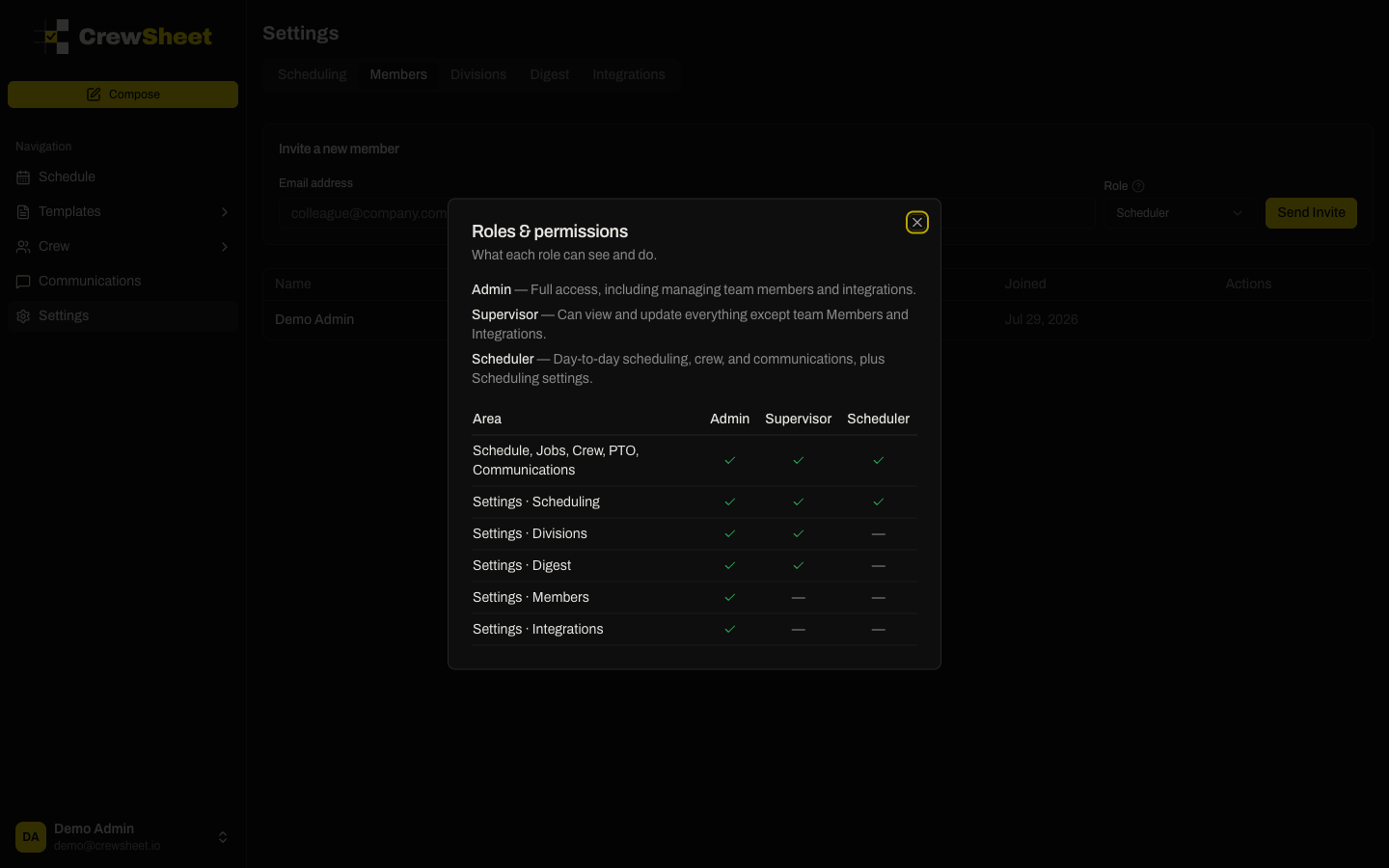
Every member has one of three roles that control what they can see and do:
- Admin — Full access, including managing team members and integrations.
- Supervisor — Can view and update everything except Members and Integrations.
- Scheduler — Day-to-day scheduling, crew, and communications, plus Scheduling settings.
Click the small question-mark icon next to the Role field to open a side-by-side chart of exactly what each role can access.
Inviting a new member
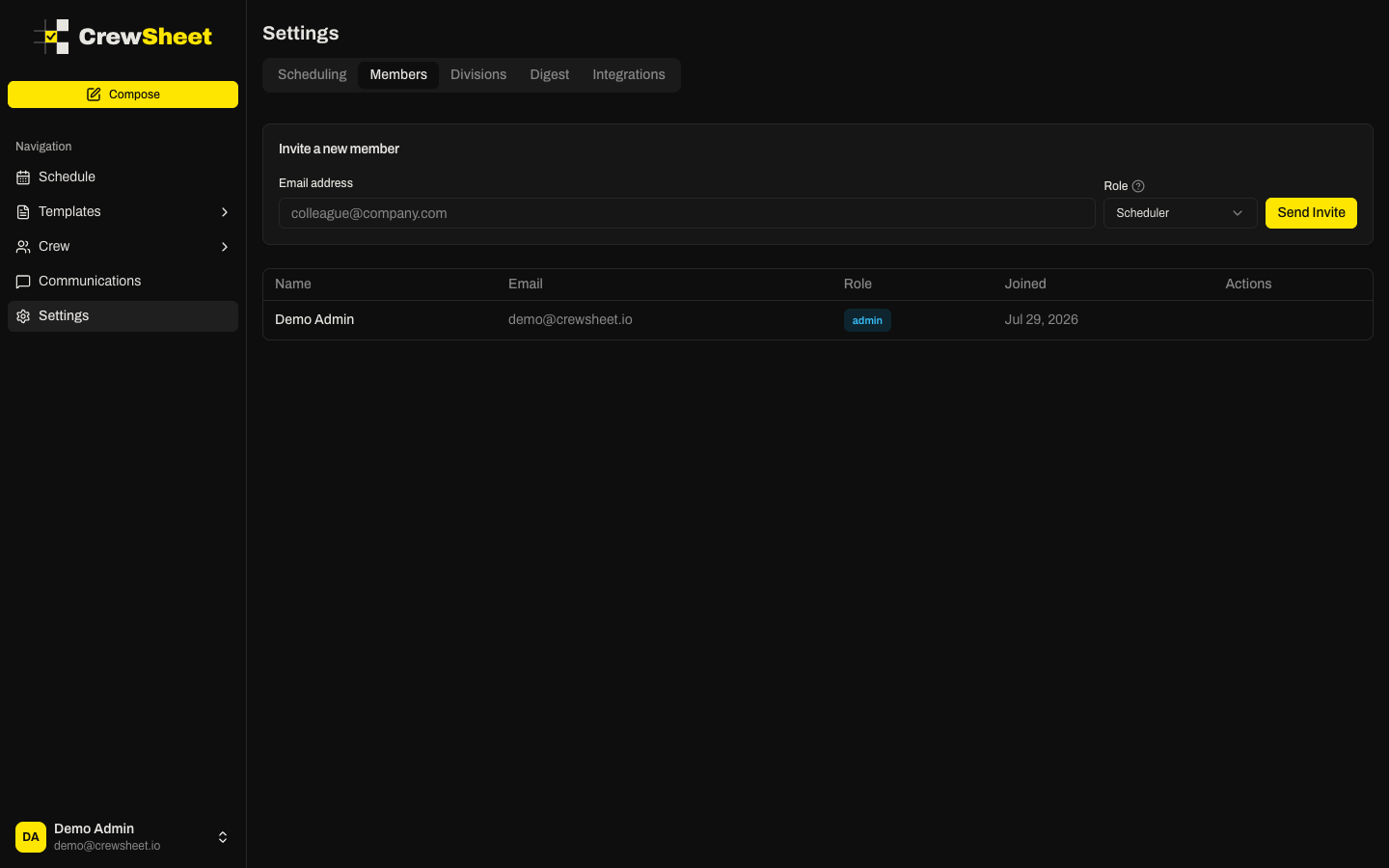
Only admins can send invites. From Settings → Members:
- In the Invite a new member box, type the person's email address.
- Choose a Role from the dropdown.
- Click Send Invite.
The invite email goes out automatically. Invites expire after 7 days.
Managing pending invites
Invites that haven't been accepted appear under Pending Invites. For each one you can:
- Resend Email — send the invitation again.
- Copy Link — grab the invite link to share directly (for example, in a text).
- Revoke — cancel the invite so the link stops working.
Editing or removing members
In the members table, admins can Edit a teammate's name or role, or Remove them. Removal takes effect immediately — the person loses access right away. You cannot edit or remove your own account here.