Sending the schedule
Sending the schedule is the core action in CrewSheet: build the day board, then text every assigned crew member where to be and when. It's built to be a 30-second job, not a proofing session.
Send the whole day
From the schedule board, once crew are assigned to jobs:
- Click Send Schedule in the actions bar above the board.
- The composer opens in Send All mode, listing every job for the day down the left as job bundles. Each job's assigned crew are pre-checked.
- For each job, pick a crew template (and a supervisor template if the job has a foreman). Jobs with a saved default template fill in automatically.
- Click a crew member to preview their exact message — job name, address, and start time are filled in for you.
- Click Send All to text everyone at once.
Any job missing a template is flagged with a warning so nothing goes out blank.
Send one job
To notify just one crew, use the Send button on that job card (or Send Communication from the card's menu). The composer opens scoped to that job's roster. Pick a template, check who should get it, preview, and send.
Channel and recipients
SMS is the primary channel. Use the recipient list to uncheck anyone you want to skip — supervisors and crew are grouped separately. The character and SMS-segment count shows under each preview so you know how long the text is.
Sending an update
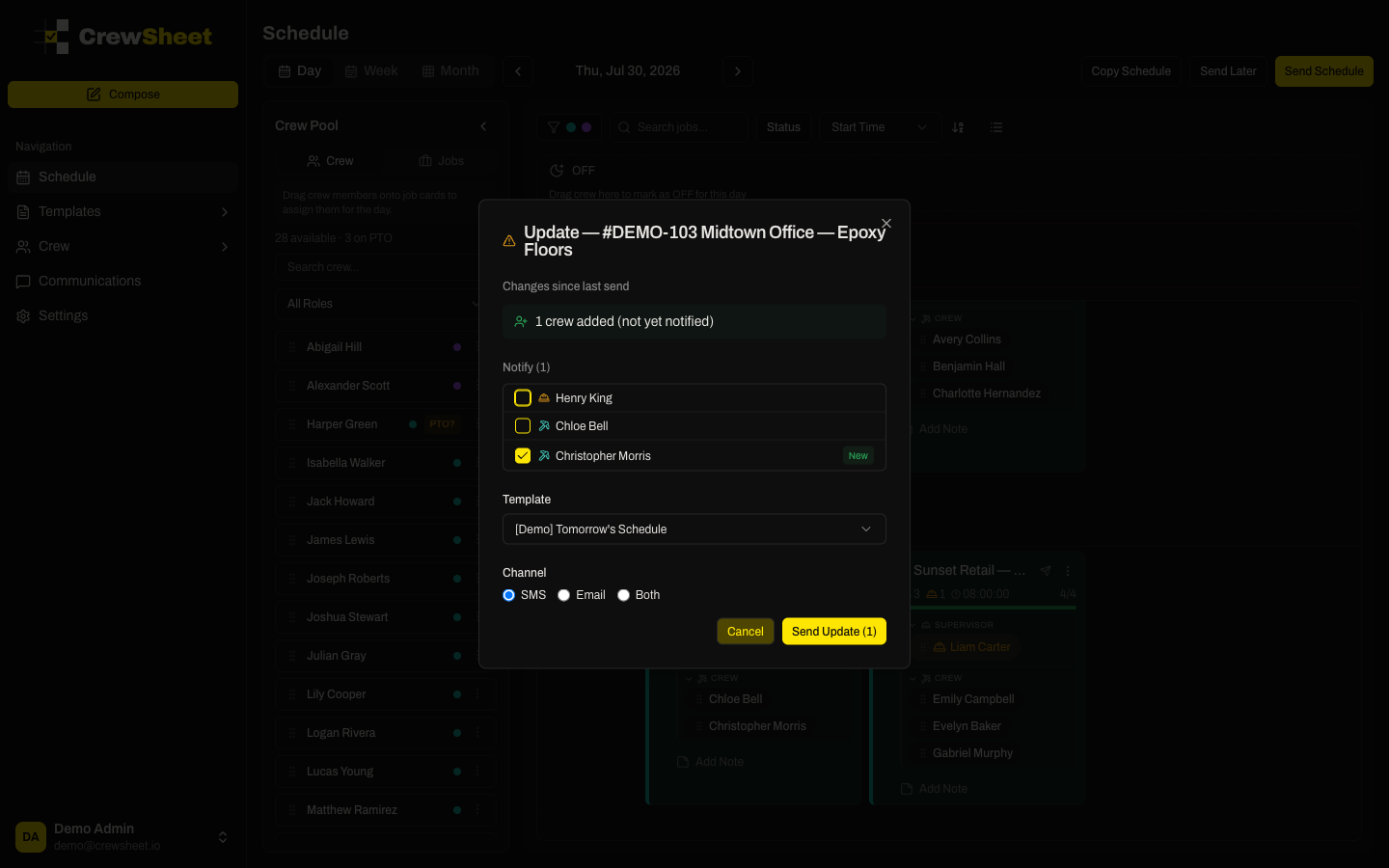
If you change a job's crew or start time after you've already sent it, CrewSheet notices the drift. On that job's card, open the ⋮ menu and choose Send Update to open a dialog that summarizes exactly what changed — who was added or removed, and any time change — and lets you notify just the affected crew rather than re-texting everyone.
Not ready to send now? See Scheduled sends. Templates are managed under Message templates.