The equipment list
The Equipment page is your list of trucks, lifts, trailers and other units. Add a unit here once, then put it on jobs from the schedule board so the office and the crew know what's going where.
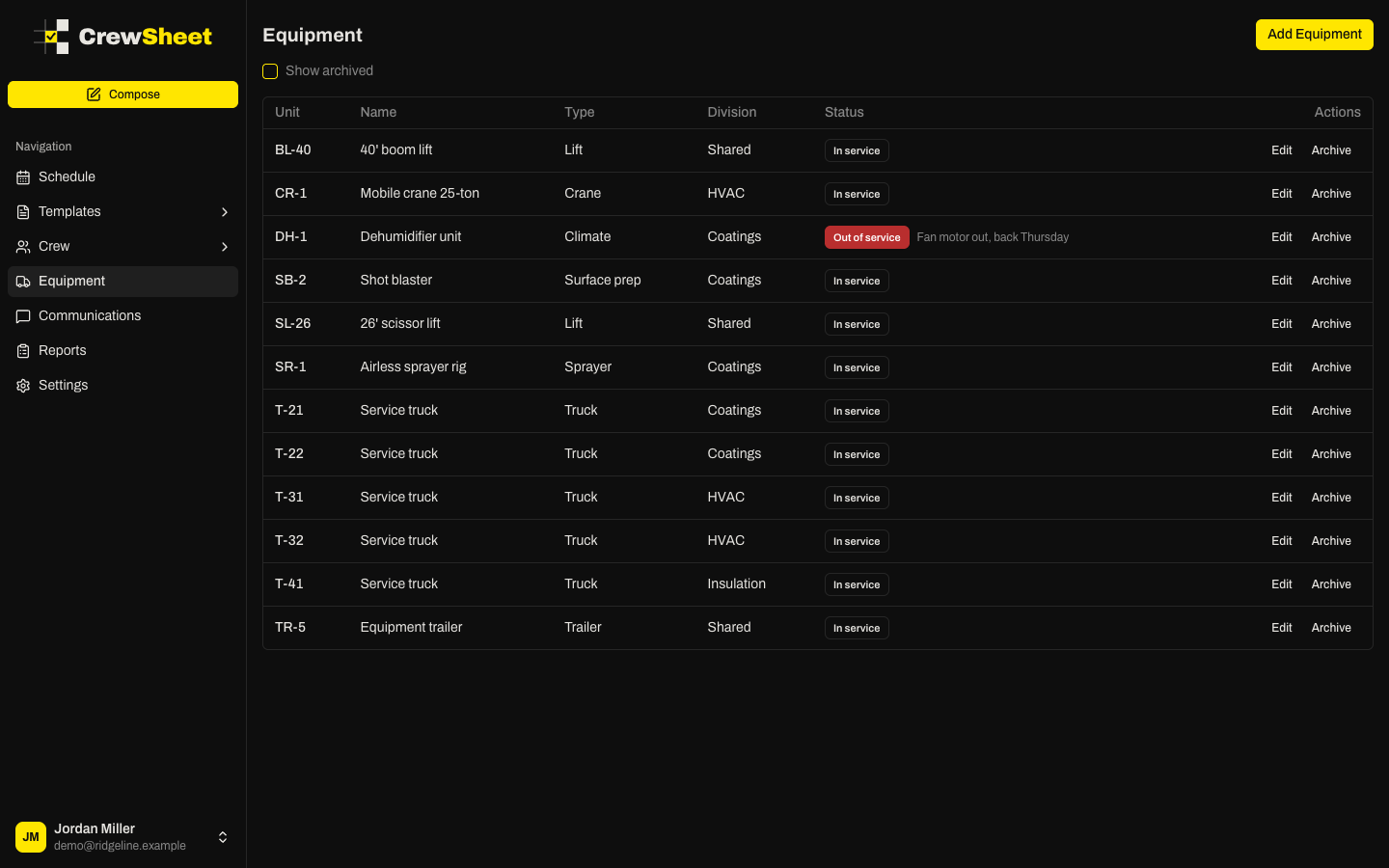
Open the equipment list
Click Equipment in the main navigation. The table shows each unit's:
- Unit number, such as T-21 or BL-40
- Name and Type
- Division, if your company uses divisions. A unit shows Shared when every division can use it.
- Status, which is In service, Out of service (with the reason beside it), or Archived
Every role can view and manage equipment.
Add a unit
- Click Add Equipment in the top right.
- Enter a Unit number. It's required and must be unique among your active units.
- Enter a Type, or pick a suggestion such as Truck, Bucket truck, Trailer or Excavator. You can type any type you like.
- Add a Name if you want one (optional), for example "2019 F-550 bucket".
- If you use divisions, choose a Division. Pick Shared (all divisions) for a unit any division can put on its jobs, or a single division to keep it on that division's jobs only.
- Click Save.
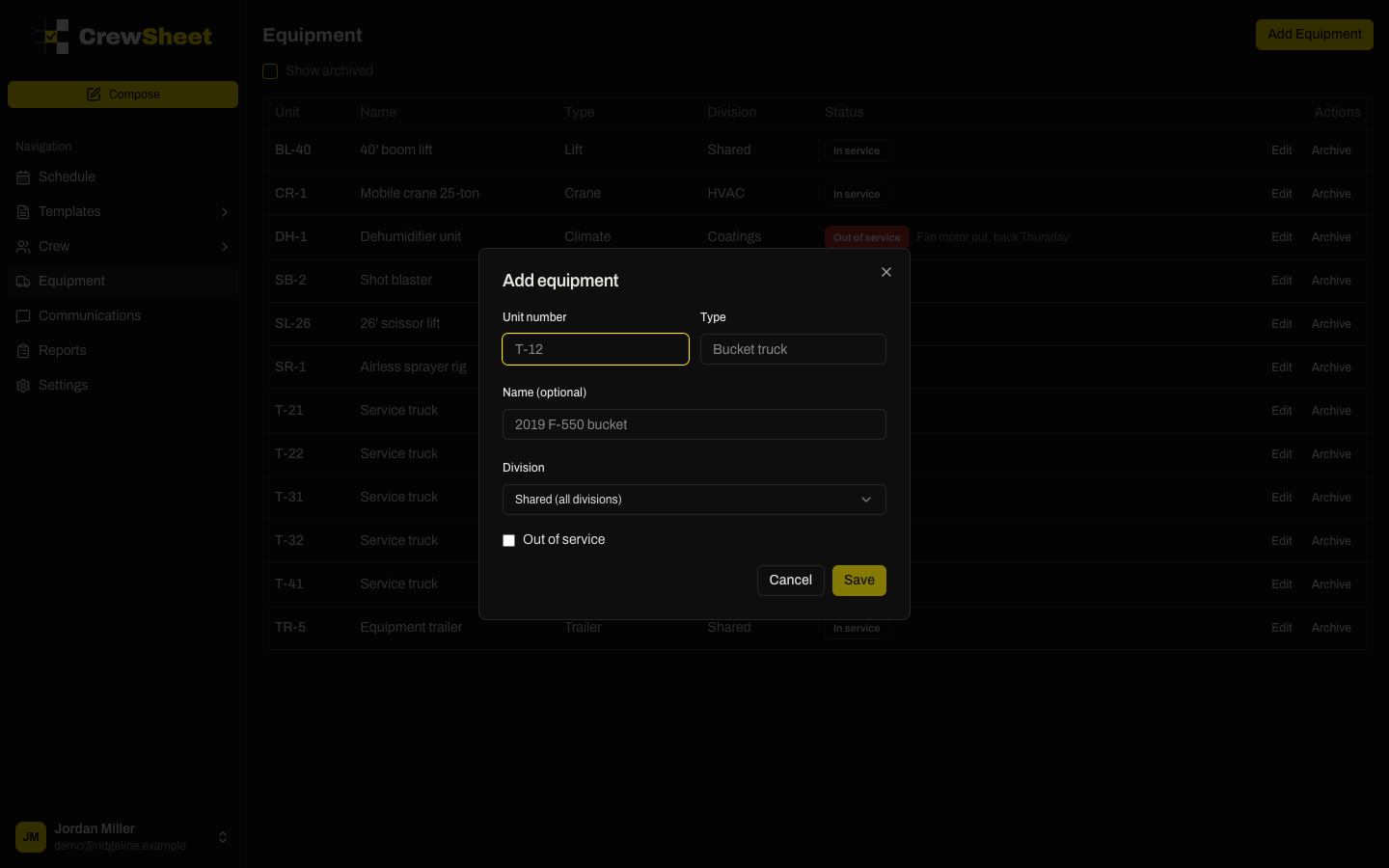
The unit number and name are what crew see in texts and digests, for example "T-12 Bucket truck". Keep them short and recognizable.
Mark a unit out of service
When a truck is in the shop, click Edit on its row, check Out of service, and type a Reason if you want one (for example "Fan motor out, back Thursday"). Click Save.
Out-of-service units still show on the board's Equipment tab with an OOS tag, and you can still put one on a job if you have to. CrewSheet warns you when you do. Uncheck Out of service when the unit is back.
Edit a unit
Click Edit on any row to change its unit number, type, name, division or status, then click Save.
Archive and restore
When a unit is sold or retired, click Archive on its row. Archived units drop off the schedule board's Equipment tab and can't be put on jobs, but nothing is deleted.
To see archived units, check Show archived at the top of the page. They appear dimmed with an Archived badge. Click Restore to bring one back.
Next step
Once your units are listed, put them on jobs from the board. See Equipment on the board.