Working with divisions
Divisions let you split one CrewSheet organization into separate lines of business — for example, a Coatings division and an HVAC division — so schedules, jobs, crew, and communications stay organized by group.
What a division does
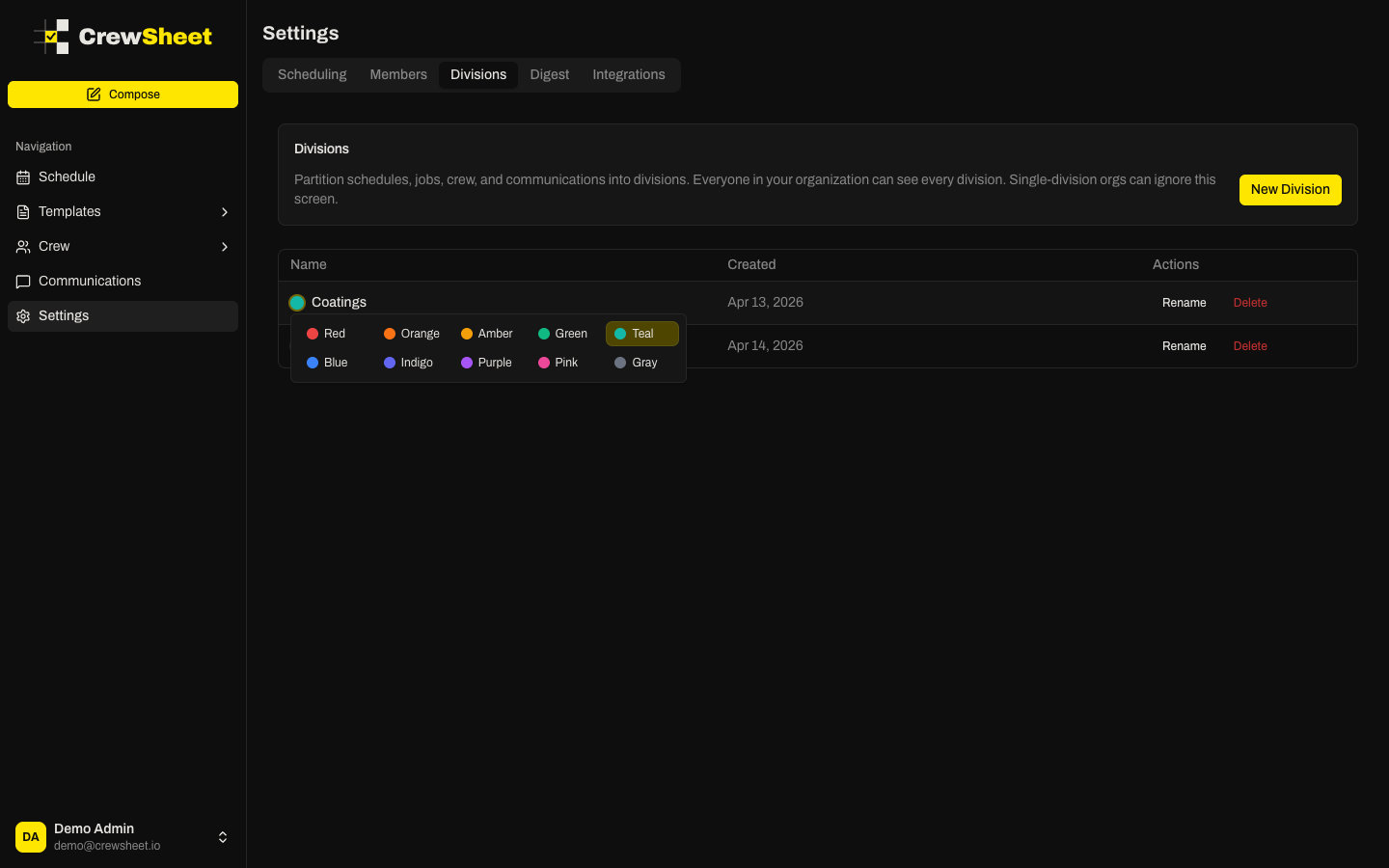
A division partitions your schedules, jobs, crew, and message templates. Everyone in your organization can see every division, so it's a way to organize work, not to hide it. Each division has a color that appears throughout the app to keep its jobs and crew visually distinct.
If you run a single line of business, you can ignore this screen entirely — one default division is all you need.
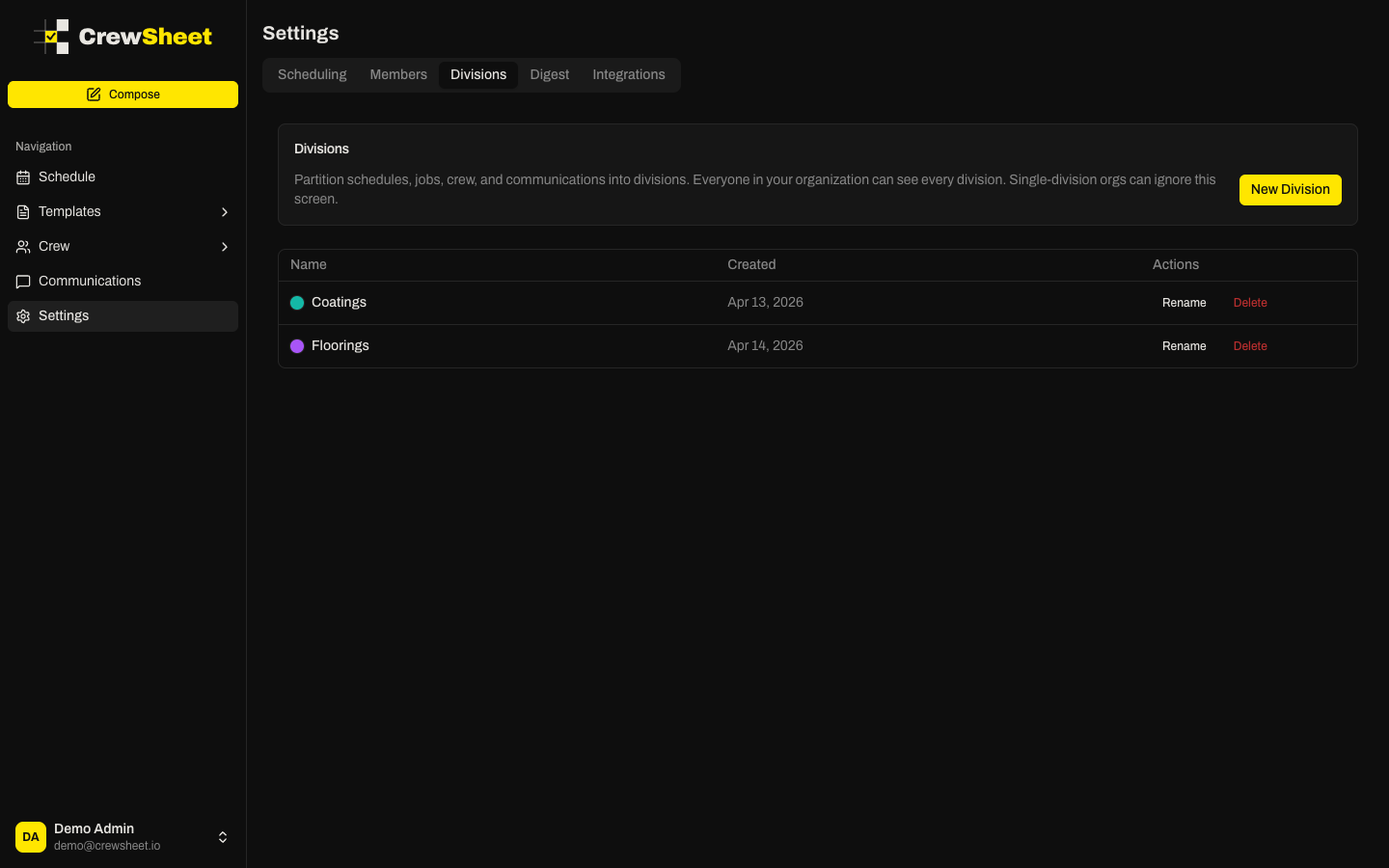
Create a division
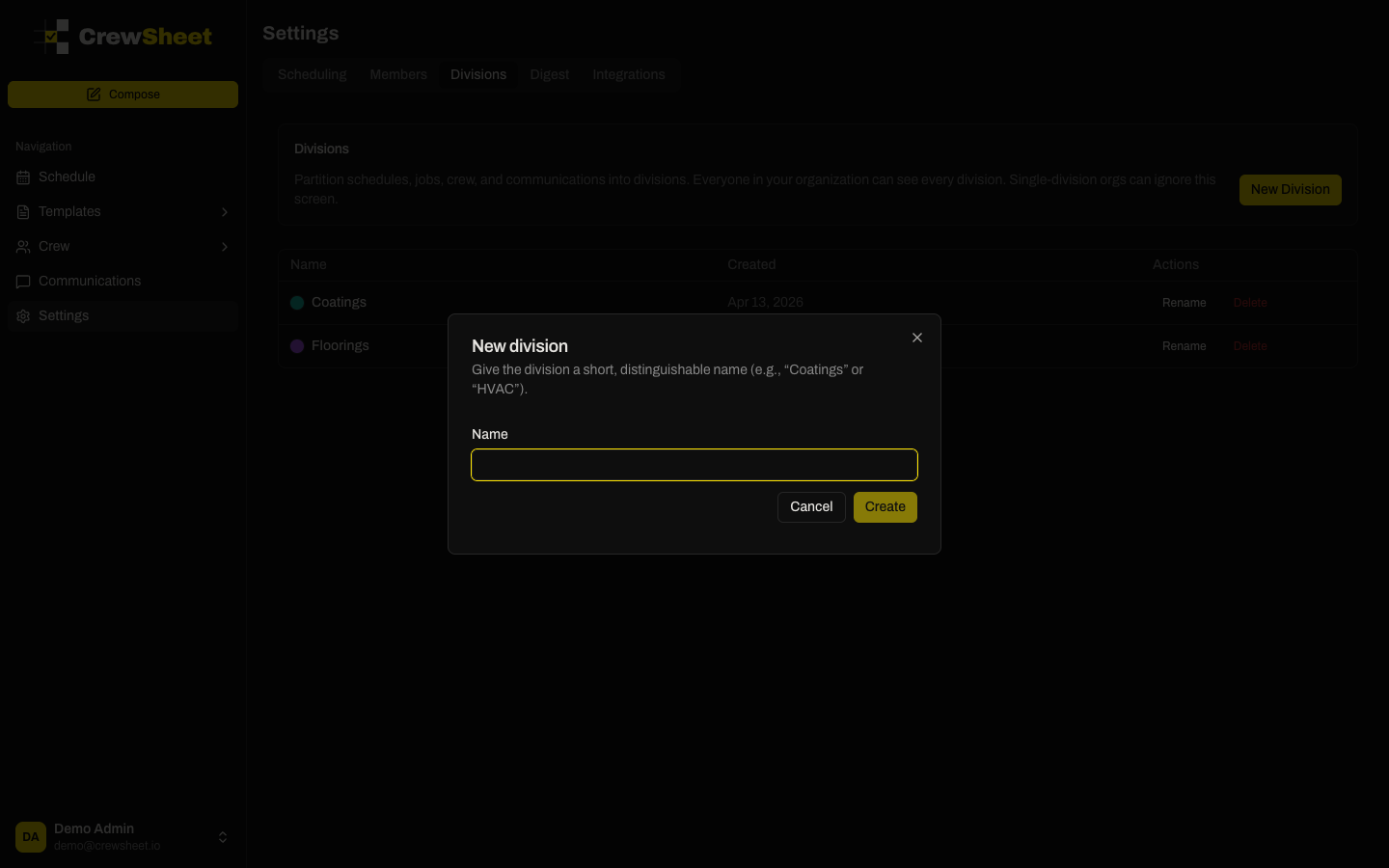
Only admins can add or change divisions. Schedulers and supervisors see this screen as read-only.
- Go to Settings > Divisions.
- Click New Division.
- Enter a short, distinguishable name (e.g., "Coatings" or "HVAC").
- Click Create.
Rename or recolor
- Rename: click Rename on a division's row, edit the name, and save.
- Change color: click the colored dot next to the division name and pick a new color from the palette.
Delete a division
Click Delete on the division's row and confirm. Crew, templates, and jobs that belong to that division will need to be reassigned, and the deletion can't be undone. Your organization must always keep at least one division, so the last one can't be deleted.
Once your divisions are set up, you can send each one its own daily schedule email — see Per-division digests.