Crew activity report
The crew activity report shows who was scheduled where, day by day, across one or more weeks — handy for a Monday meeting, checking last week's coverage, or giving accounting a record of the plan. It shows the schedule as planned, not hours worked.
To open it, click Reports in the sidebar. The report is titled Crew Activity.
Choose the dates
Pick a date range at the top of the page:
- This week + last week (the default)
- This week
- Last week
- Last 2 weeks
- Custom — enter a start and end date. A custom range can be up to 62 days.
Weeks run Monday to Sunday, and the most recent week is shown first. Saturdays and Sundays only appear when someone has something scheduled that day.
Filter by division
If your organization has more than one division, use the division filter at the top left to show only the divisions you want. The filter also applies to the CSV and PDF downloads.
Show it by crew or by job
Use the switch at the top right to change how rows are laid out:
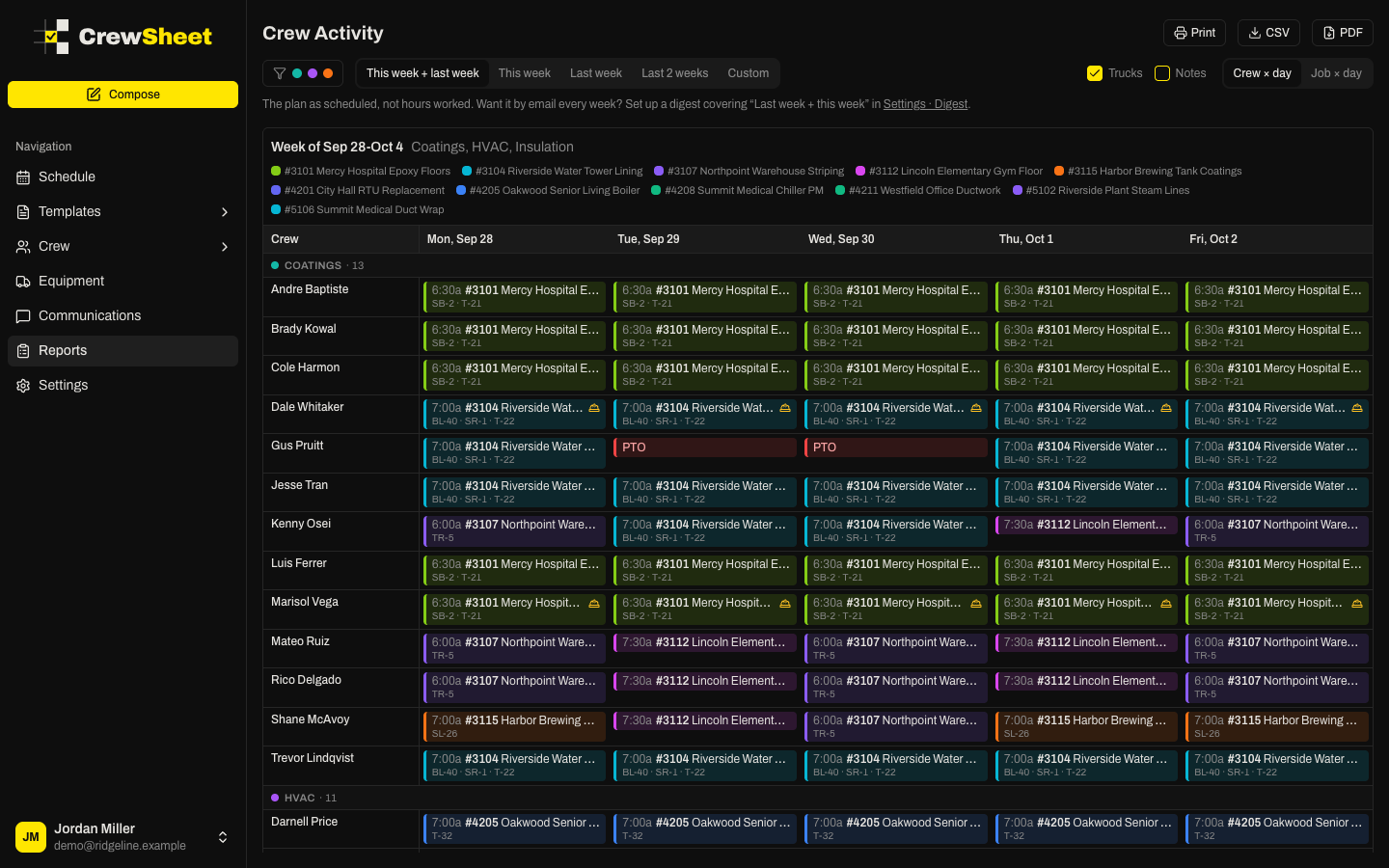
- Crew × day — one row per crew member, with what they were doing each day. When you have several divisions, crew are grouped under their division with a count.
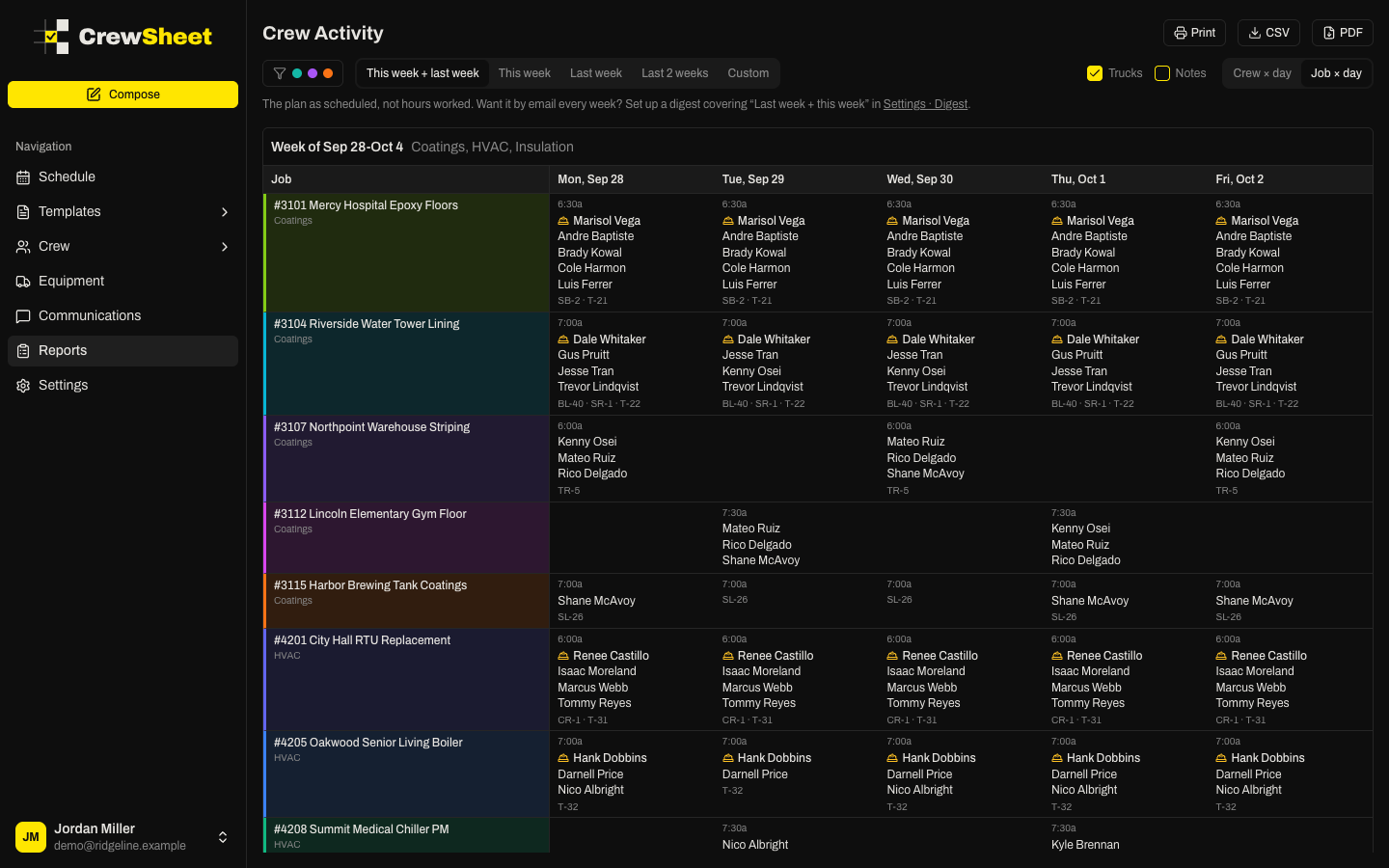
- Job × day — one row per job, listing the start time, supervisor and crew on each day.
Read the report
Each week is its own table, headed Week of and the dates. As you scroll through a long week, the week heading and the day names stay pinned to the top so you always know which column you're looking at.
Every job gets its own color, and keeps it across every week of the report and in the PDF. In Crew × day, a legend under each week's heading shows which color is which job. Each entry in a cell shows the start time, job number and job name.
Other markings:
- Hard hat icon — the person was the job's supervisor that day.
- PTO (red) — a full day off.
- PTO with hours, such as "PTO 12-5p" (amber) — part of the day off.
- PTO? (dashed amber outline) — time off that was requested but not approved.
- OFF (gray) — the person was marked off that day.
- (archived) after a name — the crew member has since been archived.
Red and amber are never used for jobs, so time off always stands out.
Show trucks and notes
- Check Trucks to list the equipment on each job under the job name. It's on by default.
- Check Notes to show job and PTO notes in full. When it's off, a note icon marks entries that have a note — point at it to read the note.
Print or save as a PDF
There are two ways to get the report on paper:
- Print opens your browser's print dialog with only the report — no menus or buttons — on landscape pages, one week per page. To save it as a file, choose Save as PDF as the printer.
- PDF downloads a ready-made work plan PDF for the same dates and divisions. In Crew × day you get a crew-by-day grid; in Job × day you get a table of jobs for each day. Jobs are color coded the same way as on screen.
Export to a spreadsheet
Click CSV to download the report as a spreadsheet file that opens in Excel or Google Sheets. It covers the dates and divisions you have selected.
The file has one row for each person, each day, and each thing they had on — so a person on two jobs in one day gets two rows. That makes it easy to filter and build pivot tables. Columns include the date, weekday, division, crew member, role, status (assigned, supervisor, off, or PTO), job number and name, address, start time, supervisor, equipment and notes.
Get it by email instead
To have this report emailed every week, set up a digest that covers Last week + this week and uses the Crew × day grid layout.