Recording PTO
Record when a crew member is off so they never get scheduled by accident. PTO lives in the PTO calendar, and once it's entered the crew member shows as unavailable on the schedule board for those days.
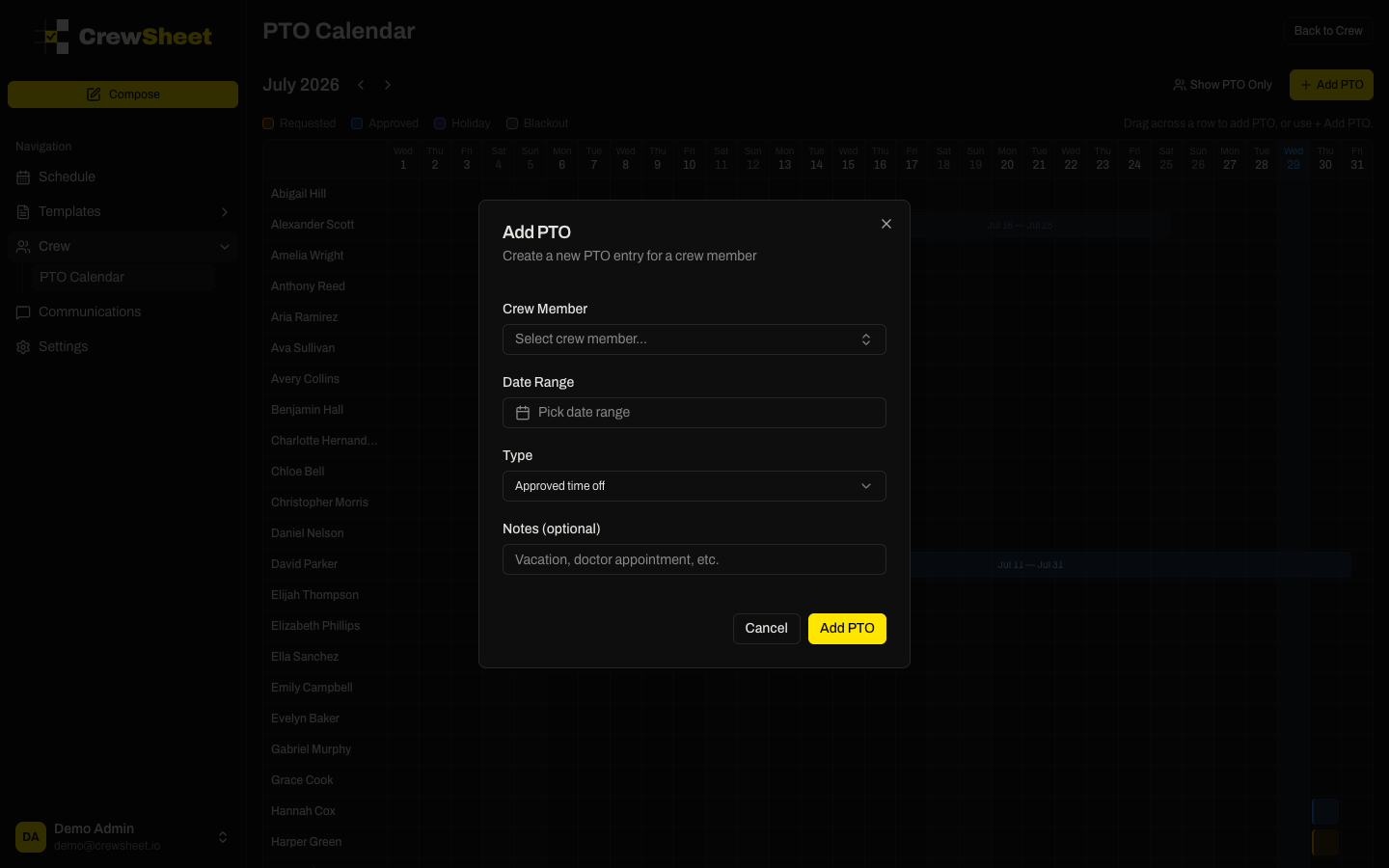
Open the PTO calendar
Go to Crew, then open the PTO Calendar (the page at /crew/pto). You'll see a month grid with one row per crew member.
Add a PTO entry
There are two ways to add time off:
- Drag across a row — press and drag over the days a crew member is off, directly on their row. The Add PTO form opens with that person and those dates already filled in.
- Use the Add PTO button — click + Add PTO in the top right, then pick the crew member yourself.
In the form, confirm or set:
- Crew Member — search and select (skipped when you dragged on a row)
- Date Range — the first and last day off
- Type — see the PTO calendar for what each type means
- Notes — optional, e.g. "Vacation" or "Doctor appointment"
Click Add PTO to save. The entry appears as a colored bar on that crew member's row.
Edit or delete an entry
Click any colored PTO bar to open its details, then choose Edit to change the dates, type, or notes, or Delete to remove it. Deleting asks for confirmation and can't be undone.