Managing jobs
Jobs are the work assignments you schedule crew onto. In CrewSheet you set each one up once as a job template — job number, name, address, start time, and ideal crew size — and then reuse it every day you run that job on the schedule board.
Viewing your jobs
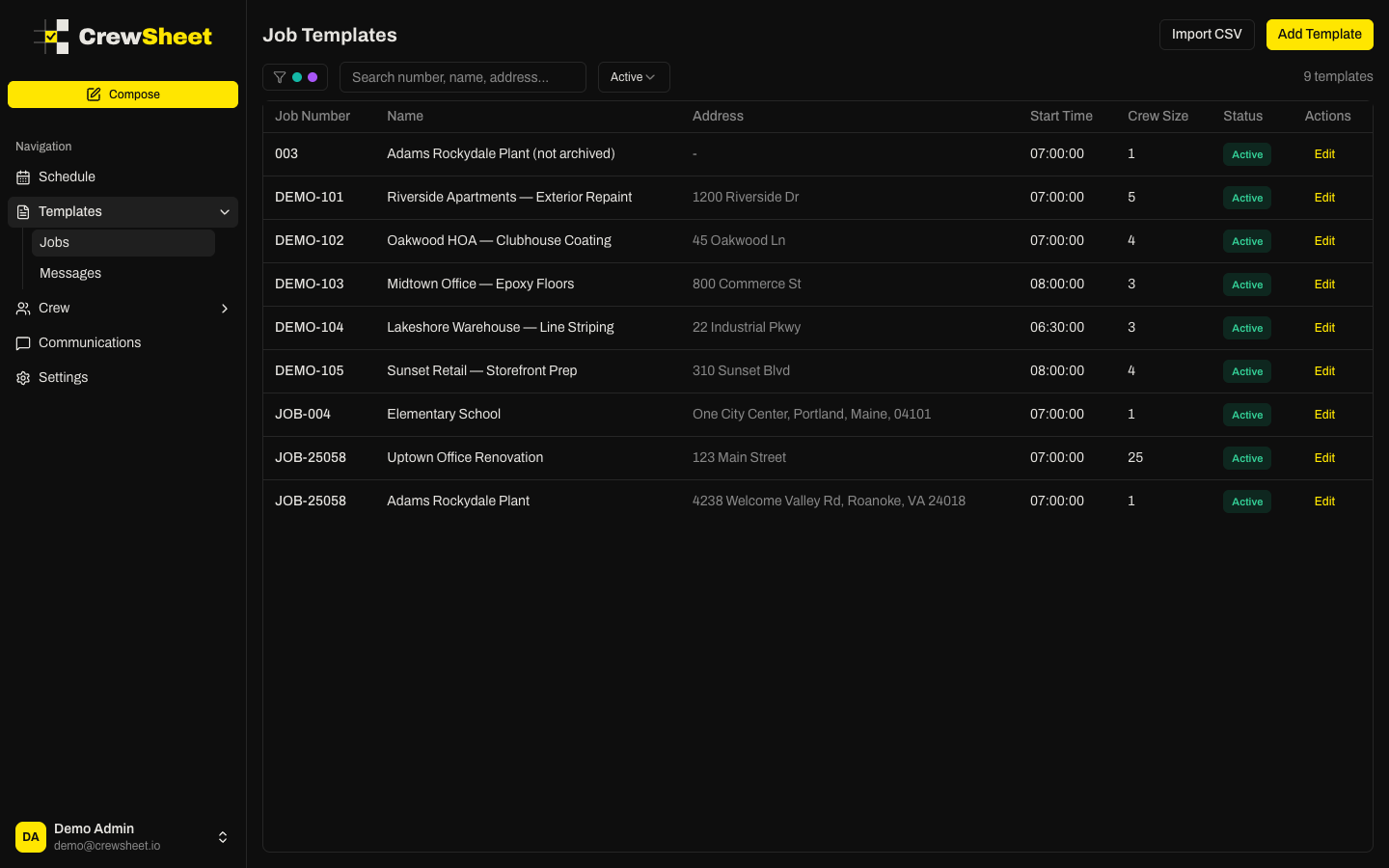
Go to Jobs in the sidebar to see all your job templates in a table showing job number, name, address, default start time, crew size, and status.
- Use the search box to find a job by number, name, or address.
- Use the status filter to show Active, Archived, or All jobs (Active is shown by default).
- If your company uses divisions, use the division filter to narrow the list to one division.
Adding a job
- Click Add Template in the top right.
- Enter a Job Number and Name (both required).
- Optionally fill in the Address, Default Start Time (defaults to 7:00 AM), and Ideal Crew Size.
- If you want messages pre-filled when you dispatch this job, pick a Default Template and Default Supervisor Template.
- Use Count supervisor toward crew size to decide whether the supervisor counts against the ideal crew number.
- Click Create Template.
Ideal crew size is only a guideline — you can always overstaff a job on the board when you need to.
Editing and archiving
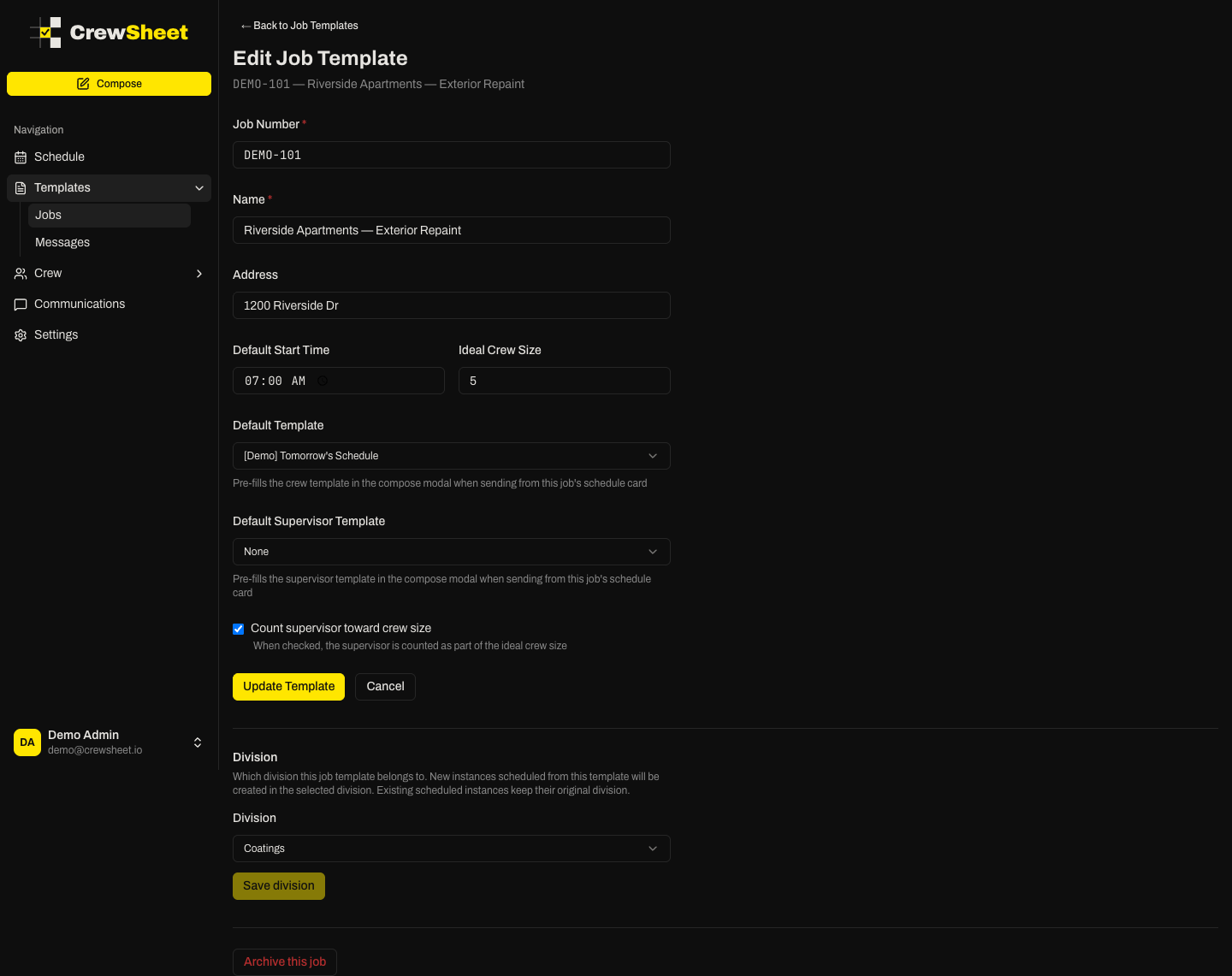
Click any row (or its Edit button) to change a job's details. When a job wraps up, archive it from its edit page to hide it from the active list without deleting its history. Archived jobs can be brought back anytime with the Unarchive button.
Have a lot of jobs to add at once? See Importing jobs from a spreadsheet.