Importing crew from a spreadsheet
If you already keep your crew in a spreadsheet, you can bring everyone in at once instead of adding them one by one. CrewSheet reads a standard CSV file and auto-detects your columns.
Preparing your file
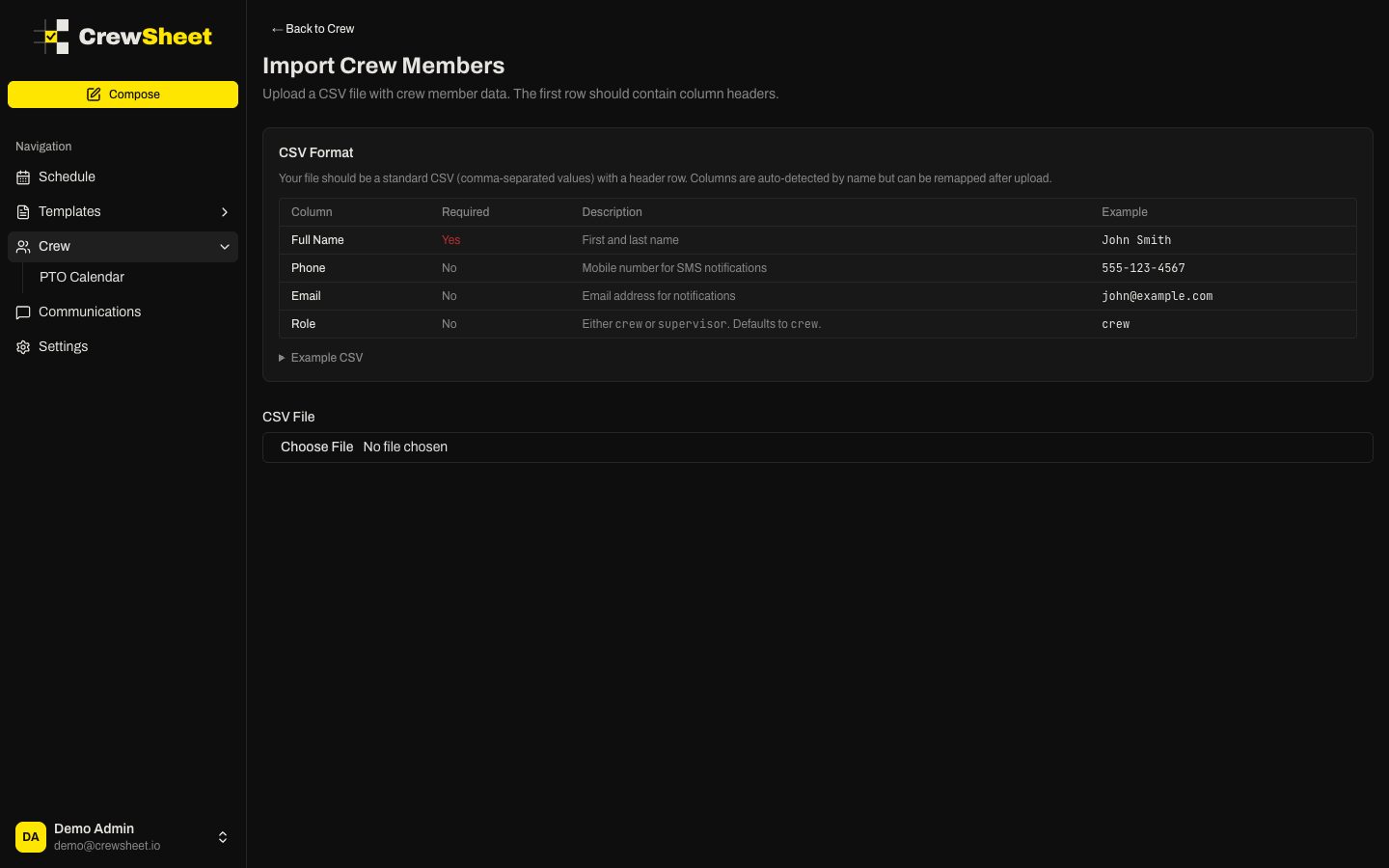
Save your spreadsheet as a CSV (comma-separated values) with a header row on top. CrewSheet looks for these columns:
- Full Name — required (e.g. John Smith)
- Phone — mobile number for SMS (e.g. 555-123-4567)
- Email — address for email notifications
- Role — either
creworsupervisor; defaults tocrew
Extra columns like Employee ID or Address are fine — you'll mark them as Skip during mapping.
Importing
- On the Crew page, click Import CSV.
- Choose your CSV File. CrewSheet reads the headers and guesses which column is which.
- Check the Column Mapping cards. For each column, confirm the matched field or pick a different one. Columns you don't need can be set to Skip.
- Review the Preview table — it shows the first 10 rows so you can catch mistakes before importing.
- Make sure at least one column is mapped to Full Name, then click Import Crew Members.
When it finishes you'll see how many succeeded. Click Go to Crew list to review the new members. Rows with no name are skipped automatically.
After importing
Open any member to add divisions, fix contact details, or adjust their role. See Managing crew.