Partial-day PTO
Not all time off is a full day. When someone has a dentist appointment at noon or needs the morning for a closing, record just those hours. They stay on the board for the rest of the day, and everyone can see when they're out.
Add PTO for part of a day
Partial-day PTO works on a single day only. A range of days is always whole days.
- Open the Add PTO form. You can drag across one day on a crew member's row in the PTO calendar, click + Add PTO, or use the PTO section on the crew member's edit page.
- Pick the crew member and set the Date Range to a single day, with the same start and end date.
- Uncheck All day. Time fields appear.
- Click Morning (7:00 AM to 12:00 PM) or Afternoon (12:00 PM to 5:00 PM), or type your own hours in the two time fields.
- Choose a Type and add Notes if you like, such as "Dentist".
- Click Add PTO.
The end time has to be after the start time. If you later change the entry to cover more than one day, the hours are cleared and it becomes a whole-day entry.
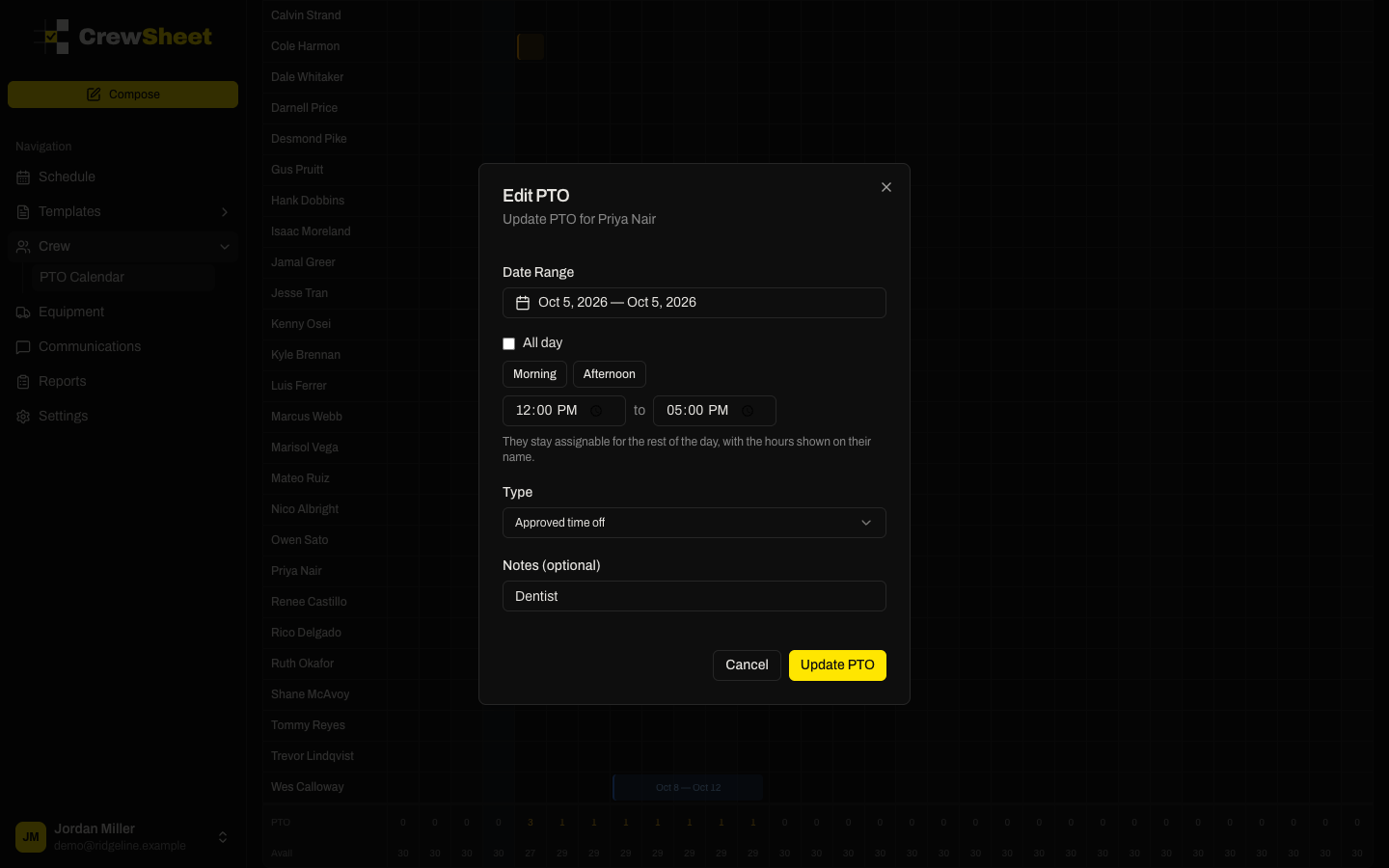
To change the hours, click the entry's bar in the PTO calendar, choose Edit, adjust the times, and click Update PTO. To turn it back into a full day, check All day.
How it shows on the schedule board
On the day board, a person with partial-day PTO stays in the crew pool with their hours on their name, for example PTO 12-5p. Hover their name to see "Off 12-5p" and any notes.
They also appear in the PTO strip at the top of the board with their hours, next to anyone who's off all day. On the week view, the PTO row shows the hours the same way.
The pool's "on PTO" count only includes people who are off for the whole day.
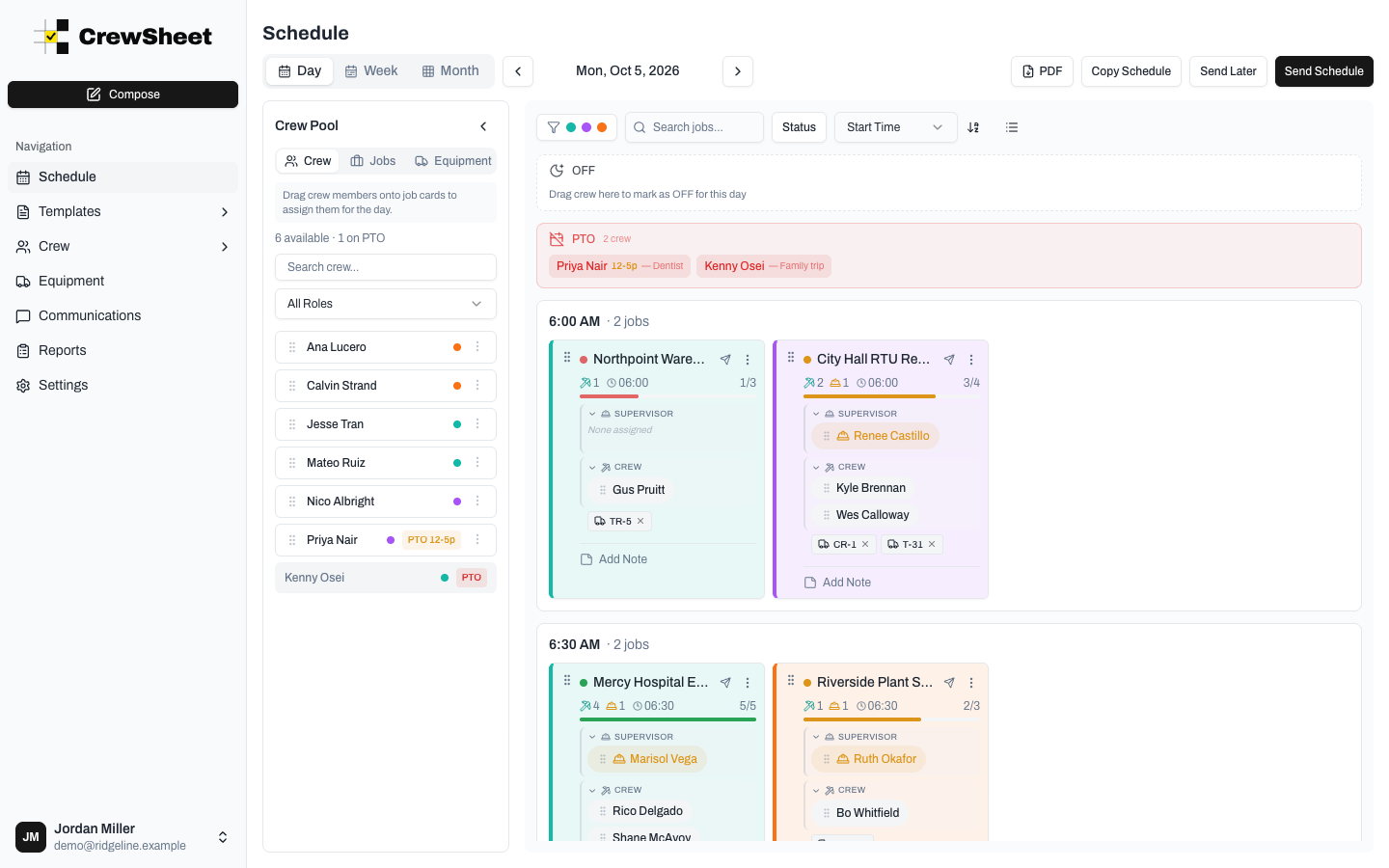
Assigning someone with partial-day PTO
Unlike a full day of approved time off, partial-day PTO doesn't gray the person out. You can drag them onto a job like anyone else. When you do, CrewSheet shows a warning such as "Priya Nair is off 12-5p that day" as a reminder to check that the hours work for the job.
Telling the crew about it
To include someone's time off in their schedule text, add the Time Off variable ({time_off}) to your template. For partial-day PTO it fills in as, for example, "Off 12:00 PM-5:00 PM". See Message templates.
Weekly schedules and multi-day digests show the hours next to the person's job, for example "off 12-5p". A daily digest lists the person on their job and also in its PTO rows.
In the PTO calendar
Partial-day entries show as a half-height bar on that day, so you can tell them apart from full days. Hover the bar to see the hours, or click it and choose Edit to see them in the form. See The PTO calendar.