Equipment on the board
Put trucks and other units on jobs right from the day board, the same way you assign crew. The board flags a unit that's on two jobs or out of service, and the equipment goes out with the schedule in crew texts and digests.
Before you start, add your units on the Equipment page.
Open the Equipment tab
On the Day or Week view of the schedule, switch the sidebar to the Equipment tab (next to Crew and Jobs). It lists every active unit you can use on the jobs you're viewing: your division's own units plus shared ones.
Each unit shows its number and name, plus a tag when something needs your attention:
- A job label such as "#3104 Riverside Water Tower Lining" means the unit is already on that job for the selected day. 2 jobs means it's on two. Hover the tag to see which jobs they are.
- OOS means the unit is marked out of service. Hover it to see the reason.
Use Search equipment... to find a unit by number, name or type.
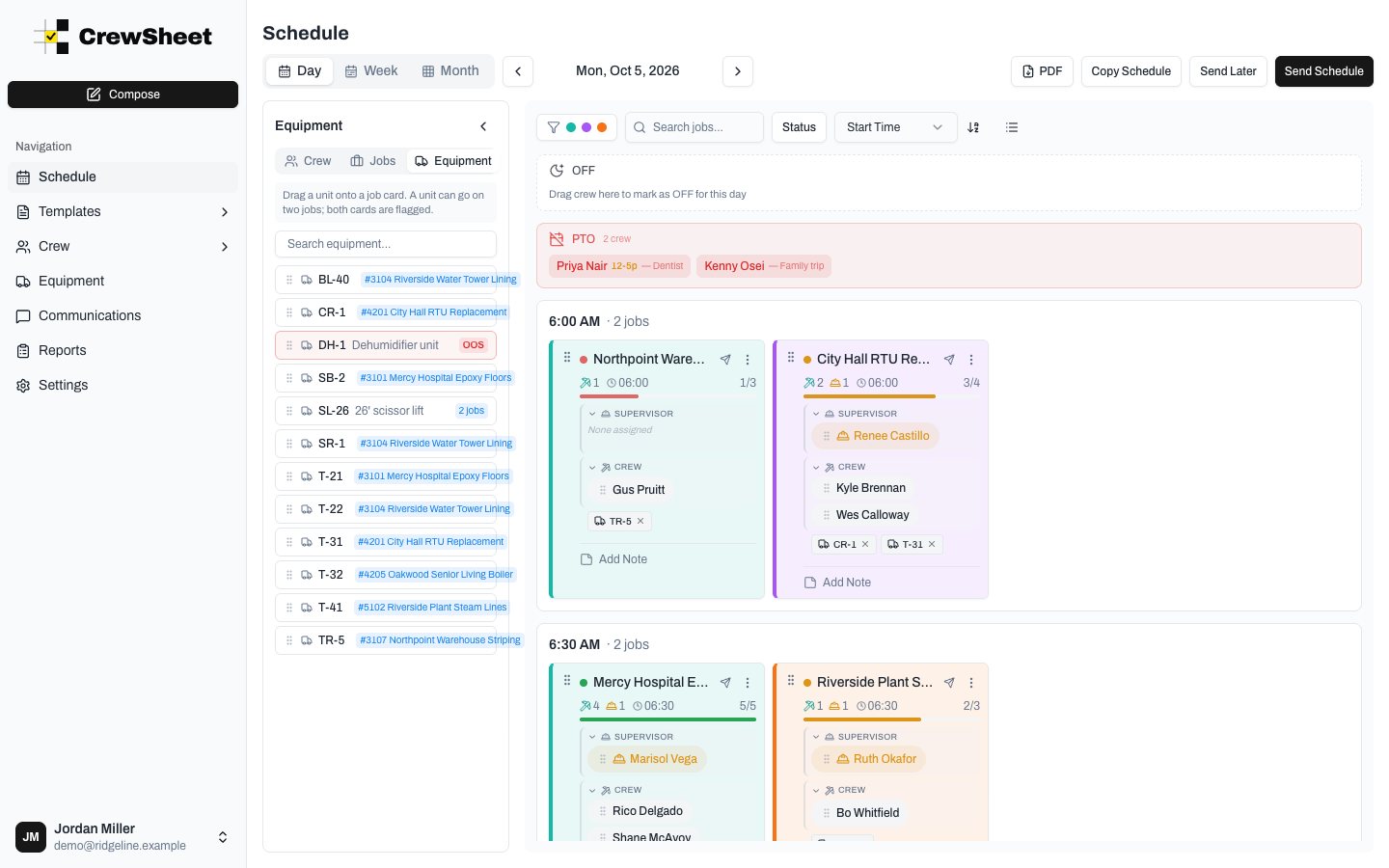
Put a unit on a job
- Find the unit on the Equipment tab.
- Drag it onto a job card.
- Release. A chip with the unit number appears on the card.
On the day board, the chips sit under the job's crew. In compact density the cards hide crew and equipment, so switch back to the expanded density to see the chips. On the week view, a card lists its unit numbers next to a truck icon, and its hover card shows the full chips.
A unit that belongs to one division can't go on another division's job. CrewSheet refuses the drop and tells you why. Shared units can go on any job.
Take a unit off a job
Click the × on the unit's chip. On the week view, hover the job card first and remove the unit from the hover card. To move a unit to a different job, remove it from the first job and drag it onto the new one.
Double-booked and out-of-service units
CrewSheet doesn't block either case, because sometimes a truck really does run two jobs. It warns you instead:
- Double-booked: if you drop a unit that's already on another job that day, a warning names the other job. The unit's chip turns red on both cards. Hover a red chip to see "Also on another job today".
- Out of service: if you drop a unit marked out of service, a warning shows the reason. Its chip is red on the card.
Double-booking is checked across every division, so a shared lift on a Coatings job and an HVAC job on the same day gets flagged on both.
Copying a schedule
When you copy a schedule, equipment comes along with its jobs. Units that are out of service are left behind so you don't send a truck that's in the shop.
Equipment in crew texts
To tell crew which truck to take, add the Equipment variable ({equipment}) to your schedule template. When the schedule goes out, it's replaced with the units on that person's job, for example "T-21 Service truck, TR-5 Equipment trailer". If the job has no equipment, it's left blank. See Message templates.
{equipment} is a job variable, so it fills in for daily schedule sends, send updates and scheduled sends, but not for announcements.
Equipment in digests
Digests list equipment automatically:
- A daily digest adds an Equipment column when that division has equipment on its jobs. Divisions that don't use equipment get the same digest as before.
- Multi-day digests show each job's units in brackets after the job name.
See Digest rules for setting up digests.