Day layouts and start times
The day board can lay out jobs in two ways: grouped by start time, or on an hour-by-hour timeline. You can also switch to compact cards to fit more jobs on screen. This page covers both layouts, the density toggle, and how to change a job's start time for one day.
Grouped or timeline
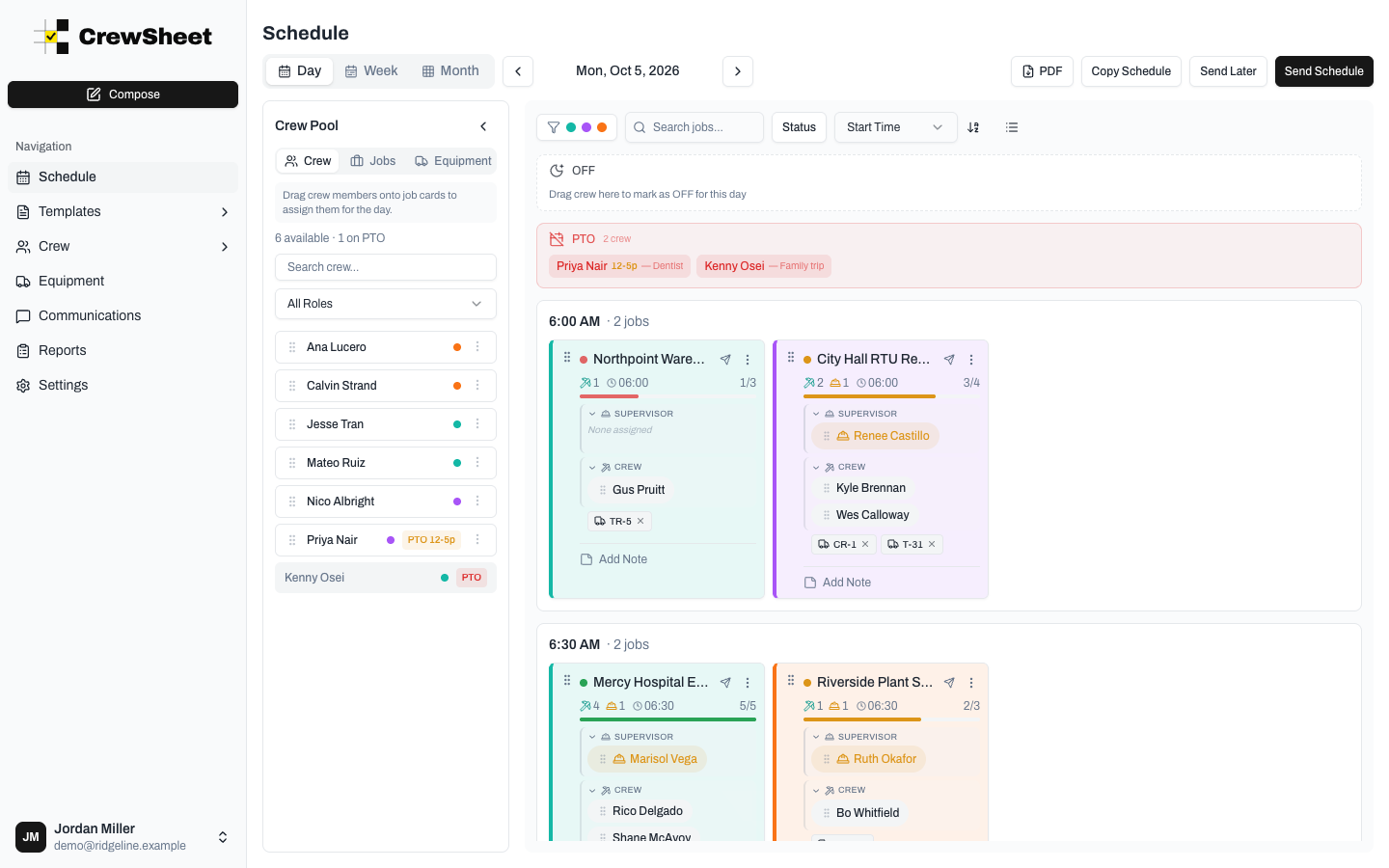
Grouped by start time lists jobs under a heading for each start time that has work, such as "6:00 AM · 2 jobs" and "7:00 AM · 4 jobs". Cards wrap side by side under each heading, and there's no hour grid. This suits crews that work full shifts: a job that starts at 7 and runs all day doesn't look like a short block on a calendar.
Timeline places each card on a 15-minute grid with hour labels down the left, so gaps between start times are easy to see. See Timeline and start times.
Both layouts keep the OFF and PTO strips at the top and an Unscheduled section for jobs with no start time.
Switch layouts
The layout is set for your whole organization.
- Go to Settings → Scheduling.
- Under Day View Layout, choose Timeline or Grouped by start time.
The change saves right away and applies to everyone's day board. See Scheduling settings.
Compact cards
Click the density button at the right end of the filter bar, next to the sort controls, to switch to compact cards. Compact cards show just the job name, start time, crew and supervisor counts, and staffing (for example 3/4). Crew lists and equipment are hidden and notes shrink to an icon, so more jobs fit on screen. You can still drop crew onto a compact card.
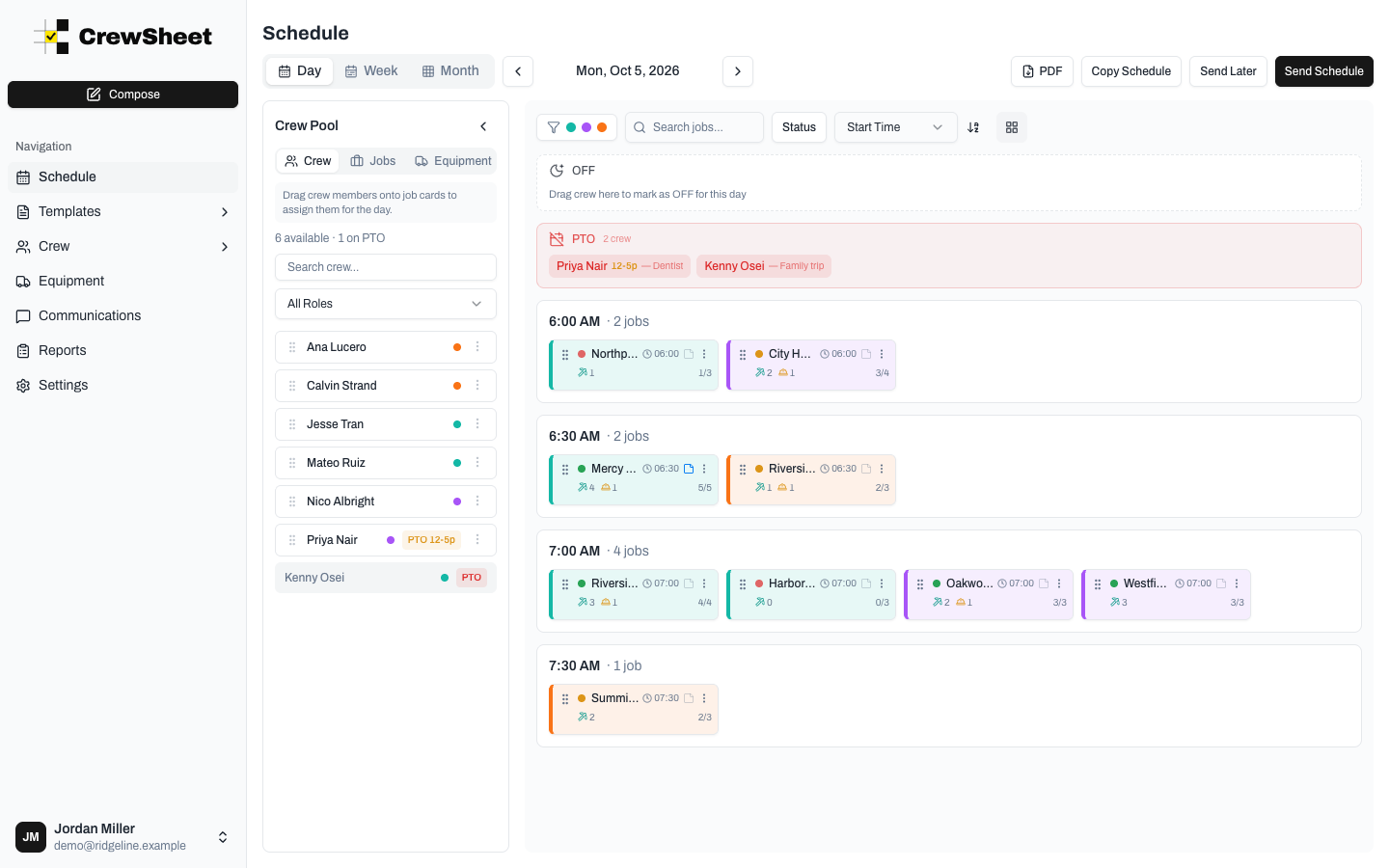
Click the button again to go back to the expanded cards. Density is just for you and applies to the week view too. Reloading the page brings back expanded cards. The button is hidden on phones.
Change a job's start time for one day
The start-time editor works in both layouts.
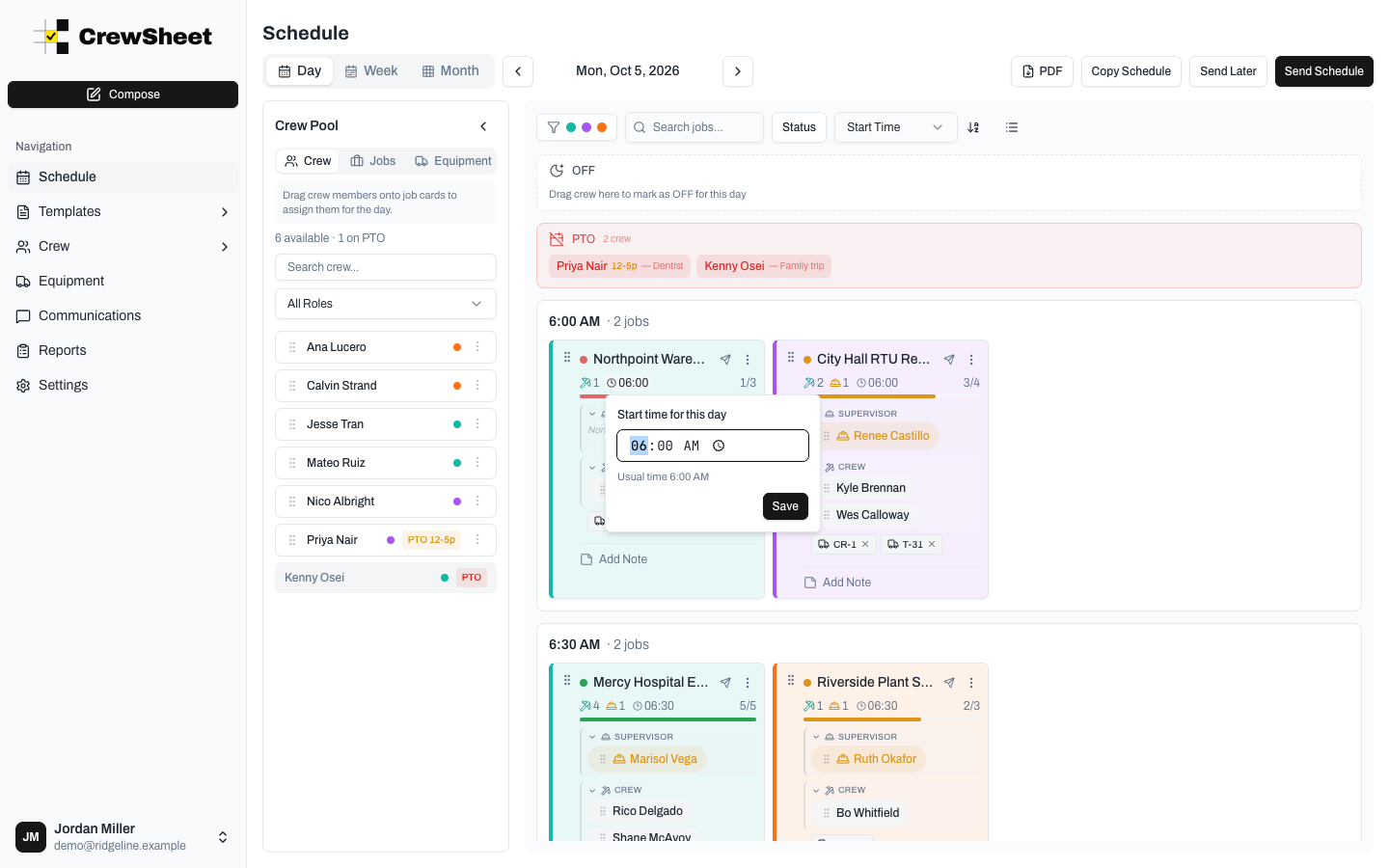
- Click the start time on the job card (the clock icon). In compact cards it's next to the job name.
- In Start time for this day, enter the new time. Below it you'll see the job's usual time, for example "Usual time 6:00 AM".
- Click Save.
The job moves to its new spot on the board. Changed times are highlighted on the card so you can tell them apart from the usual time. The change applies to the selected day only; the job keeps its usual start time on every other day.
To undo it, click the time again and choose Reset. The job goes back to its usual start time.
Move a job between start-time groups
In the grouped layout you can also drag a job card by its grip handle (on the left of the card) onto another start-time group. The job takes that group's time for the selected day, just as if you'd set it in the start-time editor.
Add a job in the grouped layout
Switch the sidebar to the Jobs tab and drag a job onto the board:
- To add it at its usual start time, drop it on the box at the top that says "Drop here to add it at its usual start time". This box appears only while you're dragging a job from the Jobs tab.
- To add it at a different time, drop it on the start-time group you want. It starts at that group's time for the day.
On a day with no jobs yet, the board says "No jobs on this day. Drag one in from the Jobs tab." Drop the job anywhere on that box and it's added at its usual start time.